Recurring orders
Plenty of purchasing is the same order, from the same supplier, on the same rhythm. With recurring orders, you save an order as a template once and put it on a schedule, and Zudello raises a new order for you every time it's due. This guide explains how to create a template, set its schedule, and manage it day to day.
Best practices
To get the most from recurring orders:
- Use recurring orders for purchases with consistent suppliers, line items, and quantities
- Check the schedule sentence before you save, to confirm it says what you meant
- Review each order the template raises before submitting it, as prices and quantities may have changed
- Pause a template during shutdown periods, instead of removing its schedule
- Check the generation history from time to time, to confirm orders are being raised when you expect
Required permissions
Recurring orders use the permissions you already have on purchase orders:
- To make an order recurring, you need permission to create purchase orders
- To set, change, pause, or remove a schedule, you need permission to create or update purchase orders
- To use Order now, you need permission to duplicate purchase orders
Recurring orders also need to be turned on for your purchase order document type. If you can't see Make recurring, see Configuring recurring orders or contact your organisation administrator.
Understanding recurring orders
A recurring order has two parts:
- Template
- A copy of an order that Zudello uses as the starting point for each new order
- Schedule
- The rhythm the template follows, such as every week on Friday or every month on the last day
When you make an order recurring:
- The order you started from is untouched, so amending or cancelling it doesn't affect the template
- Templates stay out of your approvals, budgets, contracts, and everyday searches, so they don't count towards your spend
- A template with no schedule reads Manual only, and you can still raise orders from it on demand
Every order a template raises:
- Is an ordinary purchase order with its own document number
- Starts in your team's default status for new purchase orders, which is usually Draft
- Is dated the day Zudello raises it, with the same gap between the order date and due date as the template
- Follows your normal purchasing document flow, including any approvals and automations your team has set up
Recurring orders don't submit, approve, or place an order for you. Unless your team has an automation that acts on new purchase orders, someone still needs to review and submit each order the template raises.
Making an order recurring
You can make any existing purchase order recurring.
To make an order recurring:
- Navigate to the Purchase Orders submodule
- Find and open the purchase order you want to repeat
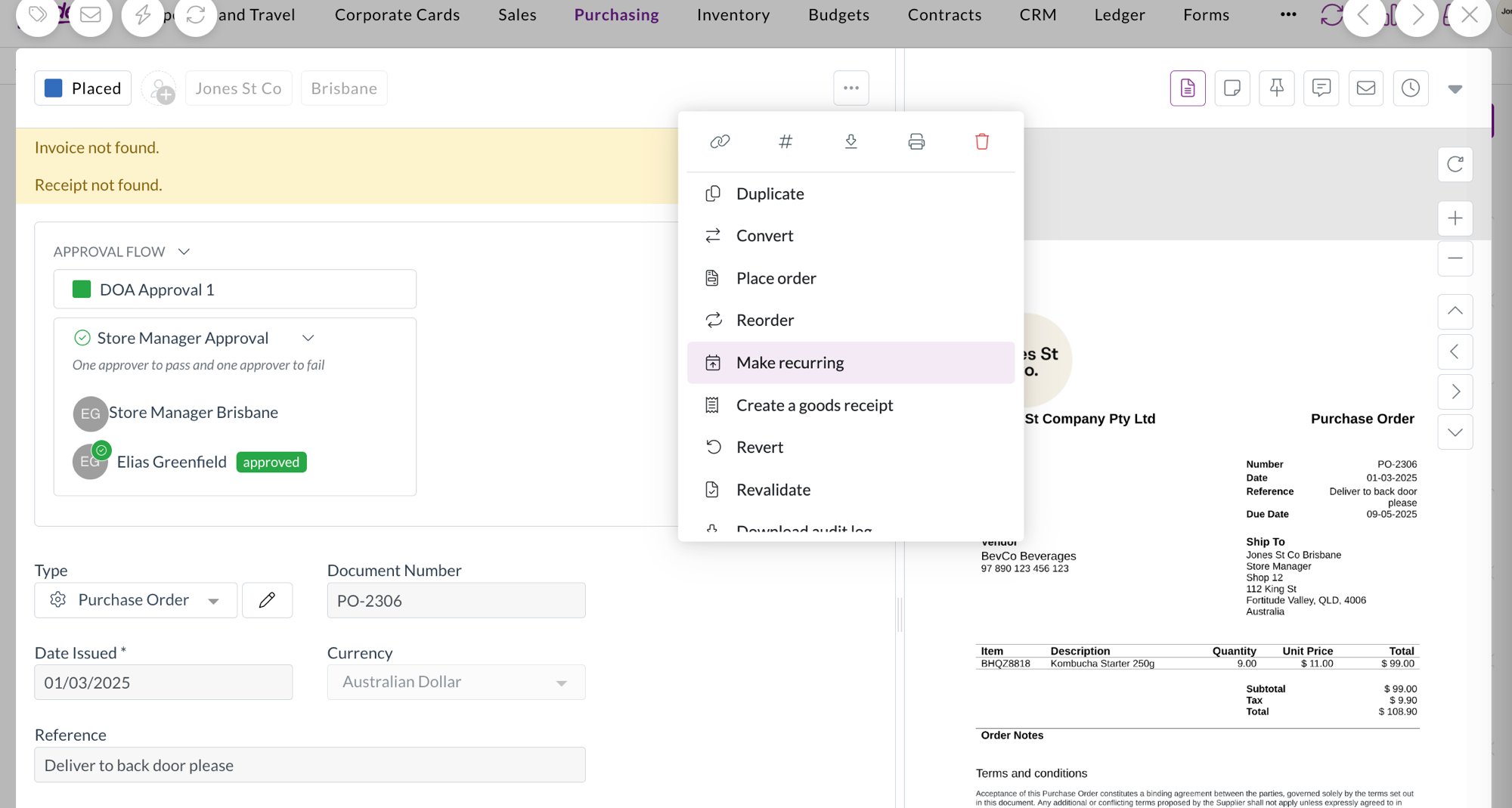
- Click ... at the top of the document
- Click Make recurring
- Next to First order, select the date and time you want Zudello to raise the first order
- Select how often the order repeats from the Repeats drop-down
- Check the schedule sentence at the top reads the way you expect
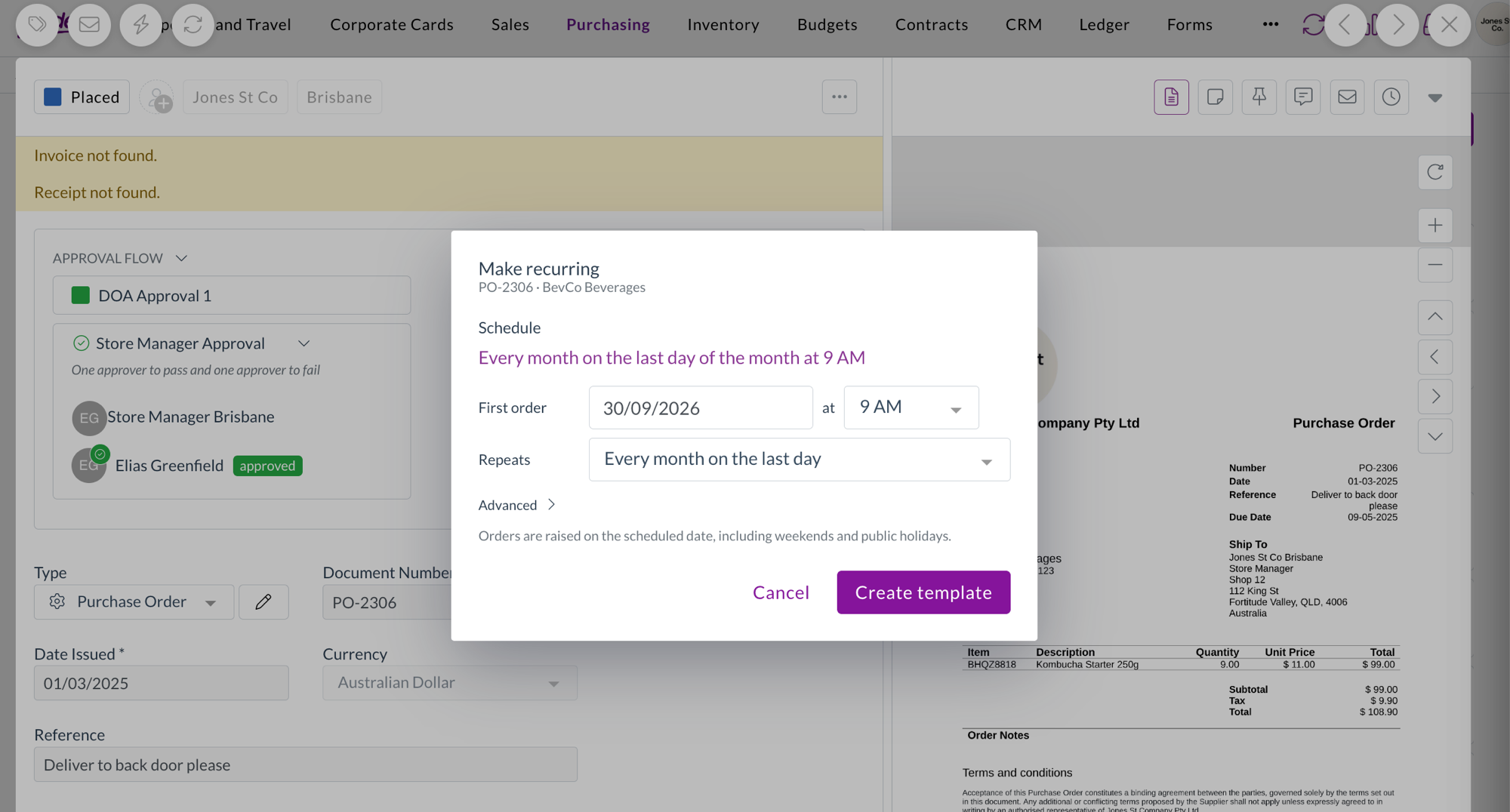
- Click Create template
- The new template will open automatically, showing its schedule and next order date
If you leave First order empty, Zudello saves the template without a schedule. You can add a schedule later from the template itself.
Choosing how often an order repeats
Zudello builds the Repeats options from the first order date you selected. For example, if the first order falls on Friday 27 November, you can select from options such as:
- Every week on Friday
- Every 2 weeks on Friday
- Every month on the 27th
- Every month on the last Friday
- Every 3 months on the 27th
For anything else, select Custom, then:
- Enter a number next to Every, and select days, weeks, or months
- For a monthly schedule, select one or more dates next to On the, such as the 15th and Last Day together
To end a schedule or change its time zone, click Advanced, then:
- Select an option from the Ends drop-down:
- Never keeps the schedule running until you pause or remove it
- On a date stops the schedule after the date you select
- After stops the schedule once it has raised the number of orders you enter
- Select a different time zone from the Time zone drop-down if the schedule shouldn't follow your team's time zone
Weekends and public holidays
Your team decides what happens when an order lands on a weekend or public holiday: Zudello can raise it the day before, the day after, or on that day anyway. Every schedule shows the rule that applies underneath it.
This is a team setting, so it applies to every schedule in your team. See Configuring recurring orders for details.
Finding your templates
Templates live in the same list as your purchase orders.
To view your templates:
- Navigate to the Purchase Orders submodule
- Click ... on the toolbar above the list
- Click Recurring templates
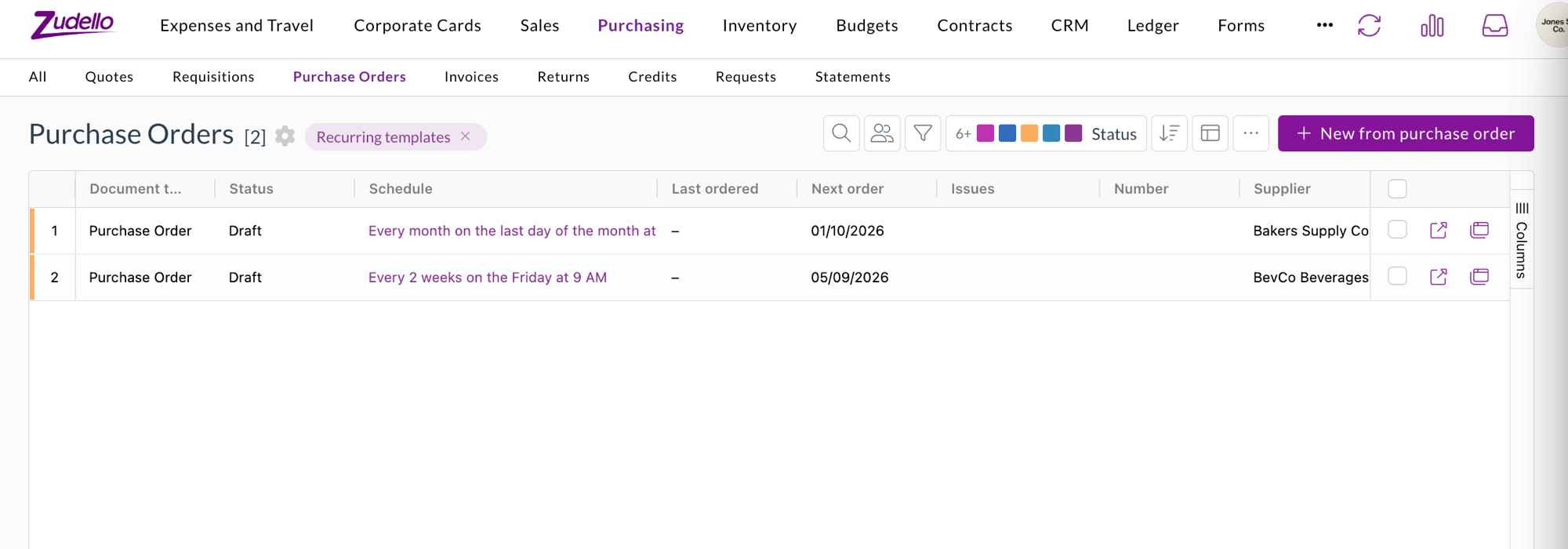
The list switches to your templates, using the same grid you already know, with your column picker, sorting, grouping, and saved views. Three columns show where each template stands:
- Schedule
- Shows the schedule as a sentence, or Manual only if the template has no schedule
- Last ordered
- Shows when the template last raised an order
- Next order
- Shows when the next order is due, or Paused or Schedule ended if no order is coming
To return to your purchase orders, click X next to Recurring templates at the top of the list.
Creating a template from the templates list
While you are viewing your templates, you can also create a template without opening the order first:
- Click New from purchase order
- Search for the order by number, date, supplier, or total
- Select the order you want to repeat
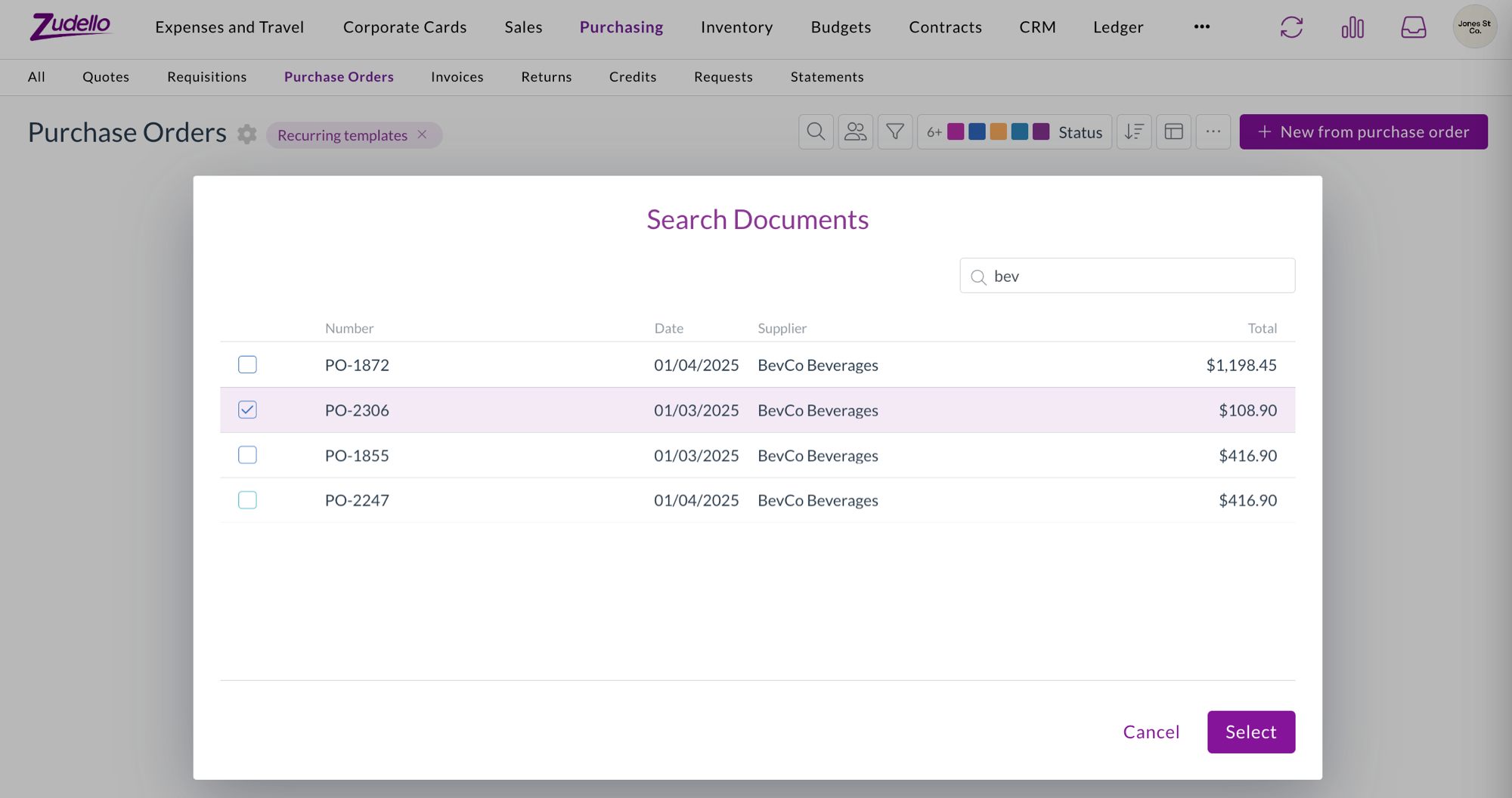
- The new template will open, ready for you to set its schedule
Managing a template
Open a template from the templates list to manage it.
Raising an order on demand
To raise an order straight away, whether or not the template has a schedule:
- Open the template
- Click Order now
- Click Order now to confirm
The new order arrives in your team's default status for new purchase orders, and the template and its schedule are unchanged.
Changing a schedule
To change a template's schedule:
- Open the template
- Click the schedule sentence under Schedule
- Update the first order date, how often it repeats, or the Advanced options
- Click Update schedule
For a template with no schedule, follow the same steps and click Save schedule.
Pausing and resuming a schedule
Pausing a schedule stops Zudello raising orders from the template, without losing the schedule.
To pause a schedule:
- Open the template
- Click Pause
- Click Pause to confirm
A paused template shows a Paused tag, and the templates list reads Paused in place of the next order date. To start the schedule again, click Resume. Orders carry on from the next scheduled date.
You can also pause or resume a schedule by clicking the pause or play icon at the end of the template's row in the templates list.
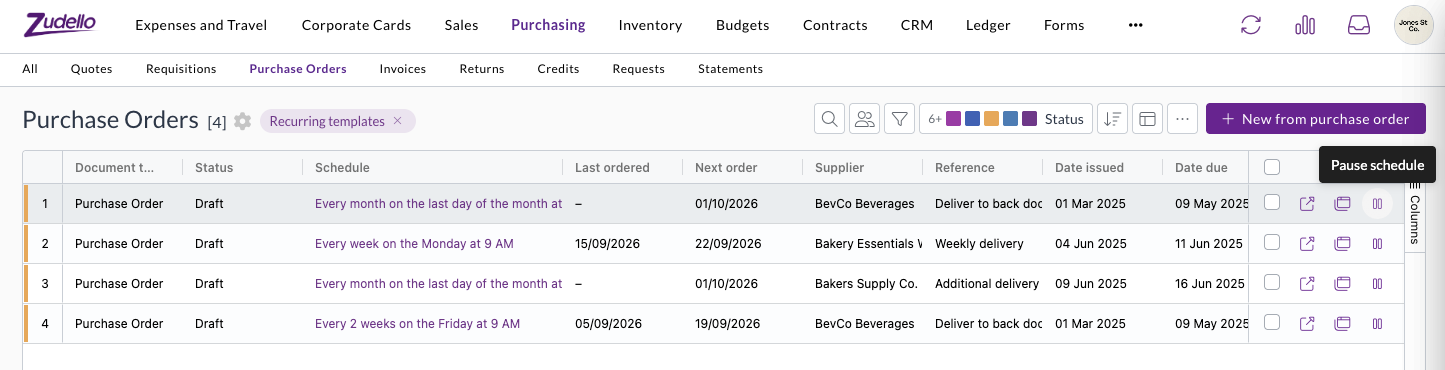
Orders that fall due while a template is paused are skipped. Zudello doesn't raise them later when you resume. If you need one of those orders, use Order now.
Removing a schedule
To stop a template raising orders for good:
- Open the template
- Click the schedule sentence under Schedule
- Click Remove schedule
- Confirm the removal
The template returns to Manual only. Order now keeps working, and you can schedule the template again later.
Viewing the orders a template has raised
Every template opens on a Generation history panel, which lists each order the template has raised, with its status, total, supplier, and who raised it.
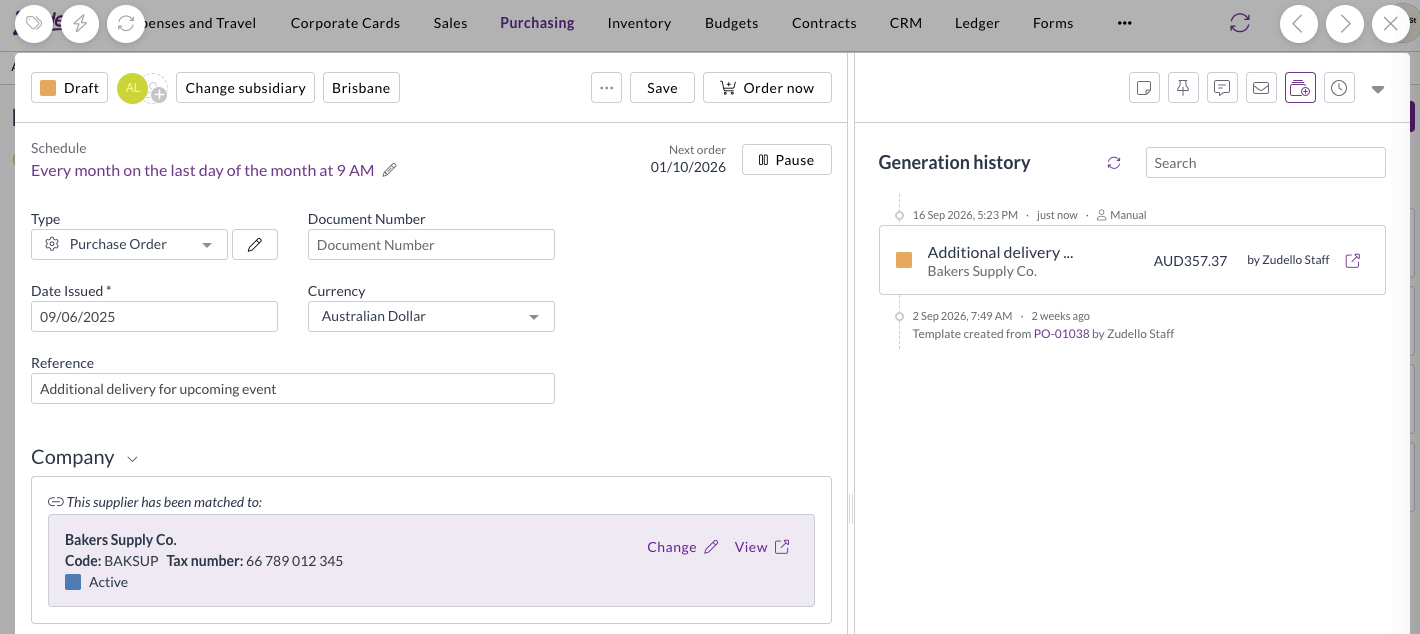
In the panel:
- Orders the schedule raised are marked Scheduled run
- Orders someone raised with Order now are marked Manual
- The last entry shows when the template was created, and the order it was created from
To open an order, select it from the list. Click Back to return to the template. To find a particular order, type into the search box at the top of the panel.
Need help?
Contact your organisation administrator or Zudello support for assistance with recurring orders, schedules, or permissions.