Document Studio in Zudello
Document Studio gives you complete control over how Zudello extracts information from your documents, ensuring you get all the information you need without manual work.

In this guide
- When to use Document Studio
- Understanding workflows
- Understanding prompts
- Creating and editing workflows
What is Document Studio?
Document Studio is an optional feature that lets you customise how Zudello reads and extracts information from your documents.
Zudello's standard extraction handles most documents automatically. But maybe your supplier's invoices follow an unusual format, or you need to extract specific data that's buried inside another field. That's where Document Studio comes in.
Rather than relying on Zudello's default behaviour, Document Studio lets you describe exactly what to look for and how to interpret it, giving you complete control over the document extraction process.
When to use Document Studio
Document Studio is a powerful tool, but using it too much introduces unnecessary complexity to your Zudello team. While Document Studio can be used in many cases, there may be other features that are better suited for the task.
Before turning to Document Studio, first ensure that no other feature can solve the problem more easily. The table below details a number of example scenarios, and whether Document Studio is the best feature for the task:
| Scenario | Document Studio required? | Feature to use |
|---|---|---|
| A supplier's documents follow an unusual format that standard extraction doesn't handle correctly | Yes ✅ | — |
| You want to apply coding like subsidiary or location to all documents from a specific inbox | No ❌ | Inbox defaults |
| You want to automatically consolidate all lines on a certain supplier's invoices | No ❌ | Consolidate lines function |
| The information you need is buried within another field, for example a stock code embedded inside a description field | Yes ✅ | — |
| The data you need follows a consistent pattern you can describe precisely, but Zudello isn't picking it up automatically | Yes ✅ | — |
| You want to automatically code documents from a specific supplier to a particular GL account and tax rate | No ❌ | Supplier defaults |
Accessing Document Studio
To access Document Studio:
- Click the company menu at the top right of your screen
- Click Settings
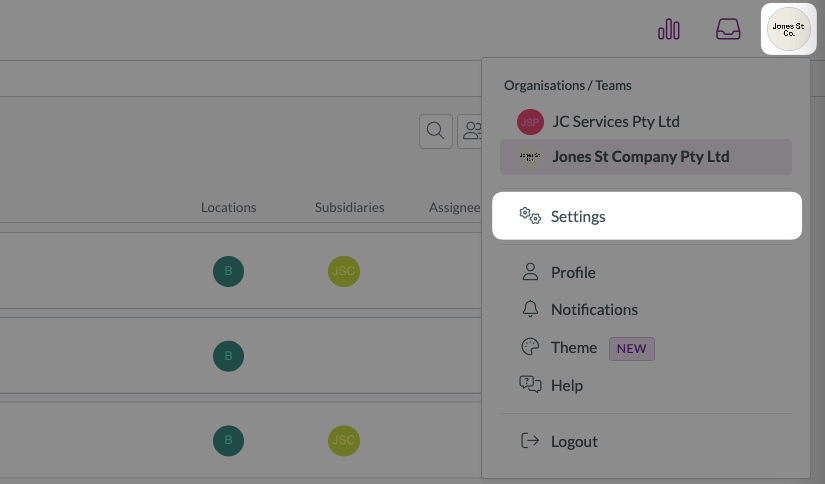
- In the left sidebar, scroll down (or search for) and click Document Studio
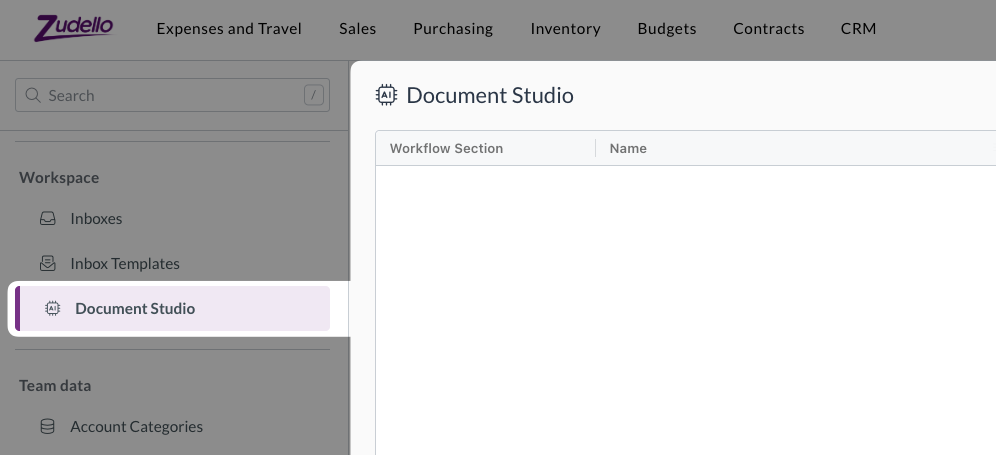
If you can't see Document Studio as an available option within the settings menu, you may not have the appropriate permissions.
Contact your organisation administrator to discuss enabling the required permissions.
Required permissions
To view Document Studio workflows you need the following permissions:
- Document Studio Visible
- Document Studio Workflow View
- Document Studio Prompt View
- Document Studio Example View
- Document Studio Document View
Additionally, to edit Document Studio workflows and prompts you need the following permissions:
- Document Studio Workflow Update
- Document Studio Workflow Publish
- Document Studio Prompt Update
- Document Studio Prompt Complexity
- Document Studio Example Update
- Document Studio Document Upload
Contact your organisation administrator to discuss enabling the required permissions.
What's next?
New to Document Studio? → Understanding workflows
Ready to build? → Creating and editing workflows
Need help?
Contact your organisation administrator or Zudello support for assistance with Document Studio.