Understanding prompts
Prompts are the instructions you write to tell Zudello how to extract specific fields from your documents. Understanding how they work, and how to write them well, is key to getting reliable results from Document Studio.
What is a prompt?
When a document arrives in Zudello, Document Studio processes it through a large language model (LLM) along with a series of prompts. The LLM reads each prompt, applies it to the document, and returns a series of extracted values.

Think of a prompt as a single, precise instruction for extracting a value from a document. Document Studio reads your instruction, applies it to the document, and tells you what it found.
How large language models (LLMs) work
You don't need a deep understanding of LLMs to use Document Studio, but a basic grasp of how they work will help you write better prompts.
LLMs are trained on vast amounts of text and learn to understand and generate language. When you write a prompt, the LLM reads it the same way a person would. It interprets meaning, follows instructions, and uses context to give you a useful answer.
This means that prompts work best when they're written the way you'd naturally explain something to a person. Clear, conversational English produces better results than technical syntax or shorthand.
Anatomy of a prompt
Each prompt in Document Studio has the following components:
- Field name
- Complexity
- System or overridden label
- Body
- Output (used in testing only)
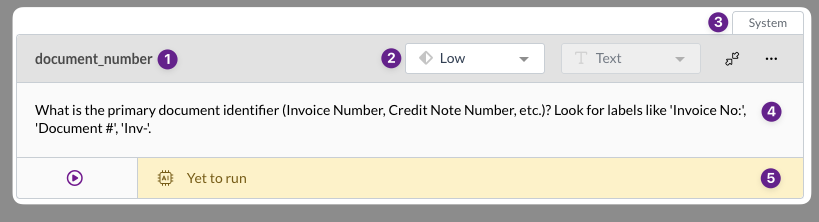
Field name
The top left of each prompt shows the system name of the field within Zudello that this prompt populates, for example document_number or date_issued.
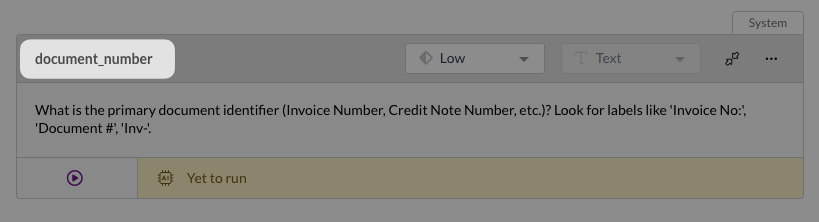
This field name may not exactly match what you see in the document viewer. If you are unsure of a field name, please contact your organisation administrator or support@zudello.com.
Complexity
Next to the field name, you'll see the complexity setting for that prompt. Complexity determines how much computing power Zudello uses when running the prompt. You can hover over the complexity indicator to see more detail.
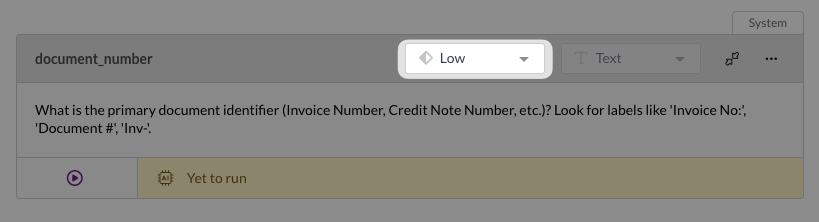
The three complexity levels are:
| Level | When to use it |
|---|---|
| Low | For simple, direct lookups. E.g. finding the document number. |
| Medium | For prompts that may require some interpretation. E.g. finding the due date. |
| High | For prompts with complex logic or cross-field analysis. E.g. detecting all taxes and adding them as separate line items, or summarising the invoice and listing all line items in the first line's description |
Always start with the lowest complexity level that might work, then move up only if you don't get the results you want. Higher complexity prompts use more resources, and can slow down document processing for your team, so only use when the task genuinely requires it. If you are unsure of which complexity level to use, use the same level as the system default prompt.
System or Overridden label
Each prompt shows whether it's a System prompt (the default that Zudello uses out of the box), or a prompt that you've Overridden.
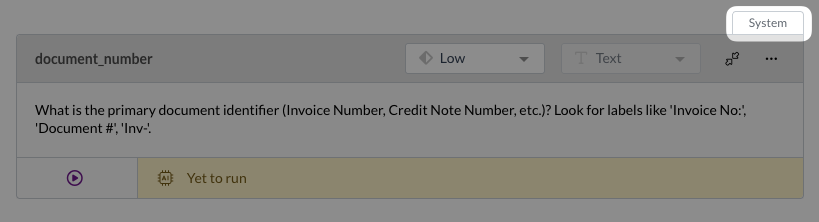
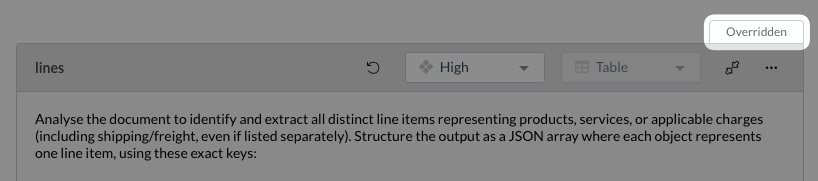
You don't need to manually adjust this field. As soon as you override a system prompt, the indicator updates to reflect that.
Prompt body
The main text field contains the prompt itself. This is the instruction the LLM reads when processing each document.
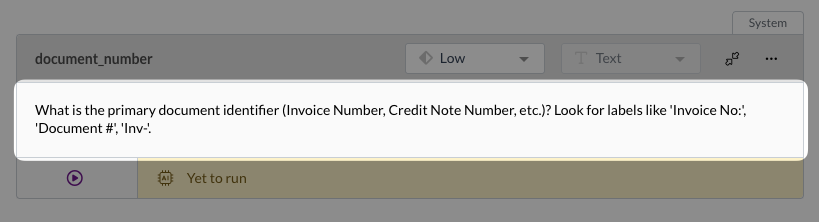
A well-written prompt reads like a natural sentence, and includes examples or common things to look for where relevant. Use natural language, like your writing instructions for another person. Don't use shorthand, abbreviations, or technical terms that are specific to your organisation. For more info on this, see Writing effective prompts below.
Here are two examples of a prompt to find the document total:
A good prompt ✅
- Extract the final total amount due for the document, inclusive of tax (e.g., 'Total Amount', 'Amount Due', 'Total Incl.').
A bad prompt ❌
- Find doc total, inc GST
While some bad prompts may pass your initial testing, they will almost certainly come back to haunt you in future. Do yourself and your team a favour by writing clear, robust prompts every time.
Output
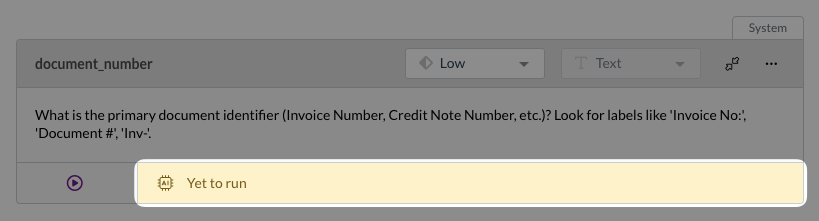
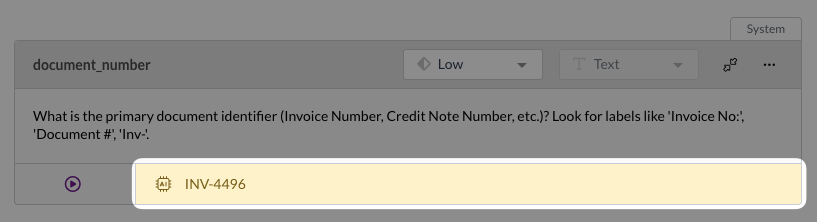
Below the prompt body, the output box shows the result returned by the LLM when you run a test. This is the value that would be extracted into the corresponding field in Zudello.
By default, this field will show as Yet to run until you run a test.
Writing effective prompts
The following principles will help you get the best results from your prompts.
- Write in plain, conversational English
- Prompts should read like a sentence you'd say to a colleague. Use correct grammar, standard punctuation, and normal spelling. Avoid shorthand, symbols, or technical syntax.
- Be explicit and specific
- Don't rely on the LLM to guess what you mean. If you're looking for an item code, say so and give examples of what it might look like.
- E.g. Look for an item code, product code, stock code, or SKU.
- Give examples where possible
- Rather than describing a concept abstractly, show the LLM what you're looking for. If a stock code always starts with a specific character and is always a certain length, say so explicitly.
- E.g. Look in the header for an eight-digit number starting with 9, and treat this as the PO Number.
- Keep it concise
- The simpler and more direct your prompt, the more efficiently it will run. Unnecessary words add processing time, so trim your prompts down to what's essential without losing meaning.
- Start with the system prompt
- Rather than starting from scratch, it's more effective to start with the system prompt and tweak it as needed.
- This gives you a baseline to work from and helps you understand what Zudello is currently doing and why.
Lines prompt
Line-level fields such as stock code, description, quantity, and unit price are grouped together in a single lines prompt rather than as individual prompts. Within this prompt, each field is defined separately. You may also see special instructions in the lines prompt that tell Zudello to exclude certain data, for example to ignore lines with a zero quantity or a zero total.
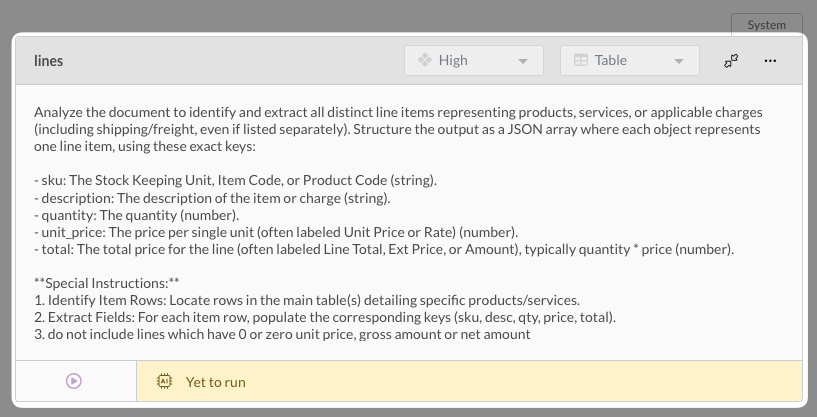
For complex fields like this, it is recommended to start with the system prompt and make small changes as necessary. This gives you a better chance of success than starting a new prompt from scratch.
What's next?
Now that you're across workflows, prompts, and how they fit together, you're ready to start creating and editing workflows in Document Studio.
→ Creating and editing workflows
Need help?
Contact your organisation administrator or Zudello support for assistance with Document Studio.