Configuring recurring orders
Recurring orders let your team save an order as a template and put it on a schedule, so Zudello raises it for them. This guide explains how to turn recurring orders on for a document type, which permissions your users need, and how to choose what happens when a scheduled order lands on a weekend or public holiday.
For the day-to-day steps your users follow, see Recurring orders and Recurring sales orders.
Best practices
- Turn recurring orders on only for the document types where your team raises repeat orders.
- Agree on your team's weekend and public holiday rule before users start creating schedules, as changing it later moves existing schedules too.
- Choose the public holiday calendar that matches where your suppliers or customers operate.
- Review who can create and update orders, as these permissions also control who can schedule them.
Understanding the configuration
Recurring orders have two pieces of configuration:
- Recur document extension
- Adds the Make recurring action to a document type, which saves a document as a template
- Scheduling setting
- Sets your team's public holiday calendar, and what happens when an order lands on a non-business day
Schedules are available on purchase orders and sales orders only. On other document types, the Recur document extension lets users save a template and create documents from it on demand, without a schedule.
Turning on recurring orders for a document type
The Recur document extension is turned on per document type, such as your purchase order or sales order document type.
- Navigate to Settings via the company menu.
- Click Document Types in the left sidebar.
- Select the document type you want to turn recurring orders on for.
- Click Edit.
- Go to the Extensions tab.
- Find the Recur document extension in the list.
- Turn on the Recur document extension.
- Click Update to save the changes.
Repeat these steps for each document type your team raises repeat orders on.
Required permissions
Recurring orders use your existing document permissions, so there are no separate permissions to assign. For each order type, users need:
- Create
- To see Make recurring, view the templates list, and create templates
- Create or update
- To set, change, pause, resume, or remove a schedule
- Duplicate
- To raise an order from a template with Order now
Users without create or update permission can still open a template and read its schedule, but can't change it.
Choosing what happens on weekends and public holidays
The Scheduling setting controls what Zudello does when a scheduled order lands on a non-business day. Weekends are always treated as non-business days, and a calendar adds its public holidays on top of them.
- Navigate to Settings via the company menu.
- Click Team Settings in the left sidebar.
- Find the Scheduling setting.
- Select your public holiday calendar from the drop-down, or select None, weekends only to skip weekends alone.
- Under If a date lands on a non-business day, raise it, select one of the following:
- Day before
- Raises the order on the last business day before the scheduled date
- Day after
- Raises the order on the next business day after the scheduled date
- That day
- Raises the order on the scheduled date, even if it's a weekend or public holiday
- Day before
- Check the sentence and worked example under the setting read the way you expect.
- Click Confirm to save the change.
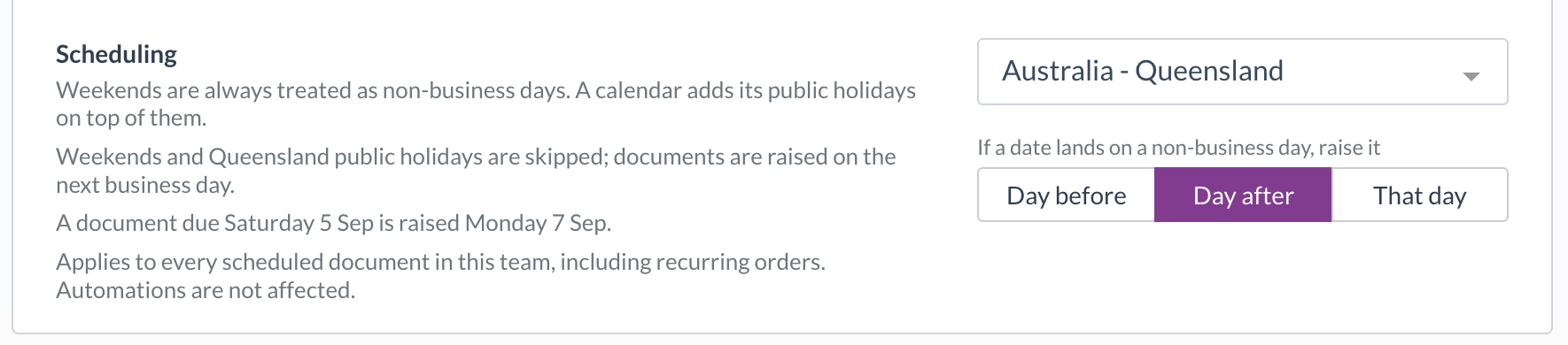
Calendars are available for each Australian state and territory, New Zealand, England and Wales, Scotland, Northern Ireland, and the United States.
The Scheduling setting applies to every scheduled document in your team, and can't be overridden on an individual schedule. When you change it, schedules that already exist are updated too, so their next order date can move.
Automations aren't affected by the Scheduling setting.
How it works
- A user opens a purchase order and clicks Make recurring.
- Zudello saves a copy of the order as a template. The original order is untouched.
- The user sets a schedule, such as every month on the last day.
- When the schedule falls due, Zudello checks your team's Scheduling setting, and moves the date if it lands on a non-business day.
- Zudello raises a new order from the template, with its own document number. The order starts in the document type's default status for create, or the template's status if no default is set.
- The new order follows your standard document flow. Recurring orders don't submit, approve, or place the order, but any automations you have configured for new orders still run on it.
Templates stay out of approvals, budgets, contracts, and everyday searches, so they don't count towards your team's spend.
Need help?
Contact your organisation administrator or Zudello support for assistance with configuring recurring orders.