Setting up contracts
Contracts are a powerful section of Zudello, but also very configurable. This guide teaches you to configure the contract sections and fields you need, and to control when and how your staff interact with contract contract exceptions and reminders.
This guide is for administrator users only. If you are a non-admin user seeking assistance with creating and viewing contracts, see Contracts overview.
Opening contract settings
Contracts are configured directly within the contracts module.
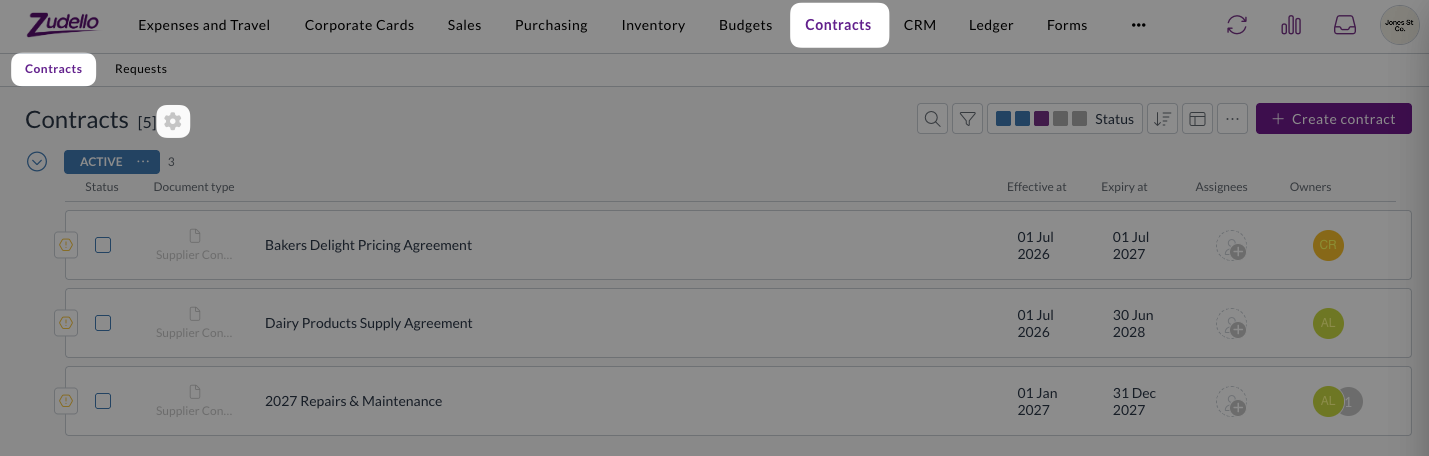
- Open the Contracts module.
- Click the Contracts submodule.
- Click the Settings icon in the top left of the page.
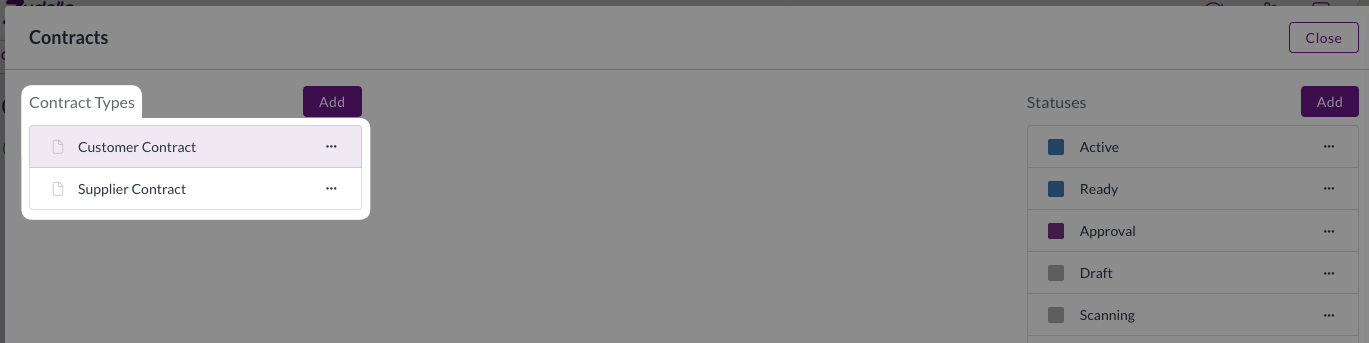
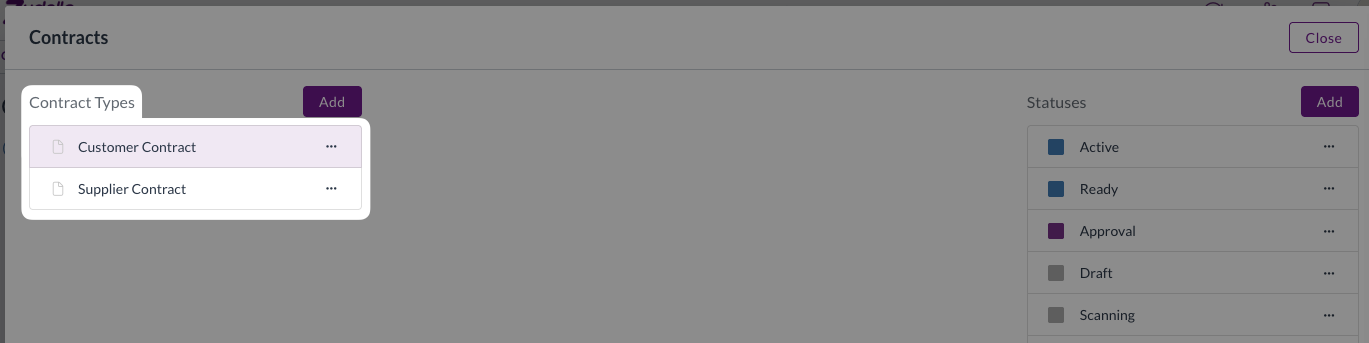
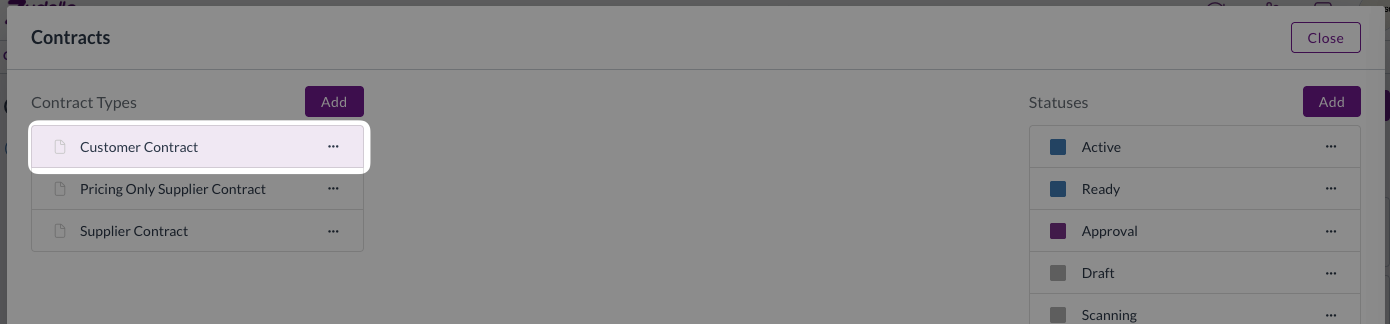
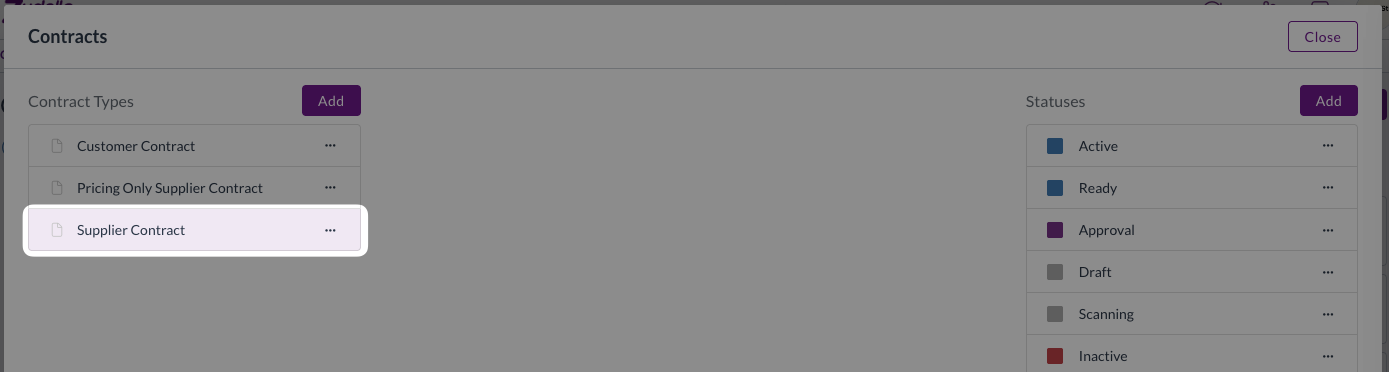
- Under Contract Types in the top-left, click the relevant contract type to open it.
Creating a new contract type
New contract types are created by duplicating an existing one, rather than being built from scratch. This reduces the work required and ensures that essential fields and exensions are enabled on all new contracts.
You can still add, edit, and remove fields as needed to suit your team's cirumstances.
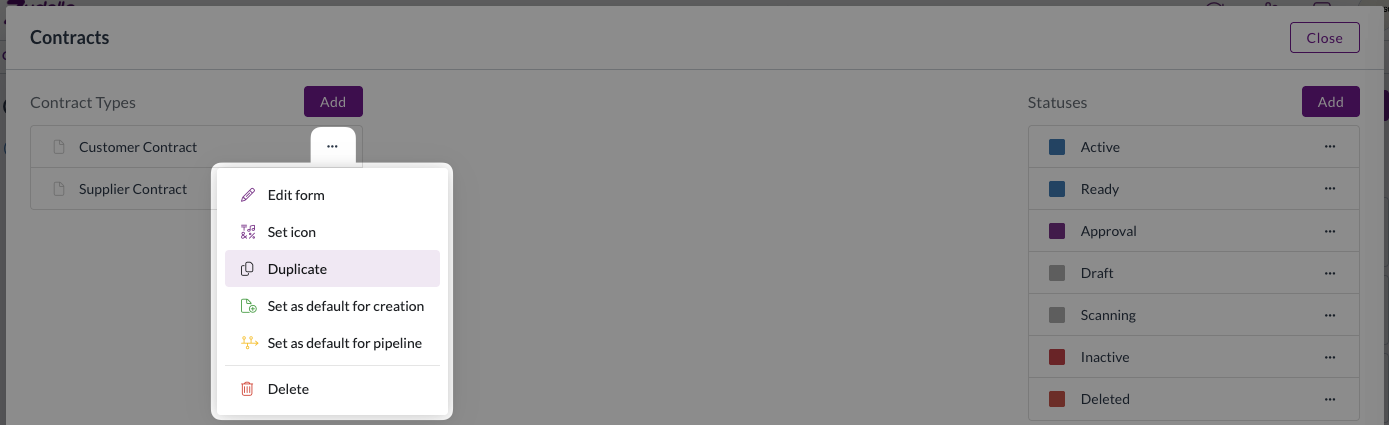
- From the contracts settings page, click ... next to the contract type you want to duplicate.
- Click Duplicate.
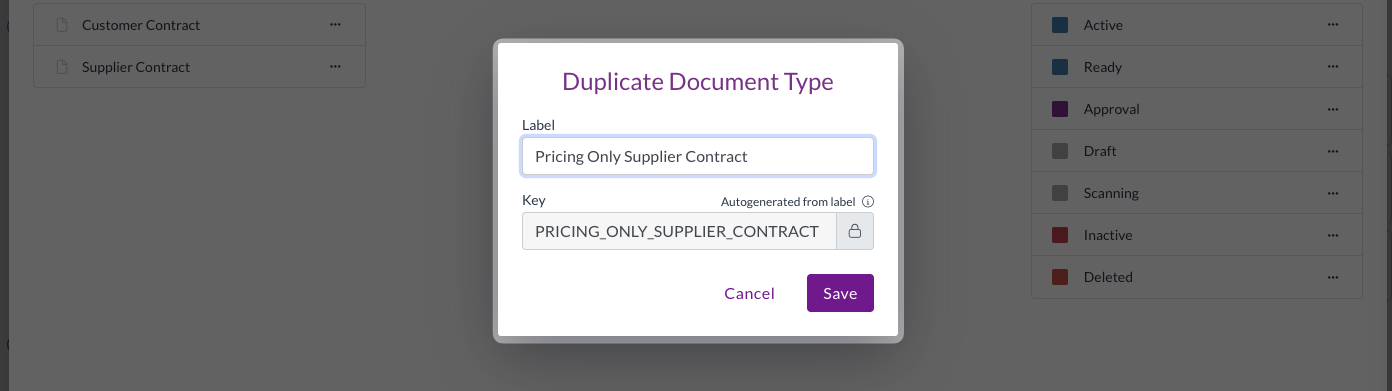
- Enter a name for the new contract type.
- Click Save.
- Click the new contract type in the Contract Types list.

- Make any required changes to the new contract type. See Setting up contacts below.
Setting up contracts
Choosing which sections to include
Along with standard systems sections like Header and Contact, there are two contract-specific sections that will be added to all contracts by default:
- Contract Pricing holds agreed prices (see Contract Pricing for more)
- Contract Thresholds holds spend and quantity caps (see Contract Thresholds for more)
You can remove a section if you will never use it for a contract type . For example, you may want to remove the Contract Thresholds section for a pricing-only contract type.
To remove a section:
- Open the relevant contract type (see Opening contract settings).
- In the left sidebar, click the section you want to remove.
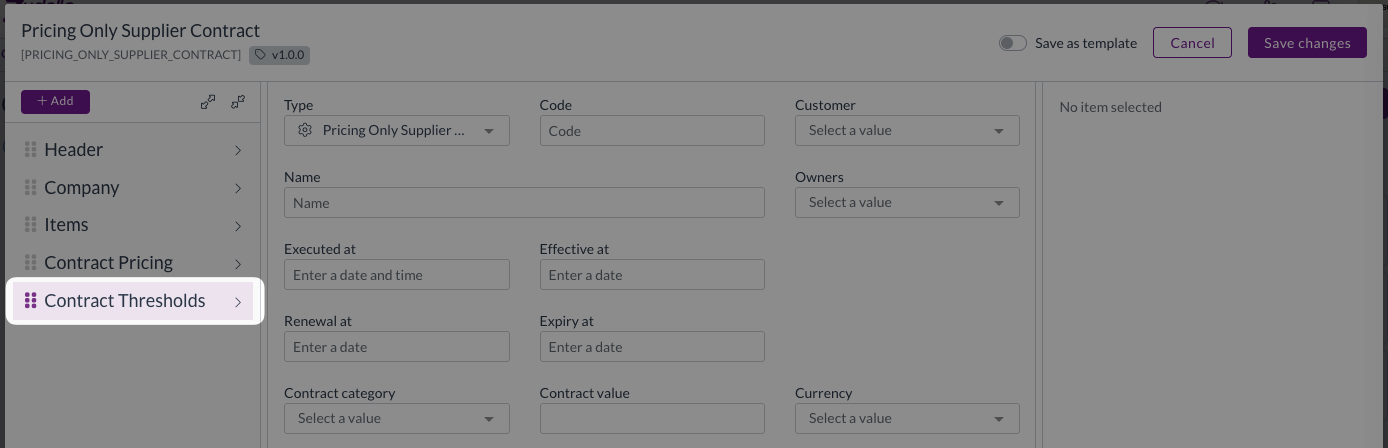
- In the right sidebar, click the delete (bin) icon.
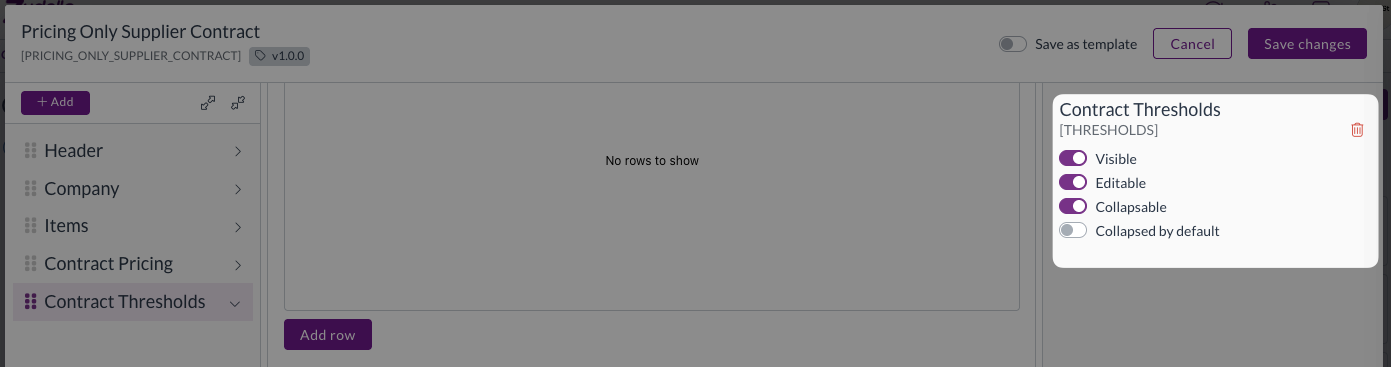
- Click Yes in the confirmation box.
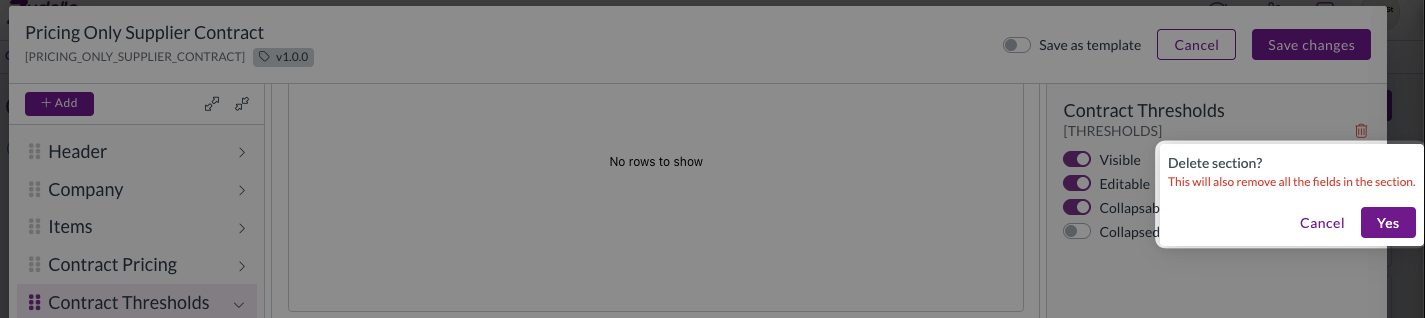
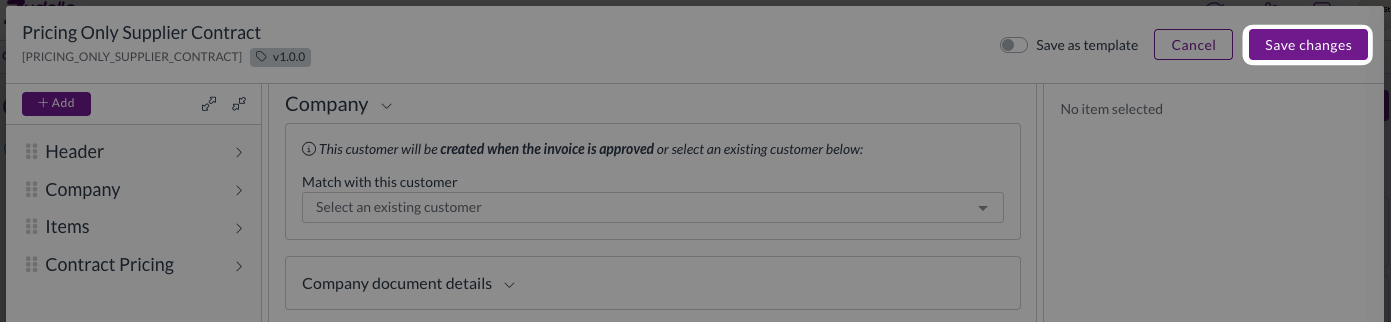
- The section will be removed from the form.
- Click Save changes.
Only remove sections that your team will never use for this contract type.
Choosing supplier or customer matching
Each contract is matched to either one supplier or one customer. Which of the two is used depends on the configuration. Supplier is used as the default if nothing is configured.
The type of contact matching is set this per contract type, rather than per contract. If your team handles both supplier and customer contracts, you should have a separate contract type for each.
Where the matched supplier or customer is set to overwrite contact details, matching also refreshes the contract's company name, tax number, email and phone from that record.
To adjust the type of matching:
- Open the relevant contract type (see Opening contract settings).
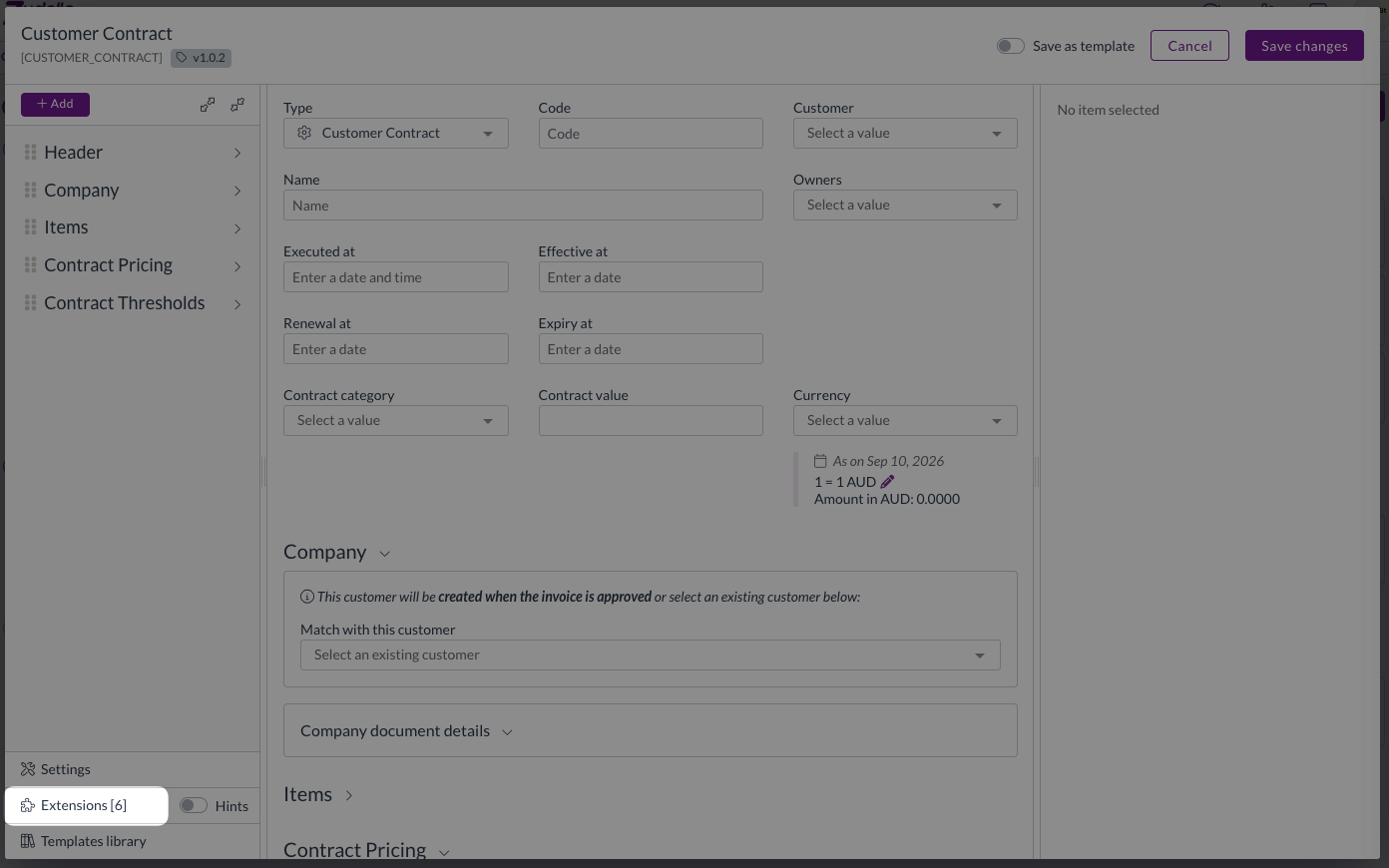
- Click Extensions.
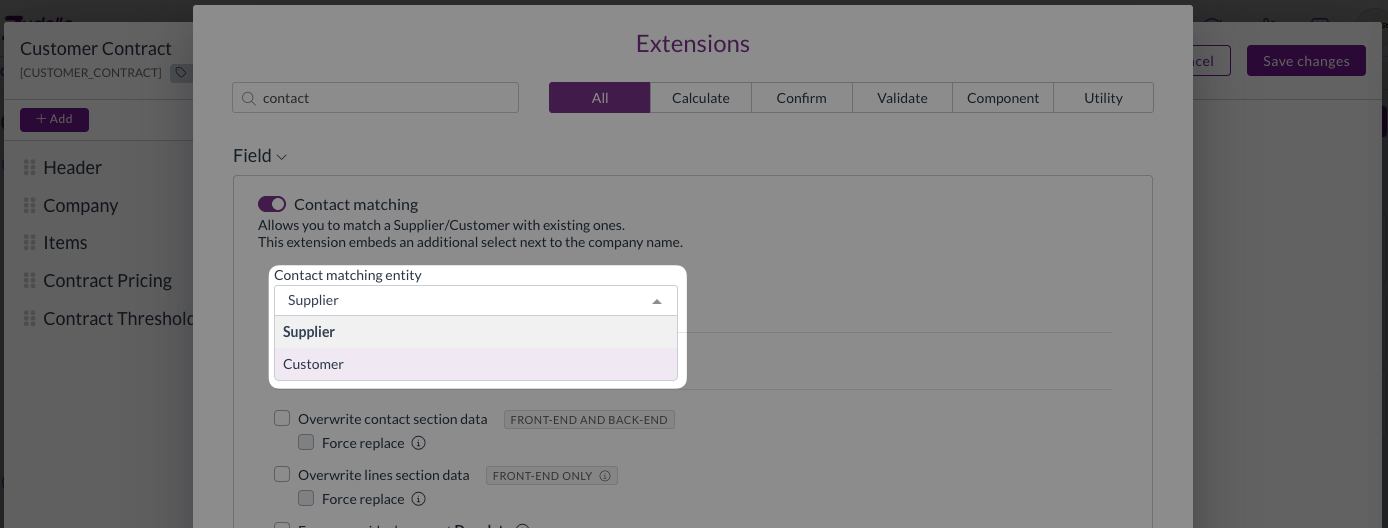
- Search for the Contact Matching section.
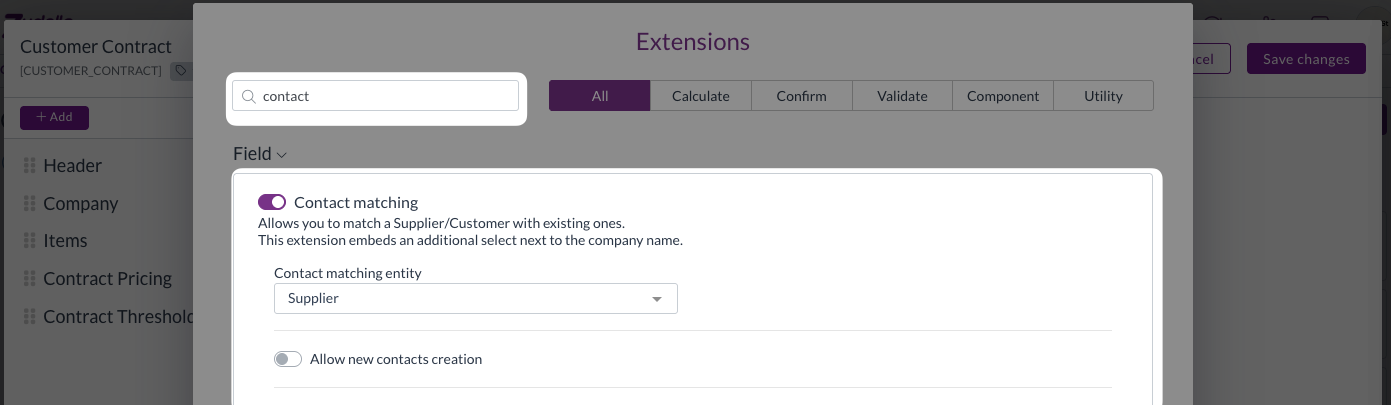
- Select the relevant option from the Contact matching entity drop-down.
- Click OK.
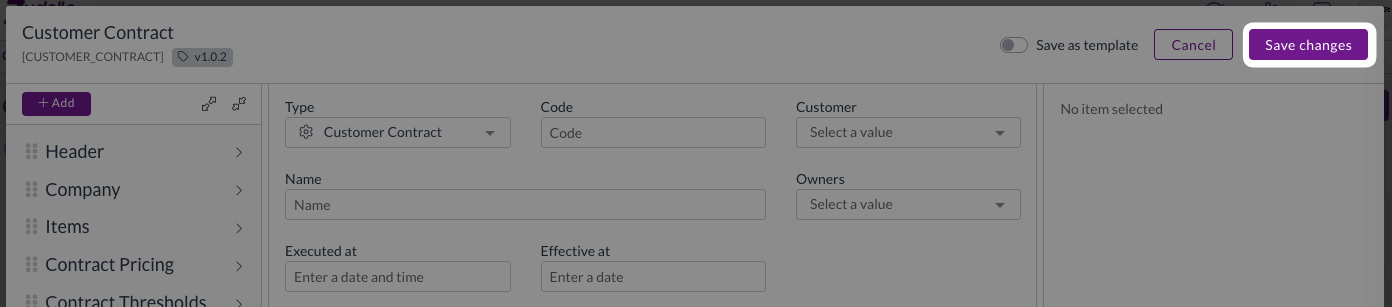
- Click Save changes.
Default reminders
Default reminders defined on a contract type are applied to every new contract of that type. This is the simplest way to configure different lead times for different contract types.
To add or edit a default reminder:
- Open the relevant contract type (see Opening contract settings).
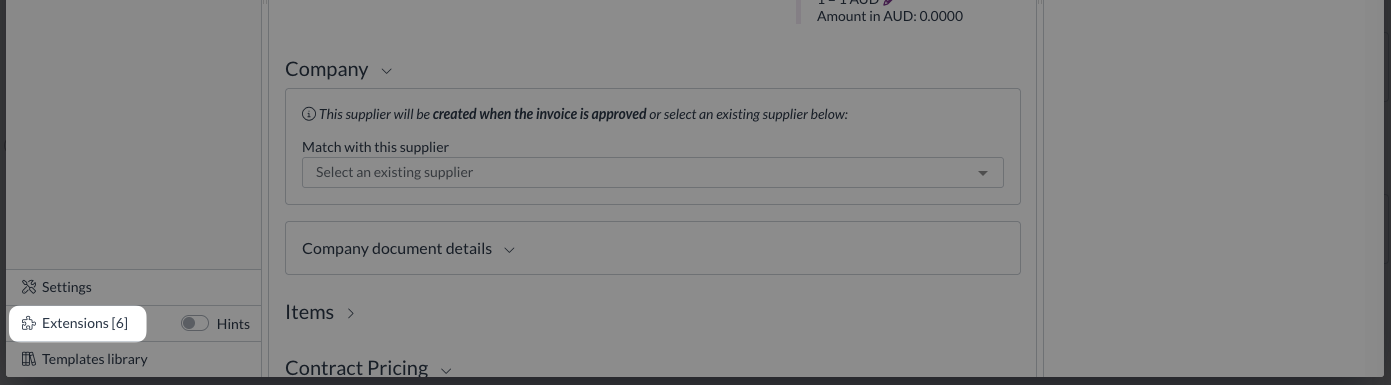
- Click Extensions.
- Search for the Reminders extension.
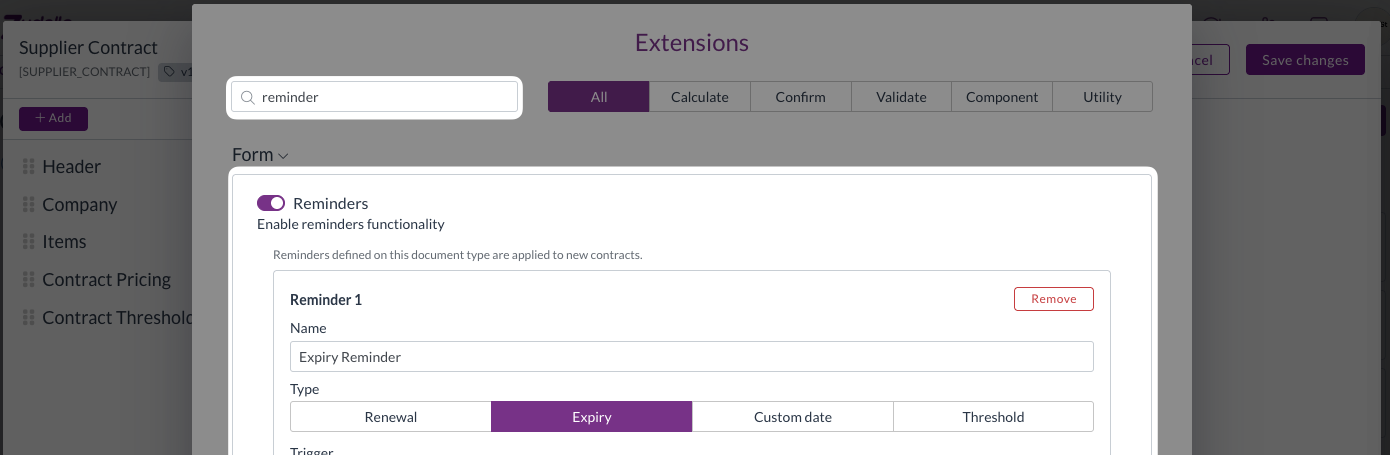
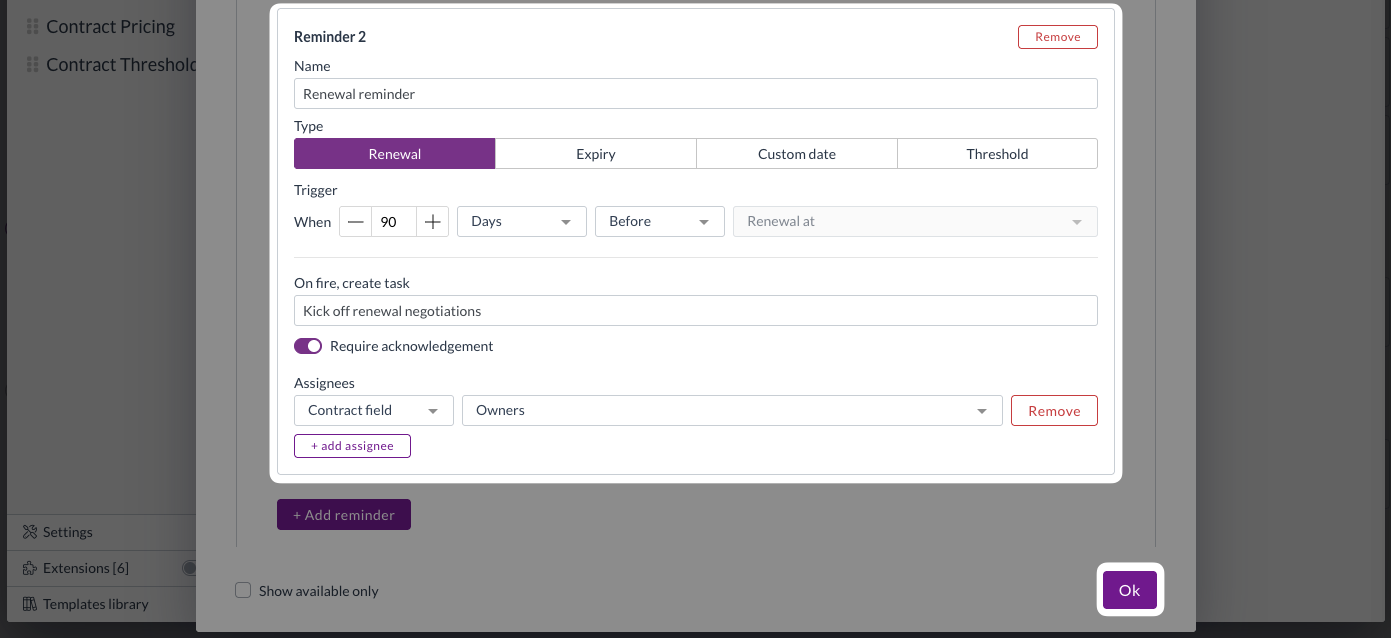
- Find the reminder you want to edit, or click + Add reminder to create a new one.
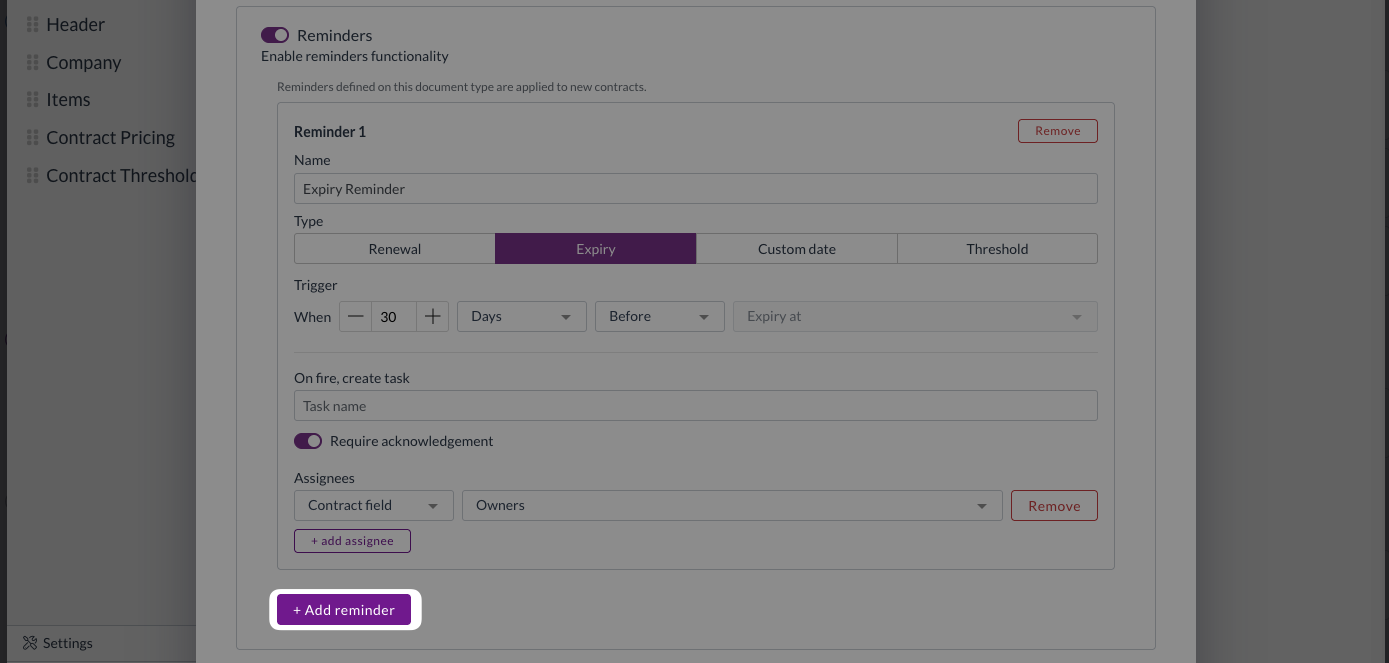
By default, most contract types will have a 30 days before expiry reminder applied.
- Enter a descriptive Name. This is what the reminder recipient will see in the email subject.
- Select the relevant type:
- Renewal: for reminders based on the contract's renewal date.
- Expiry: for reminders based on thge contract's expiry date.
- Custom date: For other dates. Custom date reminders also ask which date field to use.
Do not select Threshold type or the reminder will not function.
- Set the When parameters.
- E.g. 30 + Days + Before on a Renewal type reminder will fire 30 days before the contract's renewal date.
Select Days or Weeks as the units. A reminder set in Months will not get scheduled.
- Enter a task name under On fire, create task.
- Under Assignees select either:
- User: to select named users that will receive reminders for all contract's of this type.
- Contract field: to select a contract field to draw users from, e.g. Owners.
- Click OK.
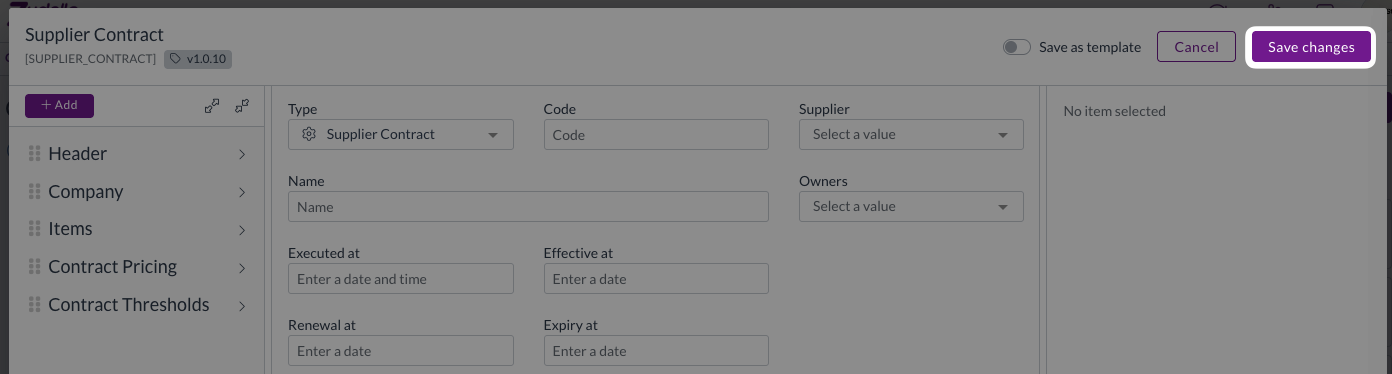
- Click Save changes.
Whenever a contract's Type, Renewal Date or Expiry Date are changed, any renewal, expiry and custom date reminders are rebuilt with the new contract type or dates. Any reminder that no longer applies is deleted, along with its outstanding task.
See Contract reminders for more information on what users see when receiving reminders.
Displaying contracts on transactions
To show contract information on invoices, requisitions, or orders, you need to properly configure the Contract impact settings for each individual document type.
For example, to show contract impact on invocies, you need to configure the Contract impact settings on the invoice document type.
To configure Contract impact settings on a document type:
- Open the relevant module and submodule.
- Click the Settings icon in the top left of the page.

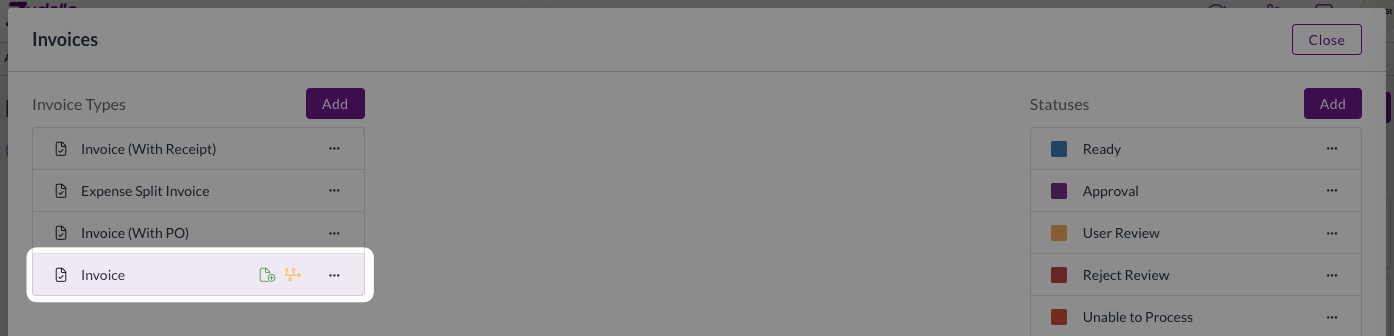
- Click the relevant document type to open it.
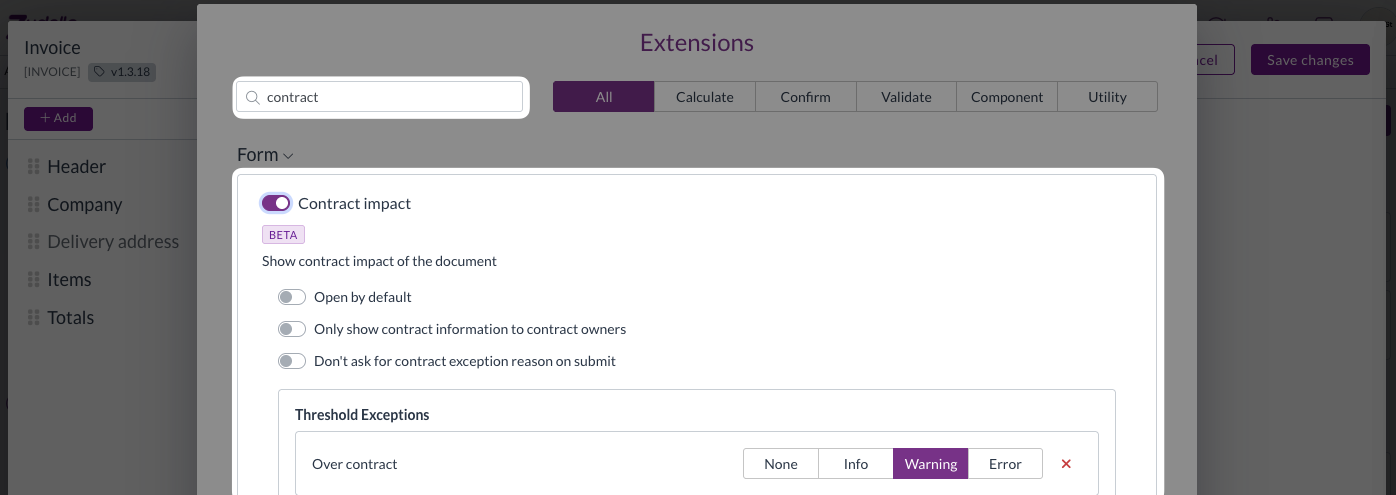
- Cilck Extensions.

- Search for and turn on the Contract impact extension.
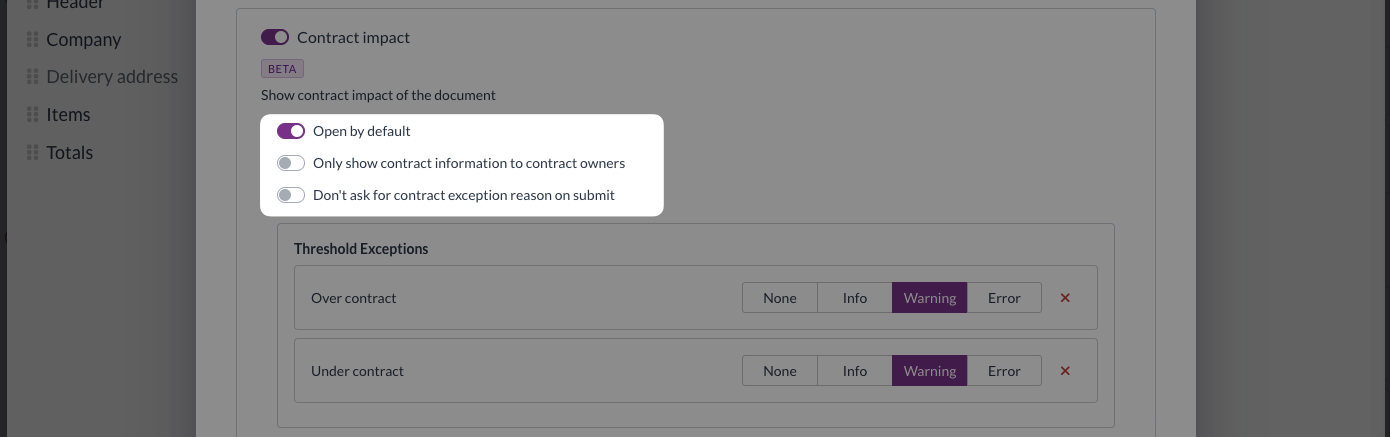
- Select any extension options that you want to apply:
- Open by default: When turned on, opens the Contract panel by default when a user opens a document.
- Only show contract information to contract owners: When turned on, hides threshold figures from anyone who is not a contract or threshold owner.
- Don't ask for contract exception reason on submit: When turned on, allows documents be submitted without capturing an exception reason (see Contract exception reasons).
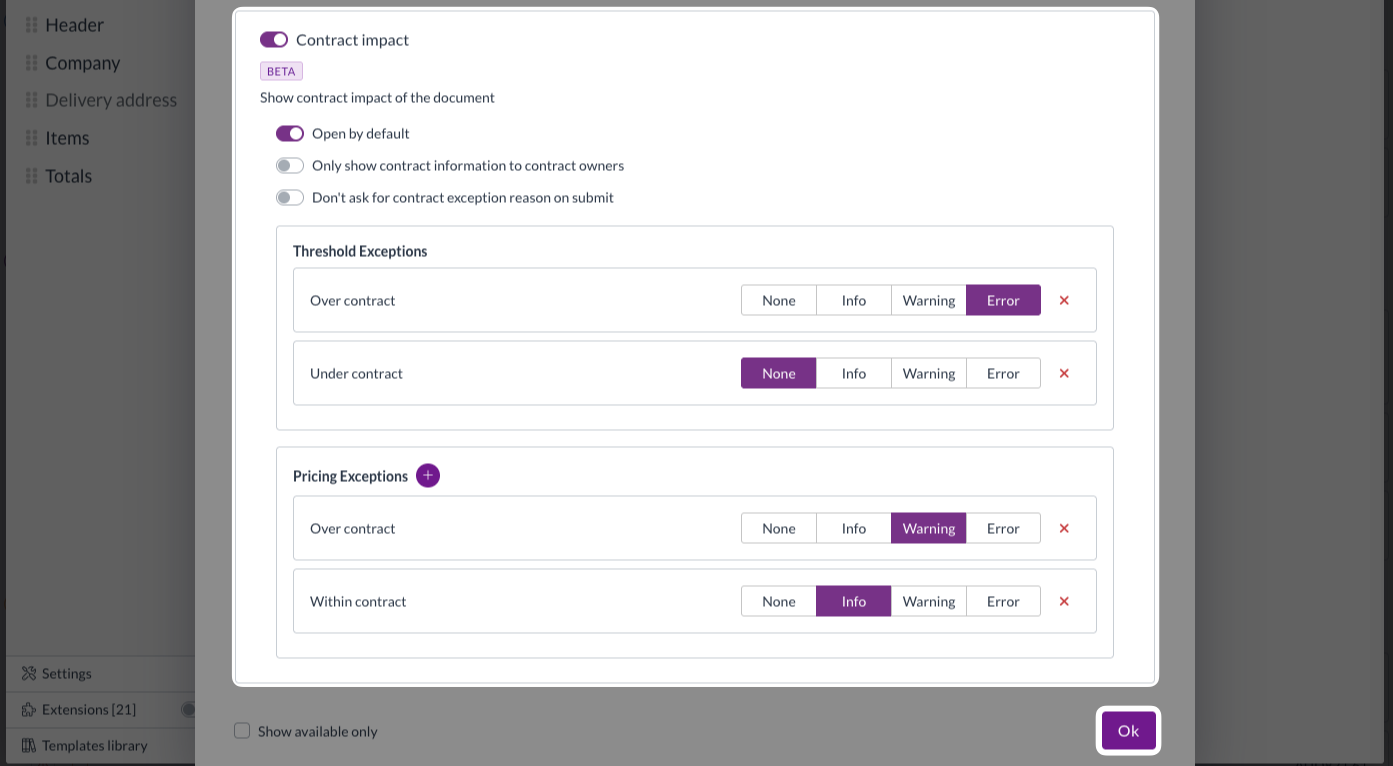
- Under Threshold Exceptions, select which error level should apply to documents with a threshold exception status of Over contract and Under contract. Error levels include:
- None: No action.
- Info: Shows that the document is outside of the contract, but does not block submission.
- Warning: Raises a warning for the user, but does not block submission. (All options default to Warning).
- Error: Blocks submission of the document until the error is resolved.
An error level of Info, Warning or Error will make the exception reason modal appear on document submission.

- Under Pricing Exceptions, select which error level should apply to documents with a pricing exception status of Over contract.

- To add a Pricing Exceptions error level for documents with a pricing exception status of Within contract or N/A, click +.

- Select which error level should apply for each added status.

- Once you have made all required changes, click OK
- Click Save changes.

Contract configurations
Contract configurations determine which documents count towards threshold spend, and which of the five spend categories they fall in. Without a configuration covering the module and submodule of the document, nothing is counted.
Accessing configurations
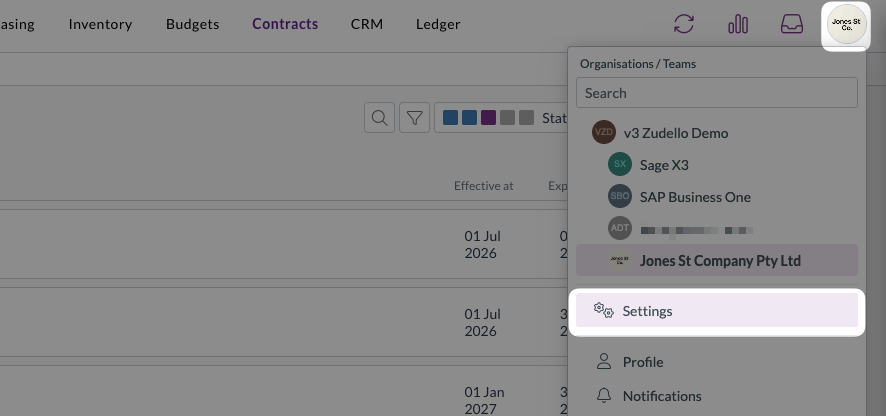
- Click the company menu in the top-right of your screen.
- Click Settings.
- In the left sidebar, scroll down and click Contract Configurations.
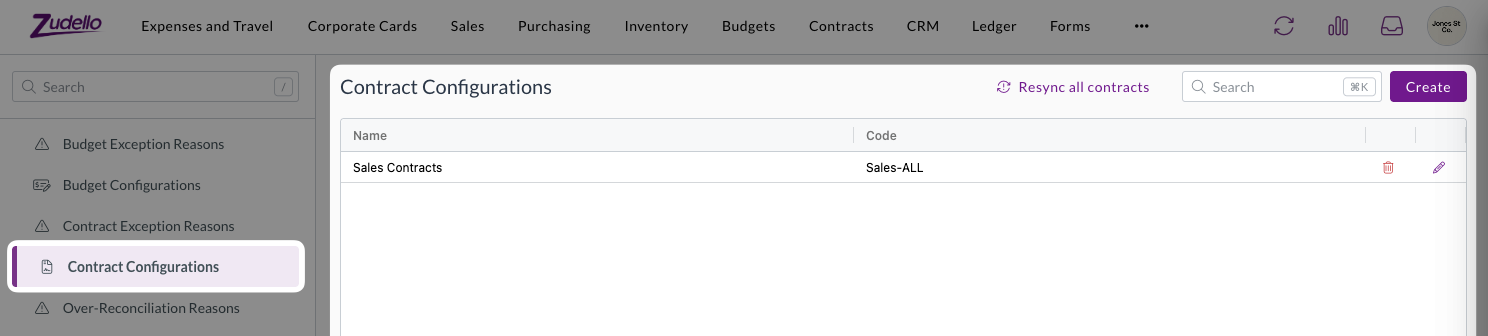
- All existing configurations are shown in the table.
- Click Create to create a new configuration, or the corresponding edit icon to edit an existing configuration.

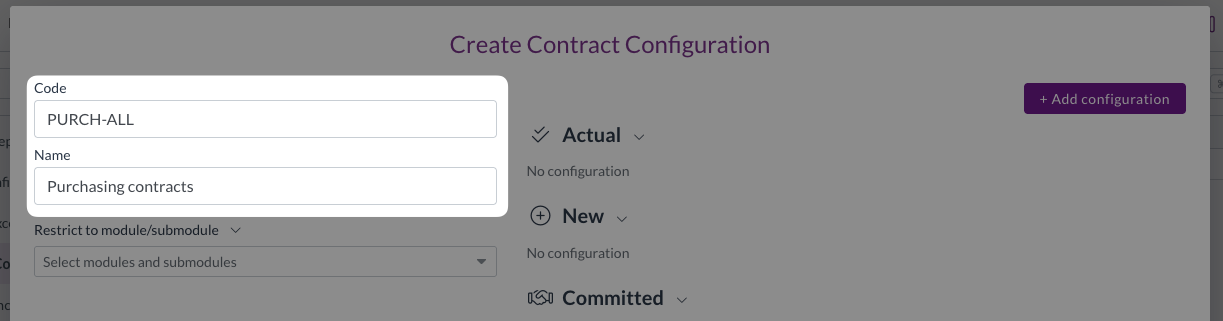
- Enter a Code and a descriptive Name.
- From the Restrict to module/submodule drop-down, select the modules and/or submodules that this configuration should apply to.
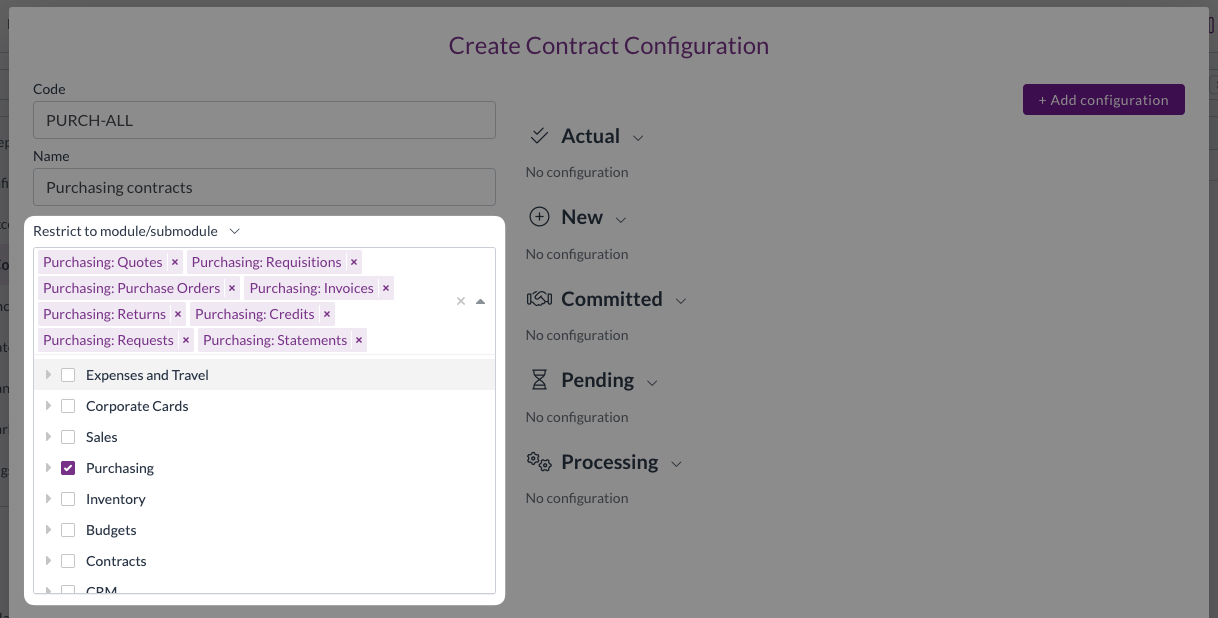
- Make your changes. For guidance, see Setting up configurations below.
Setting up configurations
Configurations are split into the following five spend categories, representing the different types of spend that count towards your thresholds:
- Actual
- New
- Committed
- Pending
- Processing
You control which documents contribute to each category, and at which point in their lifecycle. For example, a completed invoice would be classified as Actual spend, because the money has been spent. On the other hand, a purchase order that has been placed with your supplier shoud be classified as Committed spend.
To set up a configuration:
- Click Add Configuration.
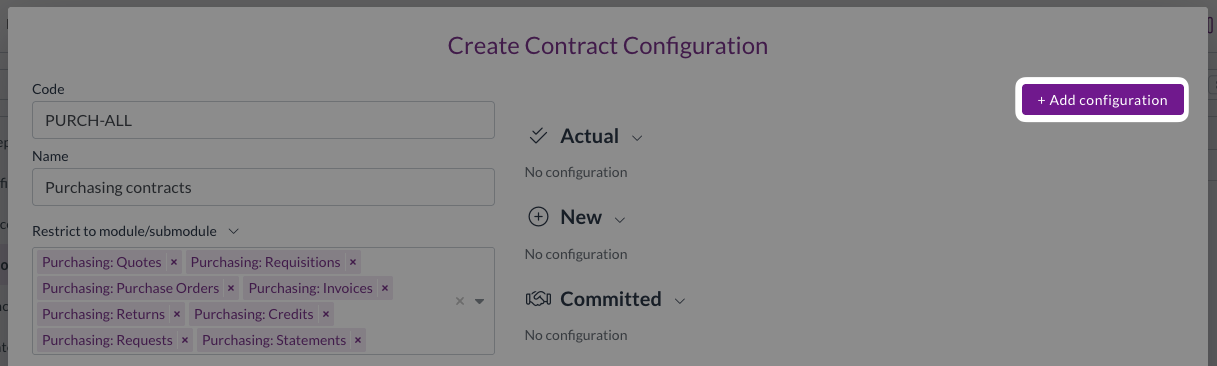
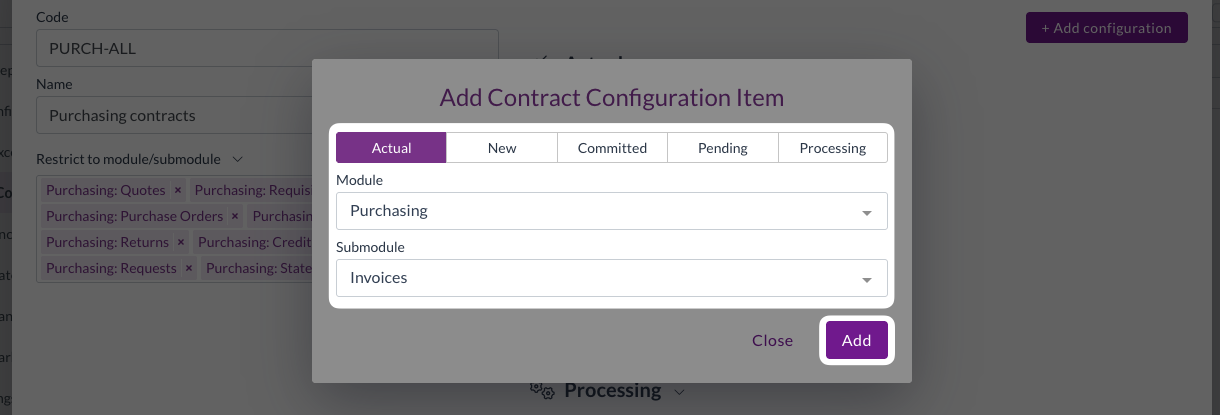
- Select the relevant spend type: Actual, New, Committed, Pending, or Processing.
- Select the Module and Submodule that this configuration should apply to.
- Click Add.
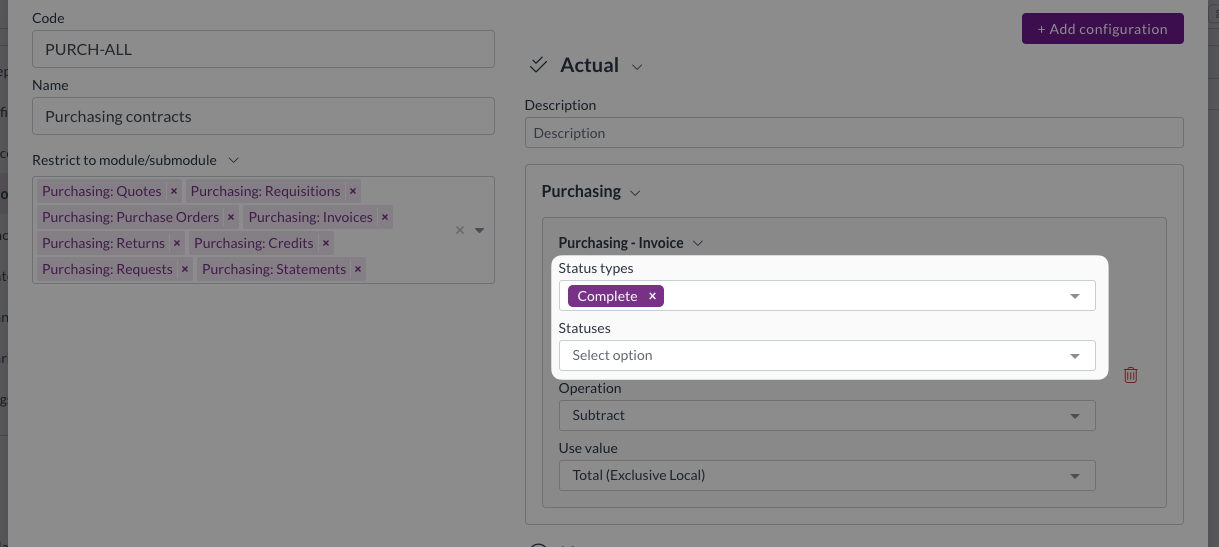
- A configuration box is added underneath the selected spend type.
- Optionally, enter a Description if required.
- Select the Status types that should count towards this spend category.
- If you need more granularity, you can select individual Statuses instead.
- If you select a Status type, you do not need to select the individual statuses within it.
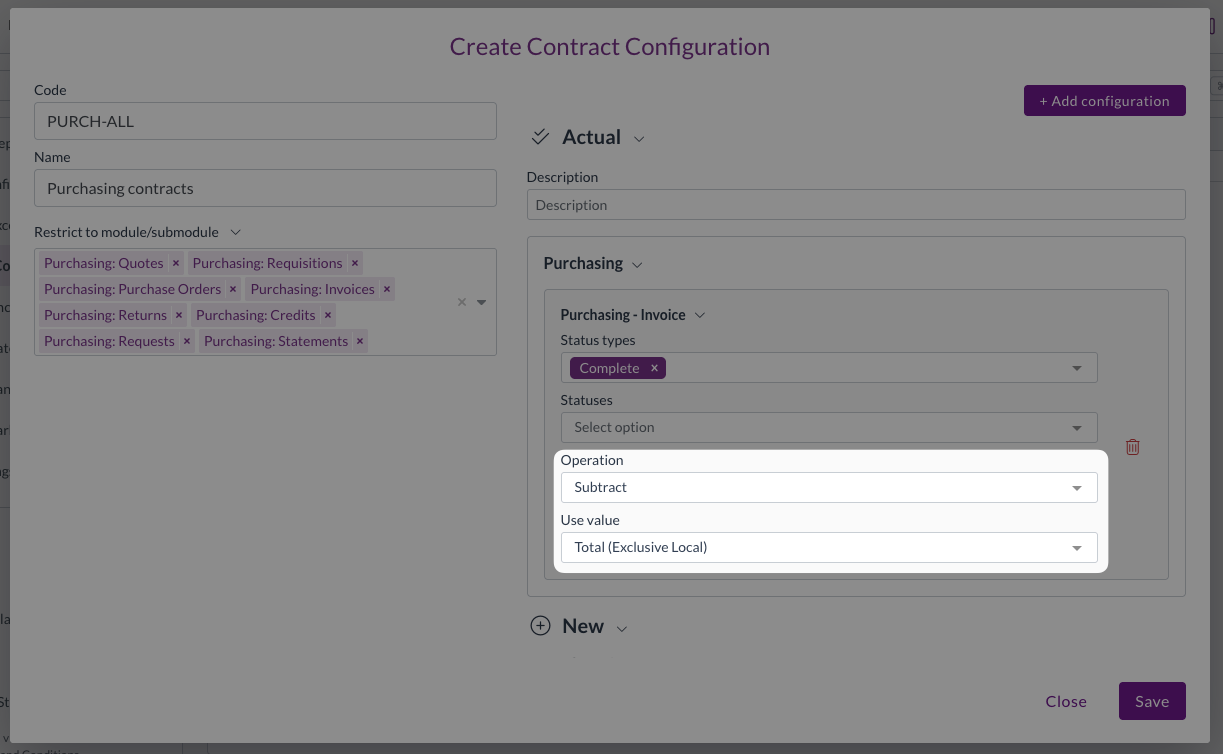
- From the Operation drop-down, select whether the document adds to or subtracts from the threshold.
- Documents that accrue towards a threshold use Subtract, because they consume part of the allowed amount.
- E.g. Invoices would subtract from a threshold, while credits would add to it, as that money is returned to the threshold and can be spent elsewhere.
- From the Use value drop-down, select whether to count the Total of the document or only the Remaining amount.
- Use Total for invoices and other documents that represent an actual transaction.
- Use Remaining for purchase orders and other documents that represent planned or requested spend. This ensures that only the value not yet converted to an invoice is counted, preventing double counting. — E.g. if a $200 purchase order has one $100 invoice against it, only the remaining $100 on the PO should be counted towards the threshold.
- If you selected Remaining, select the Remaining module and Remaining submodule that the document will be matched against.
- Repeat steps 1 to 10 for each spend type and document type you want to configure.
- Click Save.
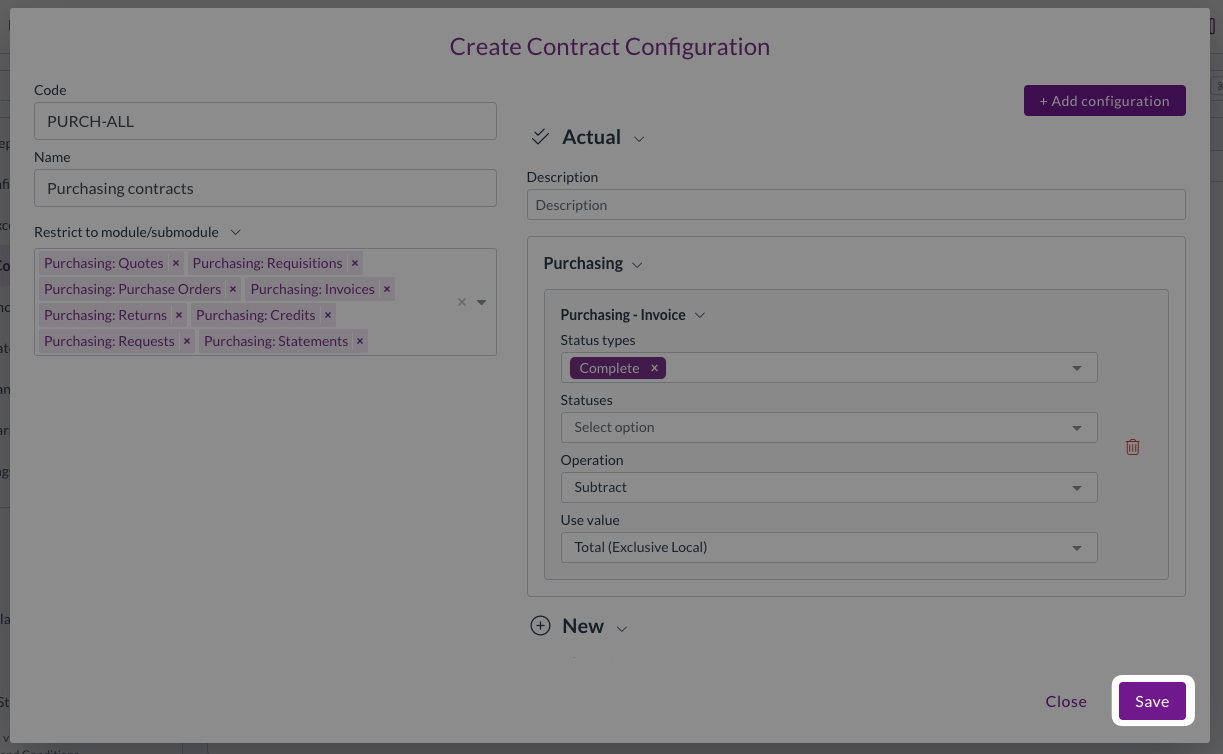
Examples configurations (Purchasing module)
Actual spend
- Purchasing - Invoice
- Status types: Complete
- Operation: Subtract
- Use value: Total (Exclusive Local)
- Purchasing - Credit
- Status types: Complete
- Operation: Add
- Use value: Total (Exclusive Local)
New spend
- Purchasing - Invoice
- Status types: Approval, Review
- Operation: Subtract
- Use value: Total (Exclusive Local)
- Purchasing - Credit
- Status types: Approval, Review
- Operation: Add
- Use value: Total (Exclusive Local)
Committed spend
- Purchasing - Purchase Order
- Status types: Pending
- Operation: Subtract
- Use value: Remaining
- Remaining module: Purchasing
- Remaining submodule: Invoices
Pending spend
- Purchasing - Requisition
- Status types: Approval, Review
- Operation: Subtract
- Use value: Total (Exclusive Local)
Contract exception reasons
When submitting a document that breaches a contract, the your team are asked to select a reason for the exception. A list of preconfigured exception reasons ensures consistency and allows for easier tracking and reporting.
To edit the list of available contract exception reasons:
- Click the company menu in the top-right of your screen.
- Click Settings.
- In the left sidebar, scroll down and click Contract Exception Reasons.
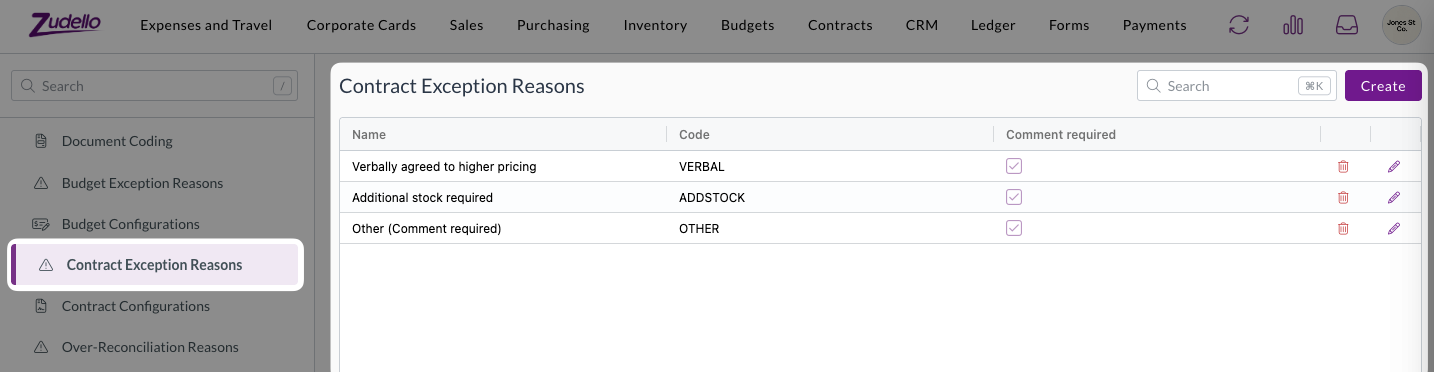
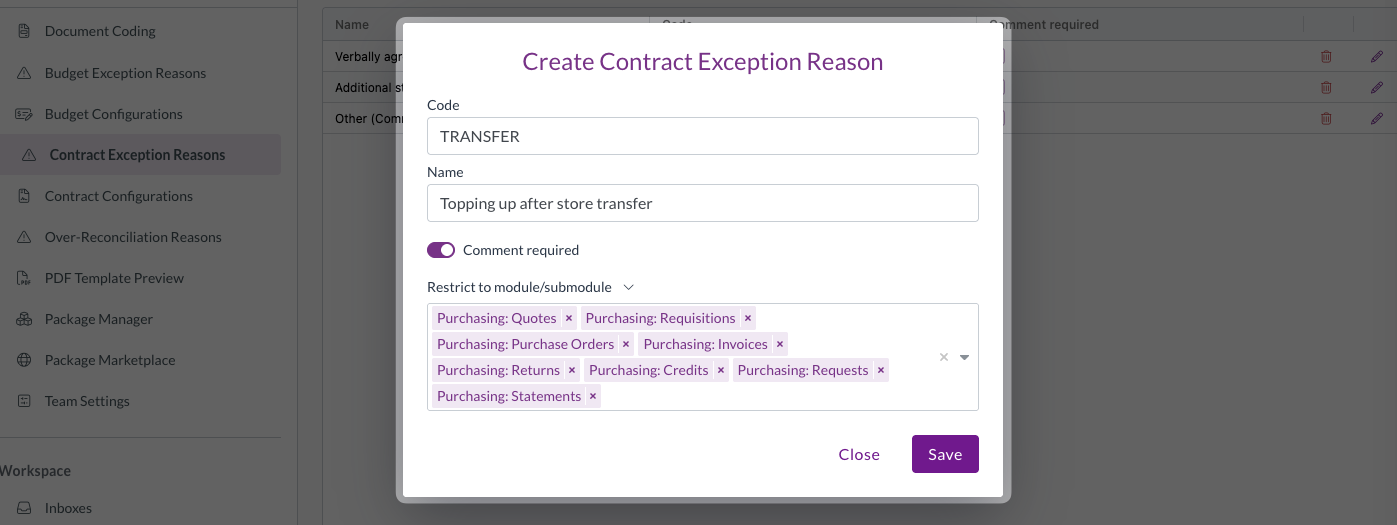
- Click Create to create a new reason, or the edit icon to edit an existing one.

- Enter a Code and a descriptive Name.
- Turn on Comment required if users are required to provide further comment on the reason.
- From the Restrict to module/submodule drop-down, select all modules or submodules that the reason should be available in.
- Click Save.
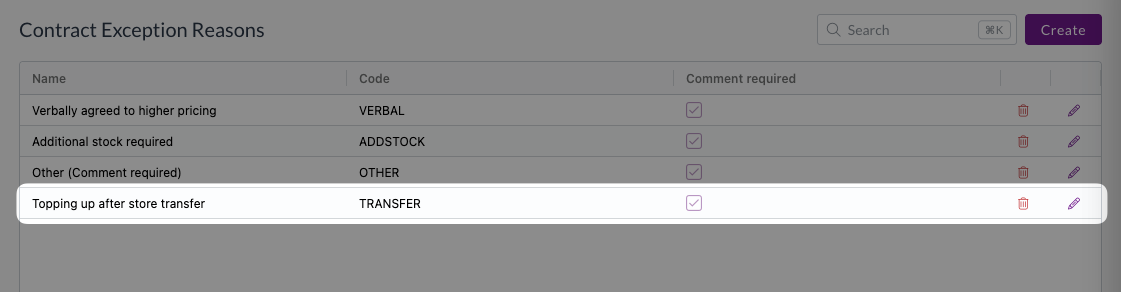
- The new reason will be added to the list, and immediately available for selection on exceptional documents.
Users without permission to view reasons will see a simple error message instead of the list, and cannot submit a document with an exception.
Contract categories and groups
Contract Categories and Contract Groups are dimensions, created under Dimensions in the same way as departments or locations. Each has a code and a name, and a contract can carry one of each.
They exist so you can talk about groups of contracts elsewhere in the platform. Automation conditions can target specific contracts, contract groups or contract categories, so you can route a breach of a strategic agreement differently to everything else.
Customising contract extraction
By default, your team is configured with the standard instructions for reading a contract. This covers standard fields like the key dates, the other party, and any priced lines. However, you may need to customise the extraction of your contracts, to accomodate non-standard documents or capture industry-specific terms.
Like other extracted documents, Zudello's Document Studio gives you the ability to customise how and when certain documents are extracted, including contracts. For full guidance on customising extraction, see Document Studio.
Contract approval
Contract approval is managed through approval automations, in the same way as the rest of the platform. See Approval management for more.
A contracts inbox
You can give contracts their own email address so agreements can be forwarded in the same way invoices are. Simply create a new inbox and set the module to Contracts, and any documents sent to that address will be extracted as a contract.
For guidance on configuring inboxes, see Inboxes in Zudello.
Need help?
Contact your organisation administrator or Zudello support for assistance with configuring contracts.