Creating a contract
Just like any other document, you can upload contracts into Zudello, or create a blank record and enter the detail manually. Uploading is the usual route, because Zudello reads the document, matches the relevant parties, and fills in most of the record for you.
Follow the steps below to get contracts entereed into Zudello as quickly and smoothly as possible.
Best practices
To create accurate, reliable contract records:
- Upload the version you want to keep as the record of the agreement, not a working draft.
- Check all dates against the original document before you save, since reminders depend on them.
- Give every contract an owner, because owners approve breaches and receive reminder emails.
Creating a contract
There are two ways to create a contract:
- Upload the contract document (recomennded).
- Manually create the contract record and enter contract information.
You can't convert contracts to another document type, or convert other documents into contracts. If you upload an agreement to the wrong module, upload it again to Contracts.
Upload a contract (recommended)
Contracts can be uploaded the same way as other Zudello documents. For a list of supported document types, see Appendix: Supported File Types. As with all documents, Zudello scans each document for viruses, and checks them against your existing documents to ensure you don't create duplicate records.
To upload a contract:
- Open the Contracts module.
- Click the Contracts submodule.
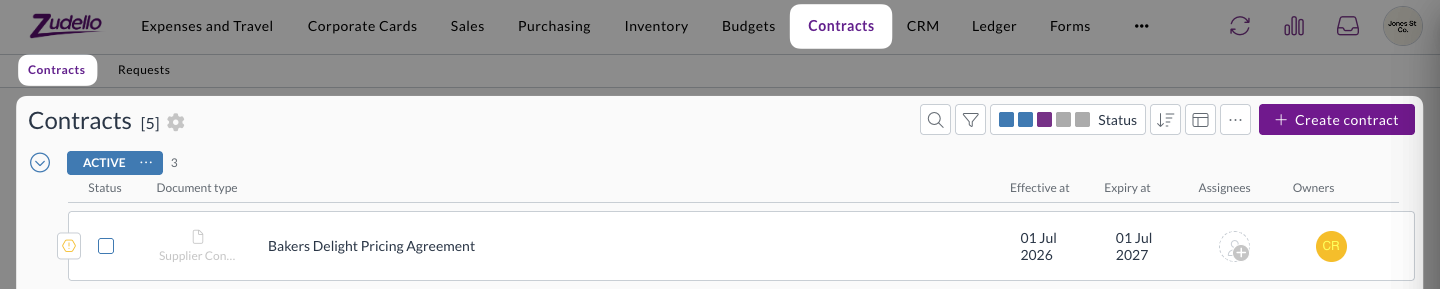
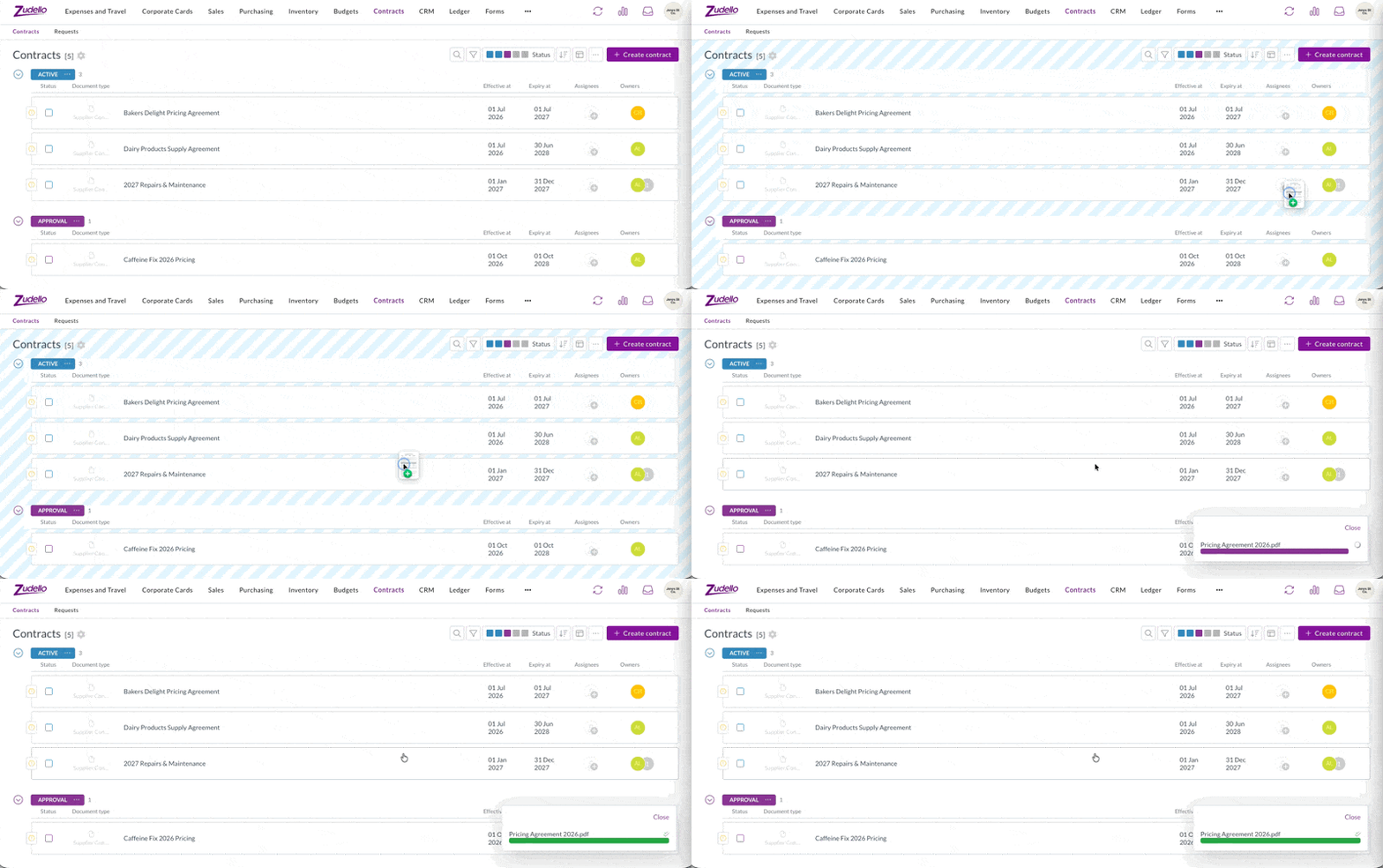
- Upload the contract by either:
- Drag-and-dropping the file straight onto the contracts submodule page.
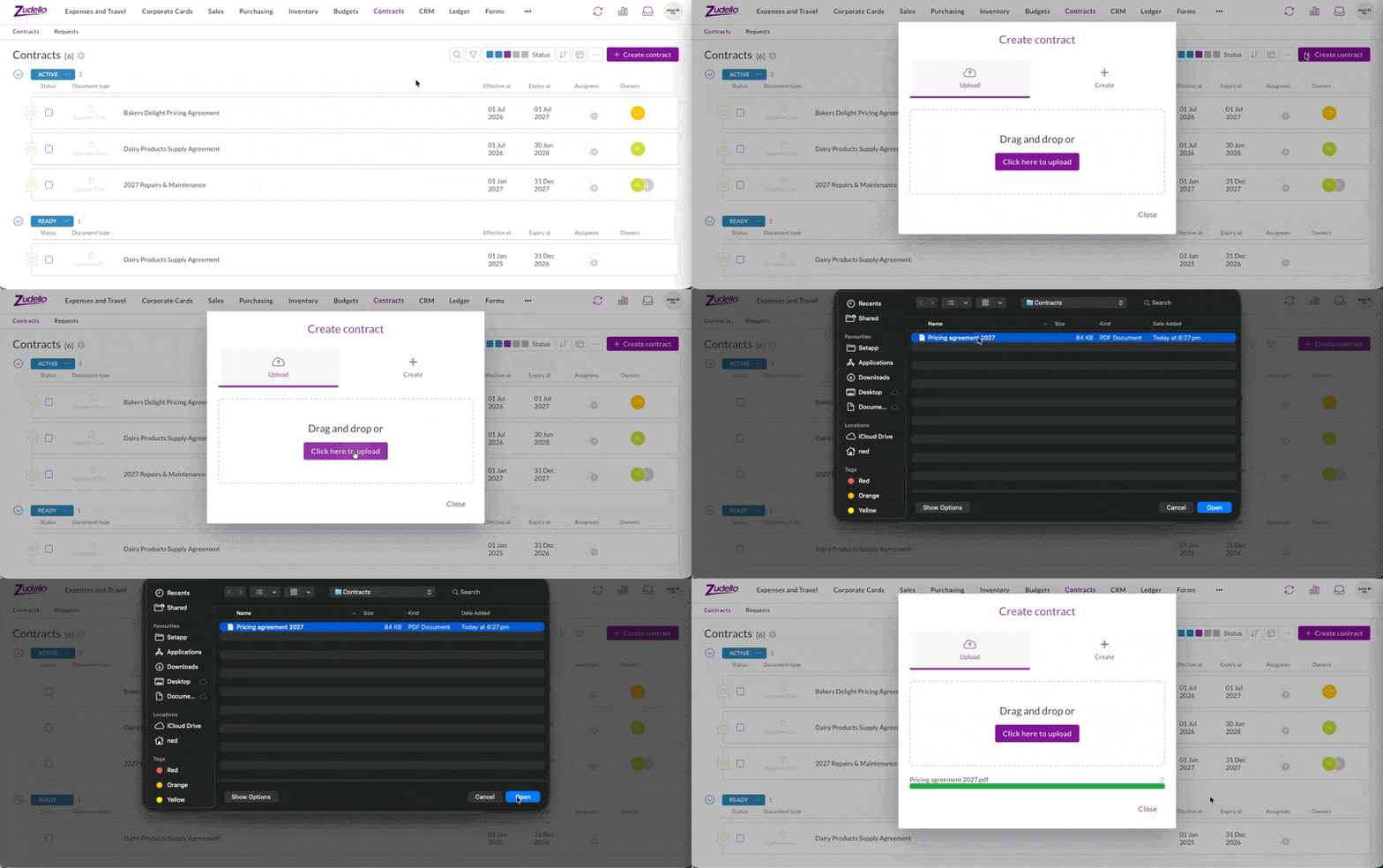
- Clicking Create contract > Upload > Click here to upload.
- Drag-and-dropping the file straight onto the contracts submodule page.
- Zudello will extract the document and create the contract record.
- Once complete, the new contract record will appear in your list of contracts.
- Continue with the standard process. See Contract extraction below.
Manually create a contract
To manually create a contract and enter the information yourself:
- Click Create contract.

- Click Create.
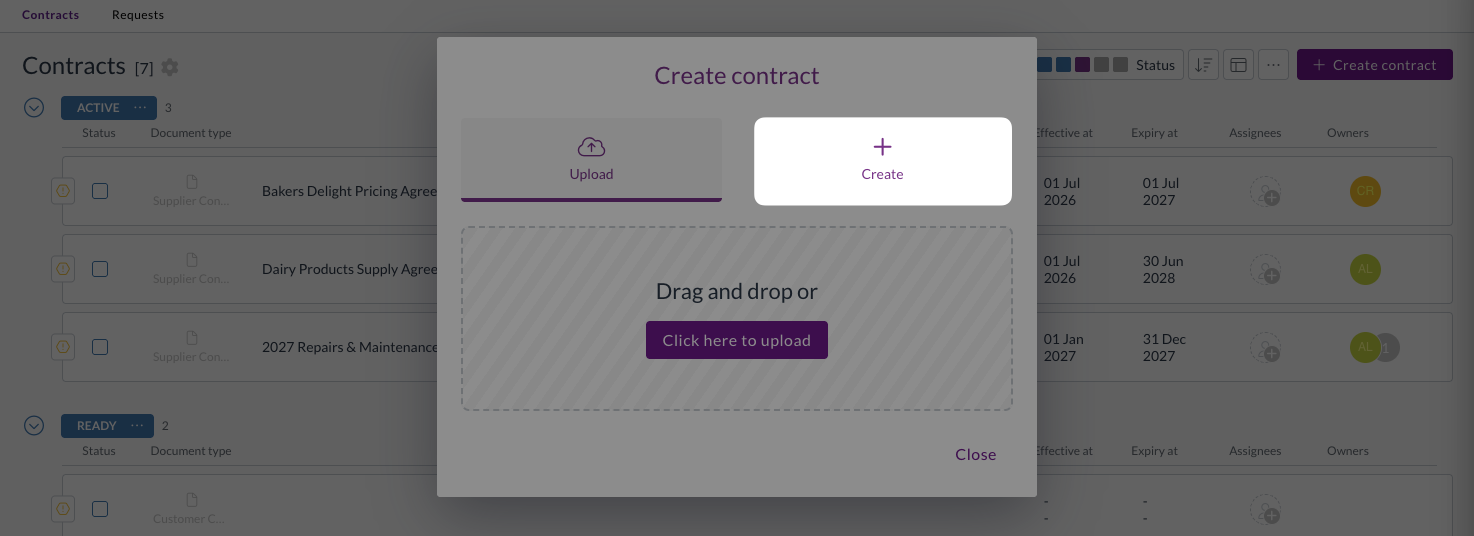
- A blank contract record will open.
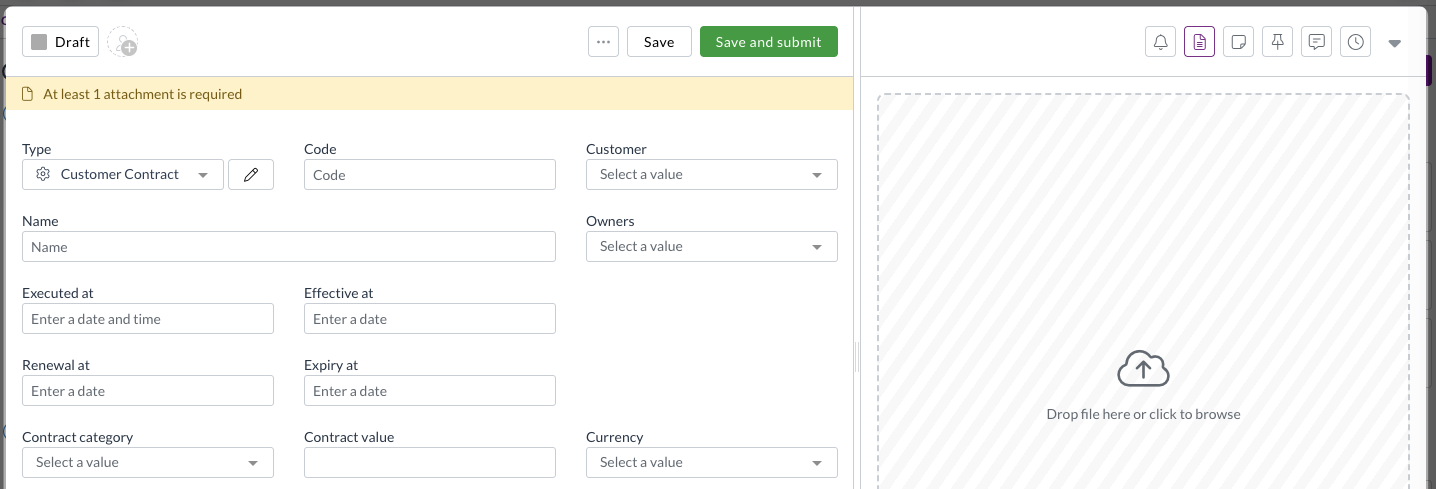
- Enter all required information. If one exists, you can attach the original document now or at a later date.
- Continue with the standard process from Matching the contrct to a supplier or customer.
Contract extraction
Standard extraction
The standard Zudello contract extraction provides a starting point for your team by extracting the following key information:
| Zudello field | Sourced from |
|---|---|
| Name | The title or header of the contract/agreement. |
| Effective Date | The date the agreement comes into force, such as the commencement date or the start of a stated term. |
| Execution Date | Taken from the signature block. Where parties signed on different days, the latest signature date is used. |
| Expiry Date | Only where the agreement explicitly states one. E.g. A three year term isn't automatically turned into an end date three years from today, unless the document specifically states that date as the expiry date. |
| Other party's details | The registered name, tax number, and any contact and bank details set out in the contract. Zudello uses these to find the matching supplier or customer. |
| Issuer's reference | The issuer's own reference for the agreement, such as a quote or agreement number. |
| Priced line items | Contracted pricing items, with a stock code and a price. For detailed guidance on contract pricing, see Contract Pricing |
| Line detail | The line detail printed on the agreement. |
There are two additional fields that are not extracted from the document directly:
- Renewal Date
- This must be entered manually if required.
- A required field if you want to use renewal reminders.
- Contract Value
- Where you've set up thresholds, Zudello adds their totals together to give the contract value.
- For foreign currency contracts, the value is convered to your team's currency using the exchange rate on the Execution Date.
Customising extraction
The standard extraction covers what most agreements have in common. However, contracts may also contain terms that are specific to your industry or business, and these may play a crucial role in your contract agreements.
Like other extracted documents, Zudello's Document Studio gives you the ability to customise how and when certain documents are extracted, including contracts. For full guidance on customising extraction, see Document Studio.
Zudello doesn't read long agreements in full. For contracts over 100 pages, Zudello reads the first three pages and the last page only.
Ensure you carefully check extracted values against the original document for long contracts.
Matching the contract to a supplier or customer
The other party to the contract is automatically identified based on the following values:
- Tax number
- Bank account number
- Contact email
- Email the document was sent from
- Phone number
- Legal or trading name, and any alternative names you have recorded.
Zudello searches your CRM module for the relevant record to match against, using the type of contract to determine whether to match ahainst a supplier or a customers.
Matching does more than simply fill in a name:
- If the Currency and Employee fields are empty, the contract inherits them from the matched record.
- Pricing rows inherit the tax rate and currency from the supplier or customer, and from the matched catalogue item.
- Zudello links a bank account automatically where the details on the contract match one already recorded.
Zudello only creates pricing rows once a supplier or customer is linked.
If Zudello can't match the party, link it by hand and save. Zudello will then create the pricing rows.
Reviewing and completing the record
The following screenshots are provided as indications only. Your team's configuration and contract layout may differ from the images below.
- Click a contract to open it.
- Recorded information is shown on the left, and the original document on the right.
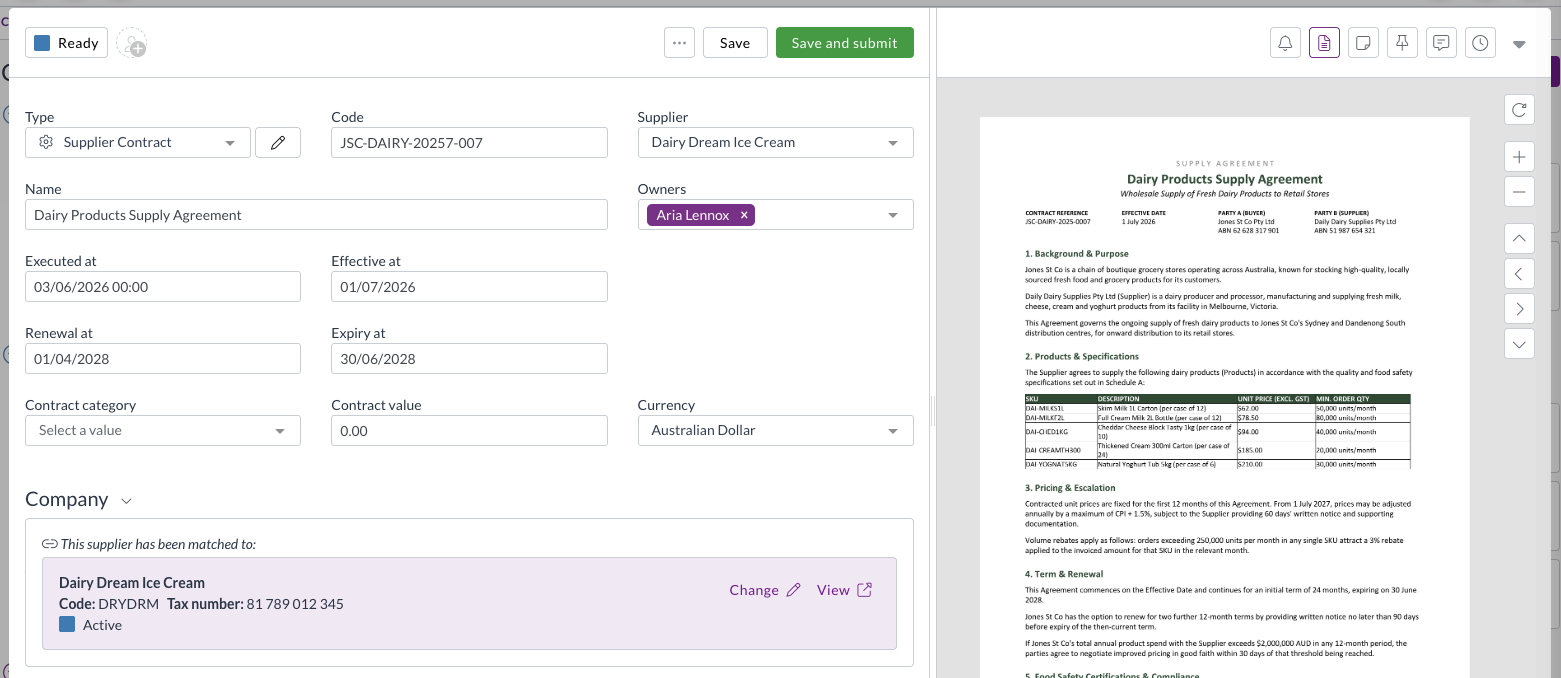
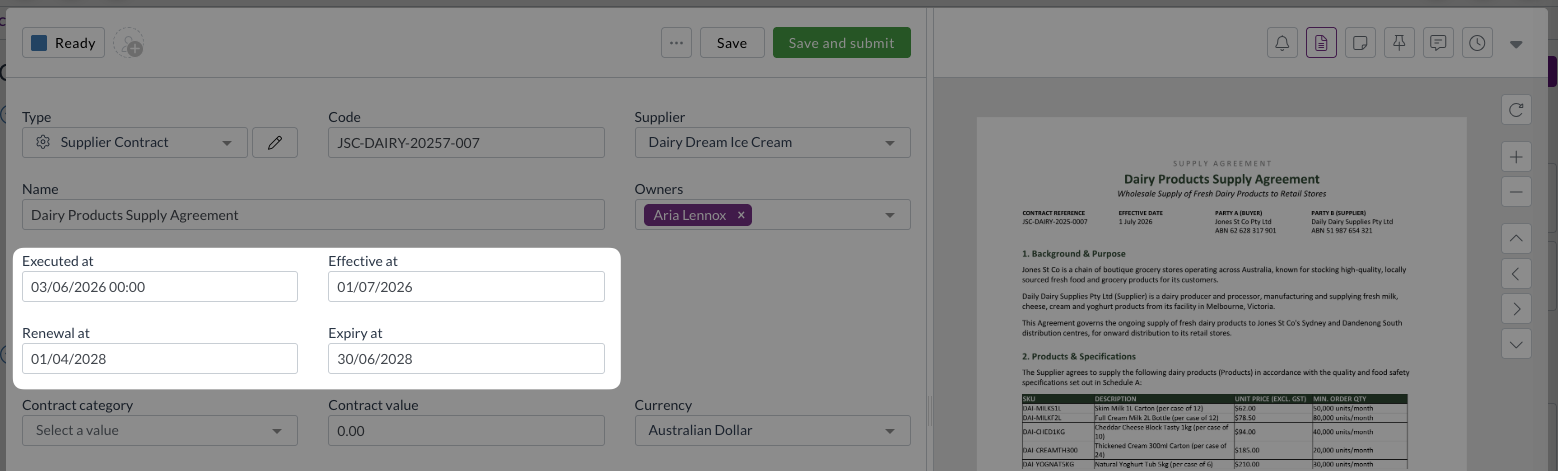
- Check Effective Date, Execution Date and Expiry Date against the document.
- Enter the Renewal Date if the agreement renews.
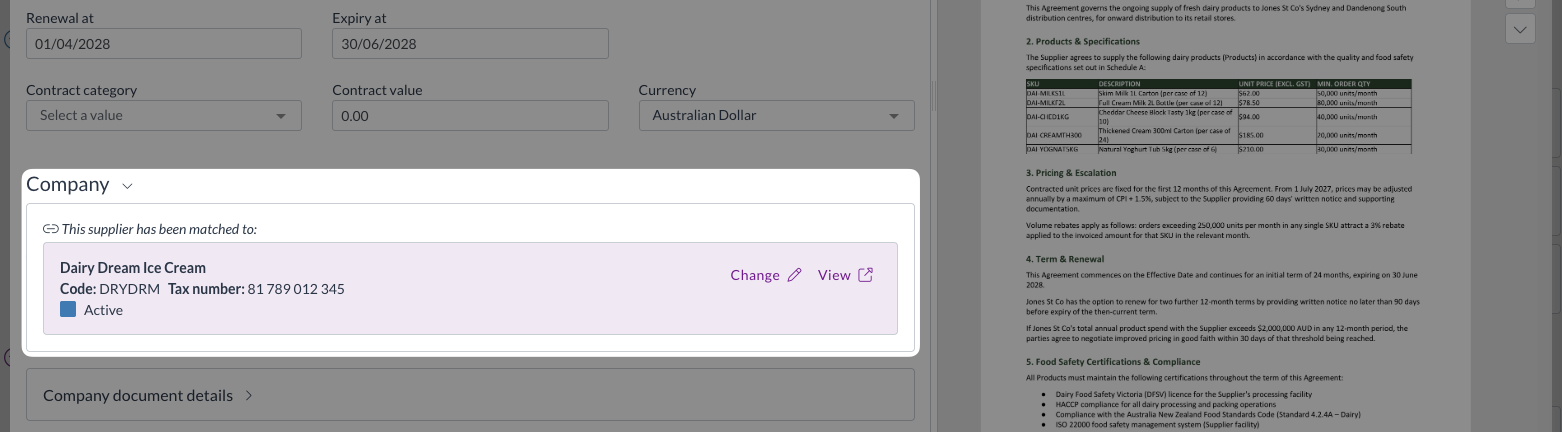
- Ensure the correct Supplier or Customer has been matched.
- Set the Contract Category and Contract Group if applicable.
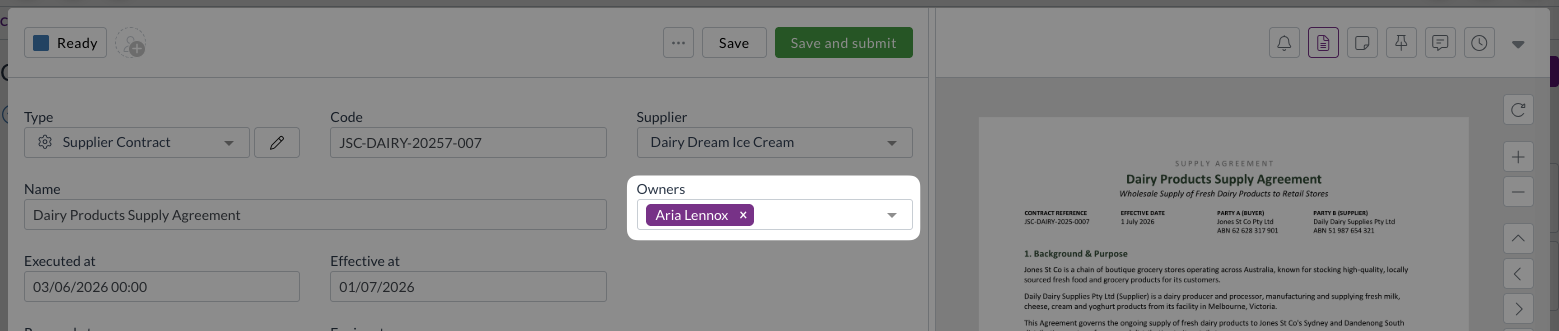
- ACheck or add the contract Owners. Owners receive reminder emails and approve documents that breach the contract.
- Scroll down and review Contract Pricing or Contract Thresholds rows if the agreement sets prices or spend commitments.
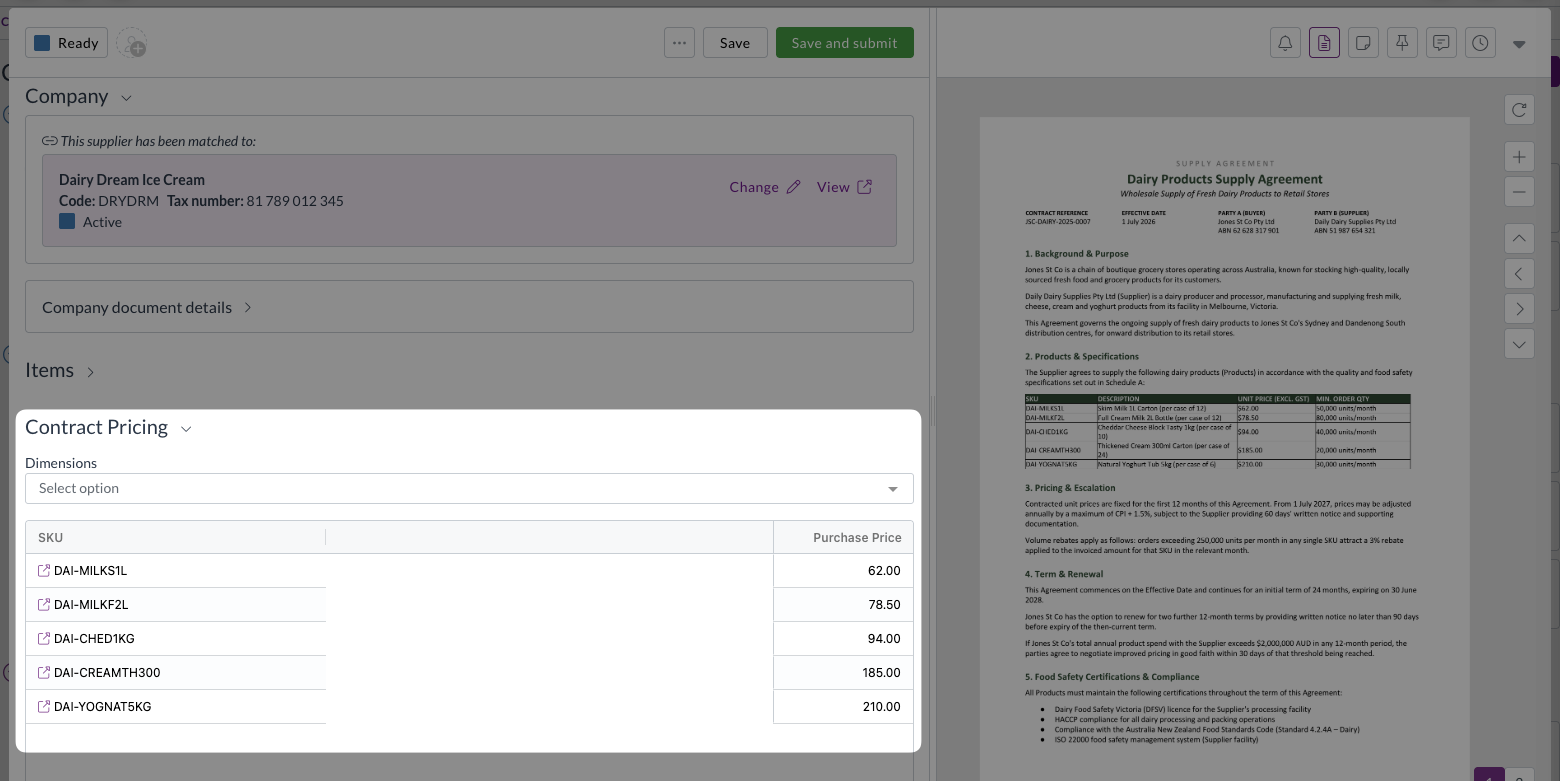
See Contract pricing and Contract thresholds for further guidance.
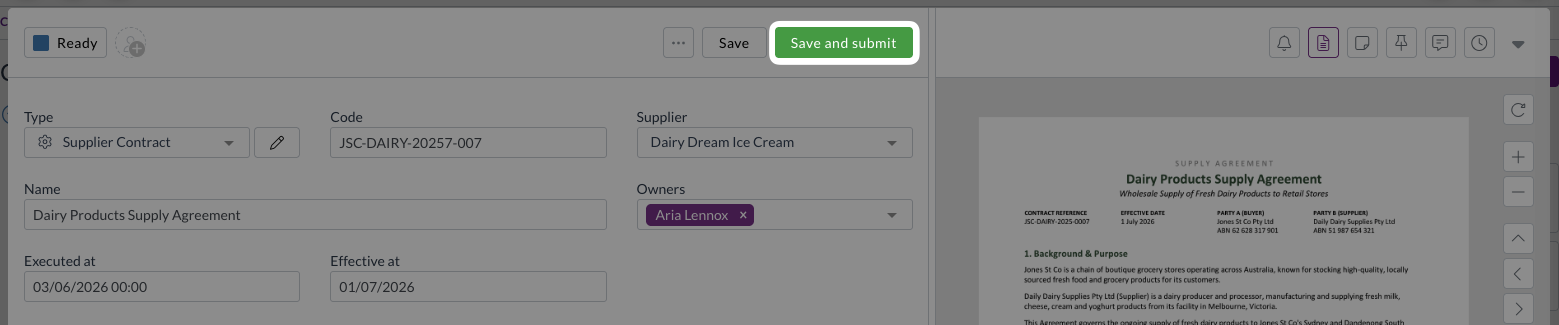
- Once you have reviewed all fields and made any required changes, click Save and Submit.
- The contract then moves into Approval status, awaiting approval from the relevant approvers.
If your team does not use contract approvals, you may see just Save instead of Save and submit.
The contract becomes active
Once fully approved, the contract move into Active status, at which point it begins being used for price and spend checks.
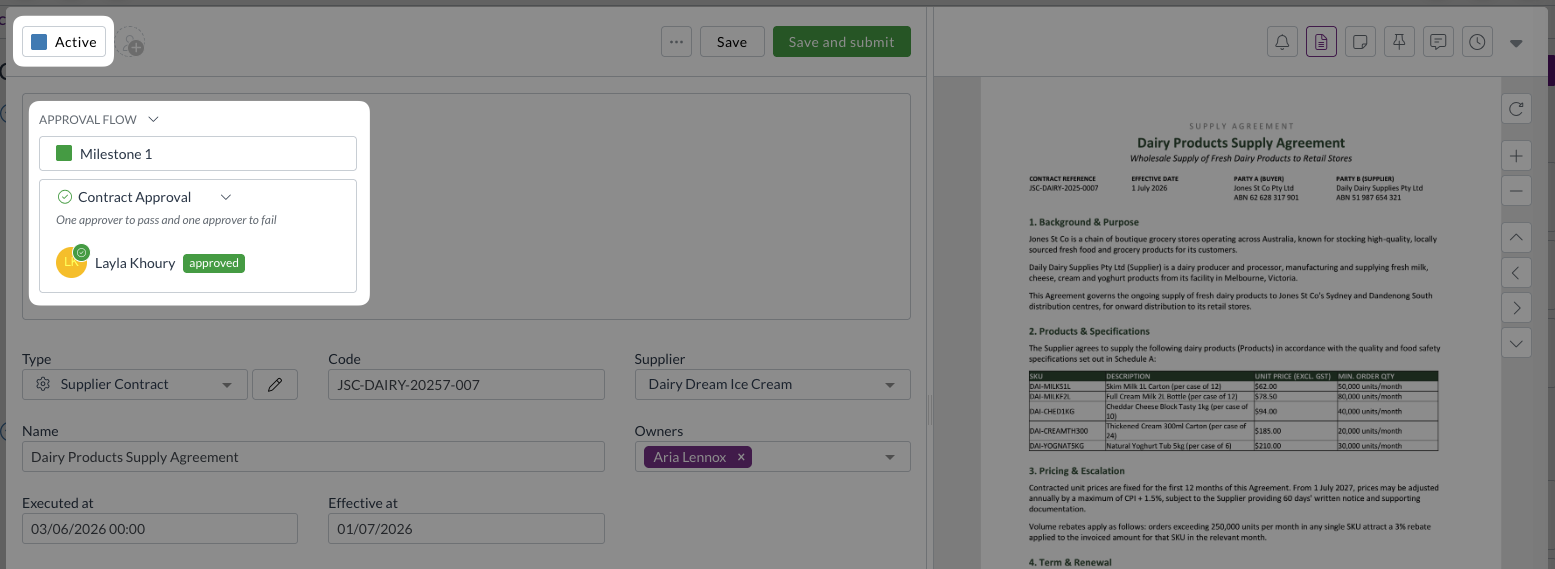
Zudello uses a contract for price and spend checking when all of the following conditions are met:
- The status type is Active
- The contract has both an Effective Date and an Expiry Date, creating an effective window
- The transaction document being checked is dated inside that effective window
A contract sitting in Draft or Approval is stored, searchable, and used to email reminders, but it isn't checked against invoices or other transactions.
Need help?
Contact your organisation administrator or Zudello support for assistance with creating contracts.
Appendix: Supported file types
Contracts accepts the following file types:
- JPEG
- PNG
- HEIC
- HEIF
- DOC/DOCX
- XLS/XLSX
- CSV
- TXT
- ZIP (ZIP files are unpacked and each document inside them is processed as a separate file)