Contract reminders
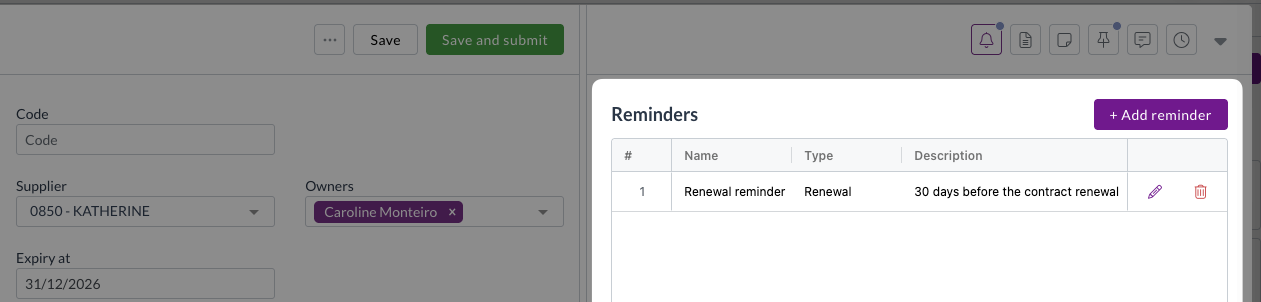
Contract expiry dates are often missed simply because no one remembered them. With Zudello's contract reminders, that will never happen again. At a set period before a contract renews or expires, contract reminders automatically create a task for the people who need to act, and email the contract's owners.
What you can remind on
| Type | Triggered in relation to | Sends an email |
|---|---|---|
| Renewal | The contract's Renewal Date | Yes |
| Expiry | The contract's Expiry Date | Yes |
| Custom date | Another date field on the contract | No, creates the task only |
Renewal reminders require a Renewal Date on the contract, which is not an extracted field. If you want to use renewal reminders, we recommend that you make Renewal date a required field on all contracts.
Reminders that trigger on spend against a threshold are not available yet. The option may appears in some screens, but should not be used as it will not schedule or send anything.
Where reminders are configured
You can configure contract reminders in two places:
- As defaults on the contract document type
- On a single contract
Defaults on the contract document type
Your administrator defines a set of reminders that apply to every new contract of that type. This is how you give different contract types different reminders, e.g. leases a three-month warning and NDAs a two-week one.
For guidance on setting up default reminders, see Setting up contracts.
Reminders on a single contract
To view a reminder on a single contract:
- Open the contract.
- Click the bell icon at the top-right to open the Reminders tab.
- For each reminder, the Reminders table lists a Name, Type, Description, Send At, and Sent At.
- A bell also appears beside the Renewal Date or Expiry Date fields, depending on which is used as the basis for the reminder.
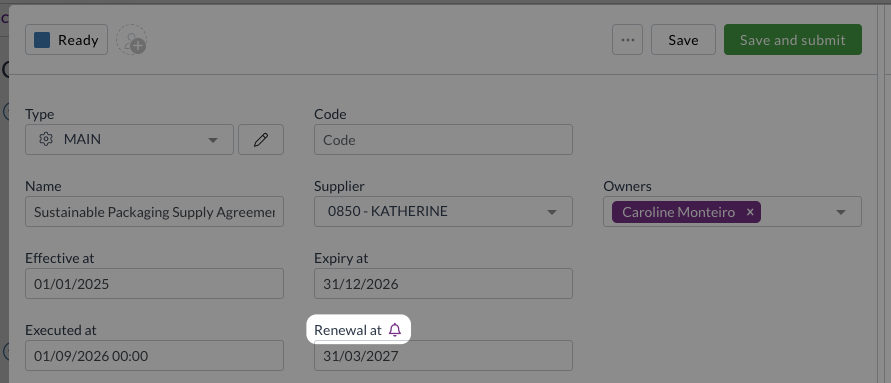
Zudello re-applies reminders coming from the document type whenever the contract's document type, Renewal Date, or Expiry Date changes, and removes any renewal, expiry, or custom date reminder that isn't in that configuration at the same time.
If your team uses document type defaults, treat those as the source of truth rather than adding one-off reminders by hand.
Adding a reminder to a contract
To add a reminder to a contract:
- Open the contract and click the bell icon to open the Reminders panel.
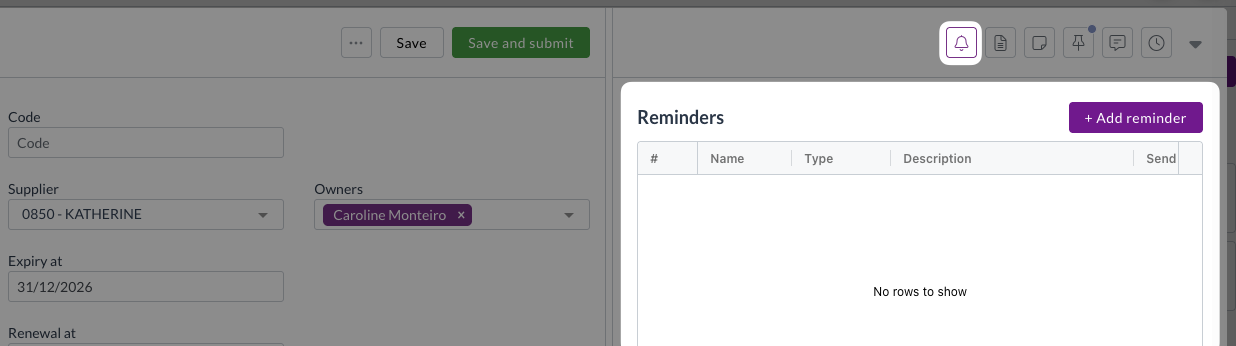
- Click + Add reminder.
- Enter a Name. This is what the reminder recipient will see in the email subject.
- Select the relevant type:
- Renewal: for reminders based on the contract's renewal date.
- Expiry: for reminders based on thge contract's expiry date.
Do not select Threshold type or the reminder will not function.
- Set the When parameters.
- E.g. 30 + Days + Before on a Renewal type reminder will fire 30 days before the contract's renewal date.
Select Days or Weeks as the units. A reminder set in Months will not get scheduled.
- Optionally, enter a task name under On fire, create task.
- Under Assignees select either:
- User: to select named users that will receive reminders for all contract's of this type.
- Contract field: to select a contract field to draw users from, e.g. Owners.
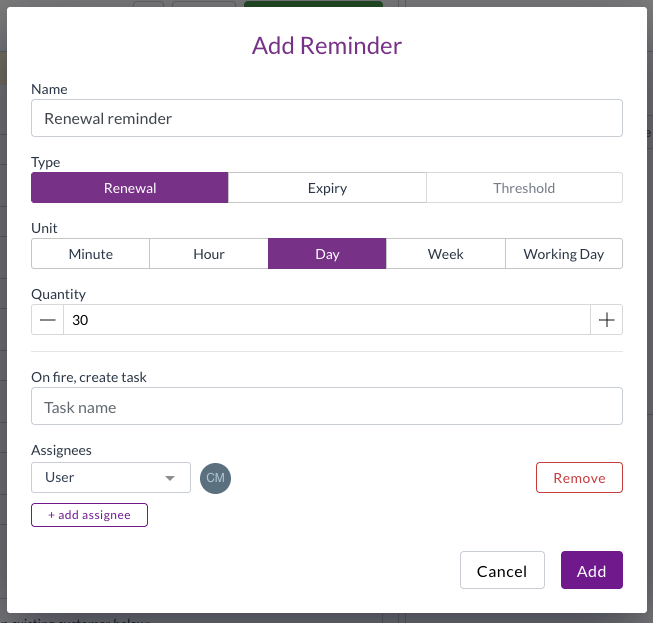
- Click Add.
The reminder will be added to the Reminders table. The Description column describes each saved reminder in plain English, such as 30 days before the contract renewal.
Zudello skips reminders with no assignees, so nothing is scheduled and nothing is sent.
Always add at least one assignee.
What happens when a reminder fires
When a reminder is triggered, or fires, two separate things happen.
1. A task is created
Zudello adds a step to the contract's approval flow, named after the task name you set. The task is assigned to the reminder's assignees to action.
2. An email is sent to the contract's owners
The email contains the following information:
- Subject: The reminder name, followed by the contract
- Body: Explains the expiry, e.g. Contract Acme Supply Agreement for Acme Pty Ltd is due to expire on 5 March 2026, followed by a table containing:
- The Effective Date
- The Expiry Date
- The Renewal Date
- A Click here to view button that opens the contract
Zudello won't send a reminder email if the contract has no supplier and no customer linked, because the email names that party. Ensure all contracts are linked to a supplier or customer before adding reminders.
Managing the emails you receive
Each user controls these in their own notification settings, under Contract Expiry Reminder and Contract Renewal Reminder. Zudello delivers both by email.
Need help?
Contact your organisation administrator or Zudello support for assistance with contract reminders.