Microsoft Entra ID (Azure AD) - Single sign-on (SSO)
Set up Microsoft Entra ID (formerly Azure AD) authentication to enable secure single sign-on for your Zudello environment. This guide explains how to configure the required application settings and permissions in Entra ID.
Zudello uses Zitadel as our authentication provider. You register an application in your own Entra tenant and send the resulting credentials to Zudello, and your implementation consultant completes the connection on our side.
Best practices
To ensure smooth authentication setup:
- Generate client secrets with appropriate expiration dates
- Grant all required permissions before implementation
- Save authentication keys in a secure location
- Review permissions regularly to maintain security
- Test authentication after making any changes
Zudello callback URLs
Your Entra application needs both of the following redirect URIs:
https://auth.1.global.zudello.io/ui/login/login/externalidp/callbackhttps://auth.1.global.zudello.io/idps/callback
These are the URLs for Zudello's standard cloud. If your organisation is on a dedicated environment, your implementation consultant will give you the two callback URLs for it. Both are still required.
Both URLs are required. If only one is registered, users will see a redirect URI mismatch error from Microsoft when they try to sign in.
Creating Entra ID authentication credentials
To set up Entra ID SSO for your Zudello team, you will first need to:
- Register a new client
- Add a client secret
- Configure token settings
- API permissions
Registering a new client
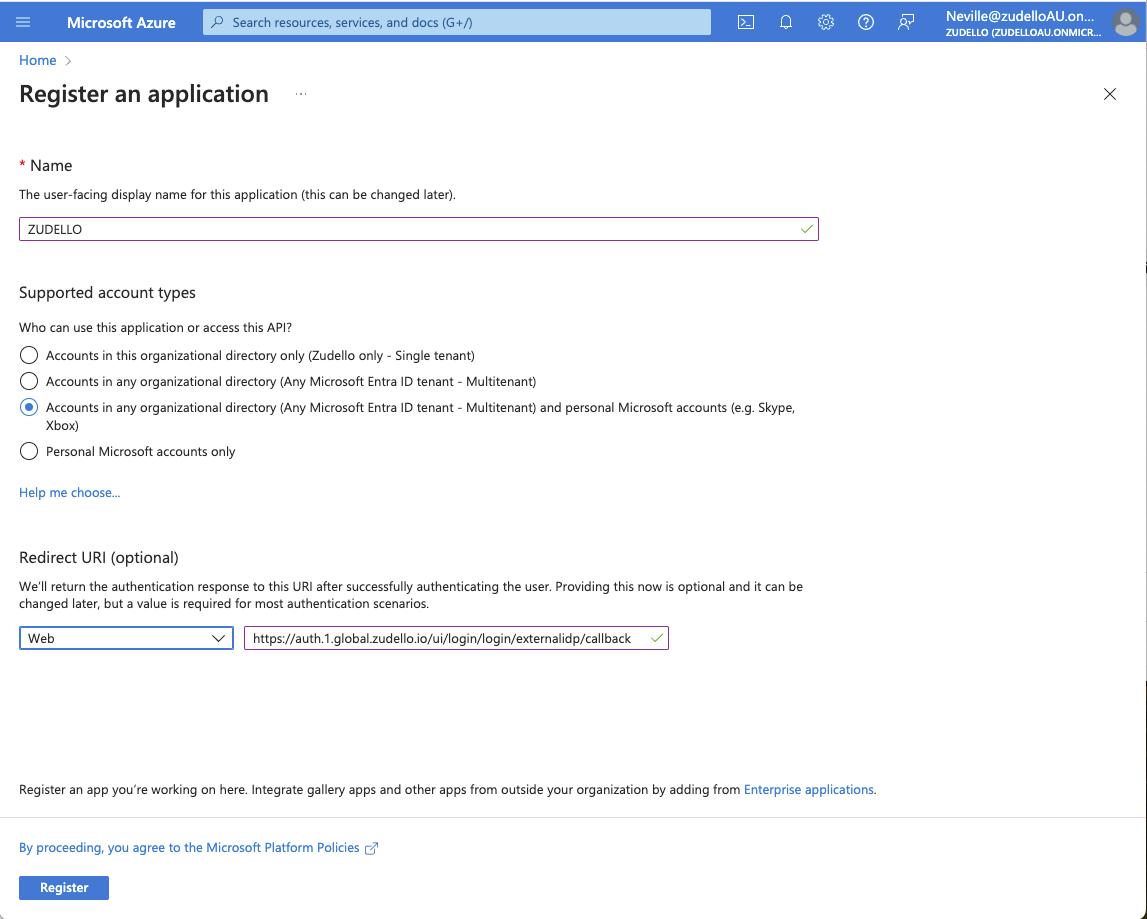
- Open the App registration menus create dialog
- Enter Zudello as the name of the application
- Select who should be able to login (Single-Tenant, Multi-Tenant, Personal Accounts). This setting will impact how you configure the provider later on in Zudello.
- Select Web under Redirect URI and paste the first Zudello callback URL https://auth.1.global.zudello.io/ui/login/login/externalidp/callback
- Click Register
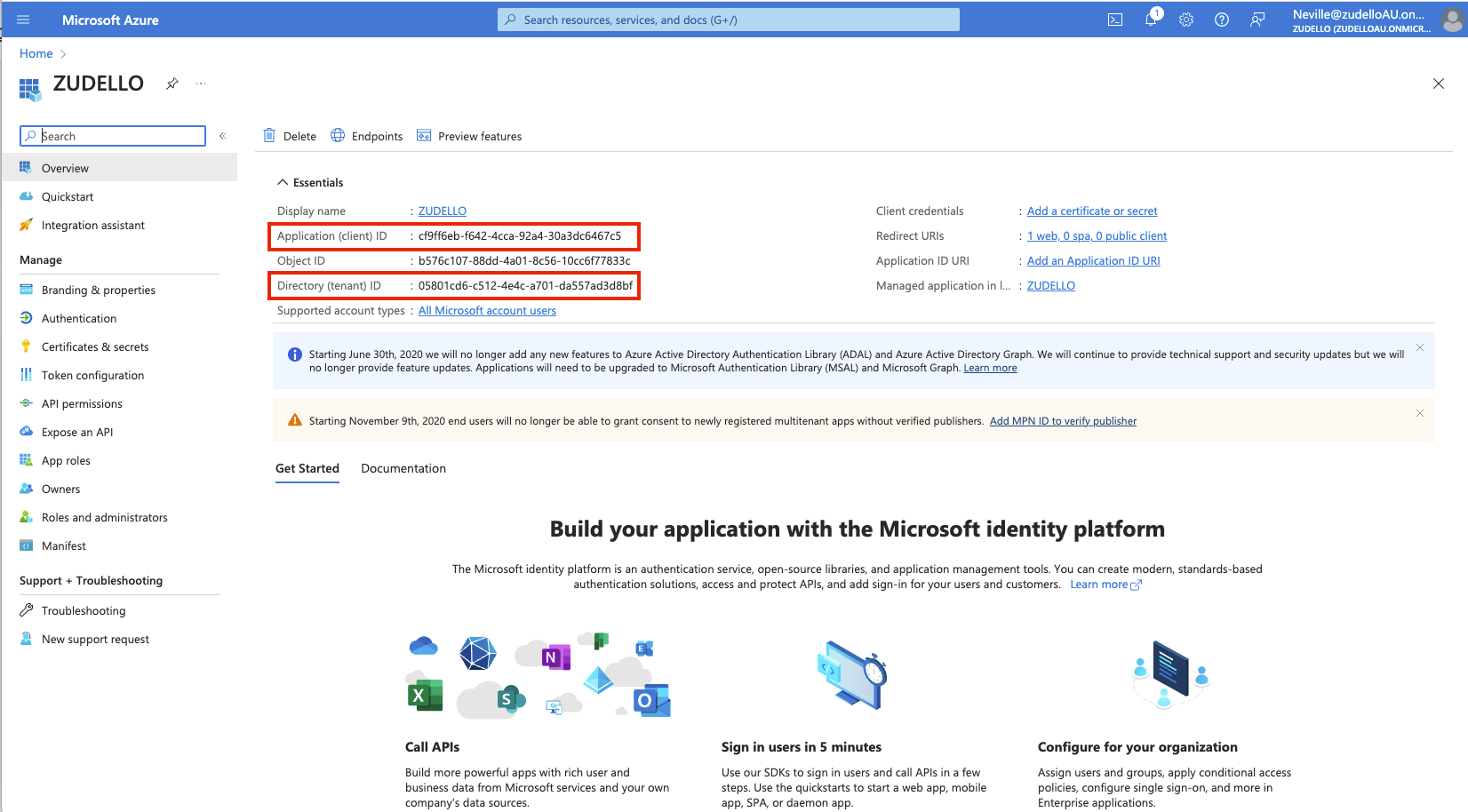
- Save the Application (client) ID and the Directory (tenant) ID from the detail page in a secure location
- Click Authentication in the side menu, click Add URI, and paste the second Zudello callback URL https://auth.1.global.zudello.io/idps/callback
- Click Save
Example registration page
Example Application (client) ID and Directory (tenant) ID
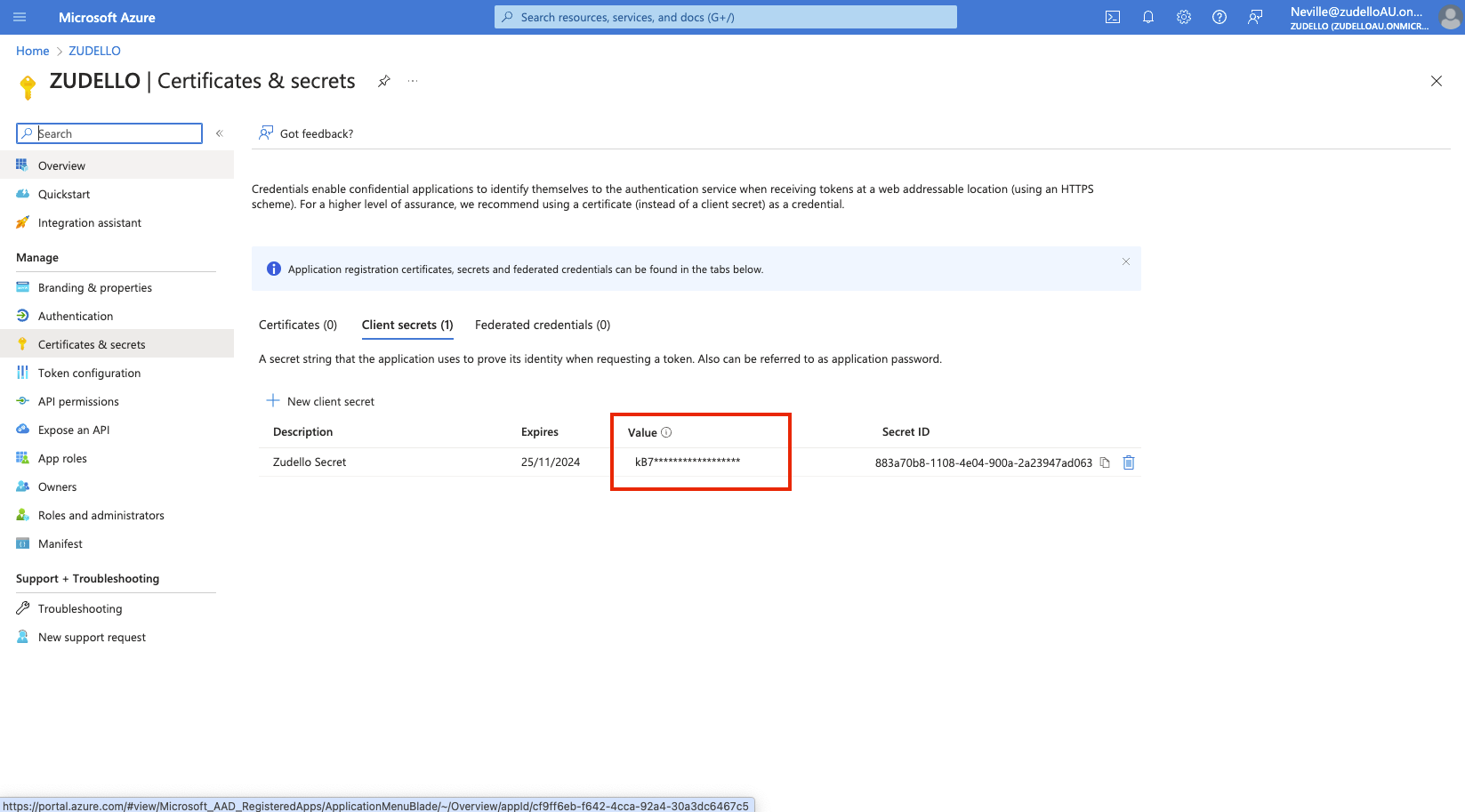
Adding a client secret
To generate a new client secret to authenticate your user:
- Click Client credentials on the detail page of the application, or Certificates & secrets in the side menu
- Click New client secret
- Enter a clear description and set the expiry to at least 12 months. Choose the longest expiry your security policy allows, as single sign-on stops working the day the secret expires and a new secret has to be issued and sent to Zudello each time.
Record the expiry date in your organisation's calendar with enough notice to issue and send a replacement secret before it expires.
- Click Add
- Copy the secret Value
Copy the secret Value, not the Secret ID, and copy it now as you will not be able to see it again.
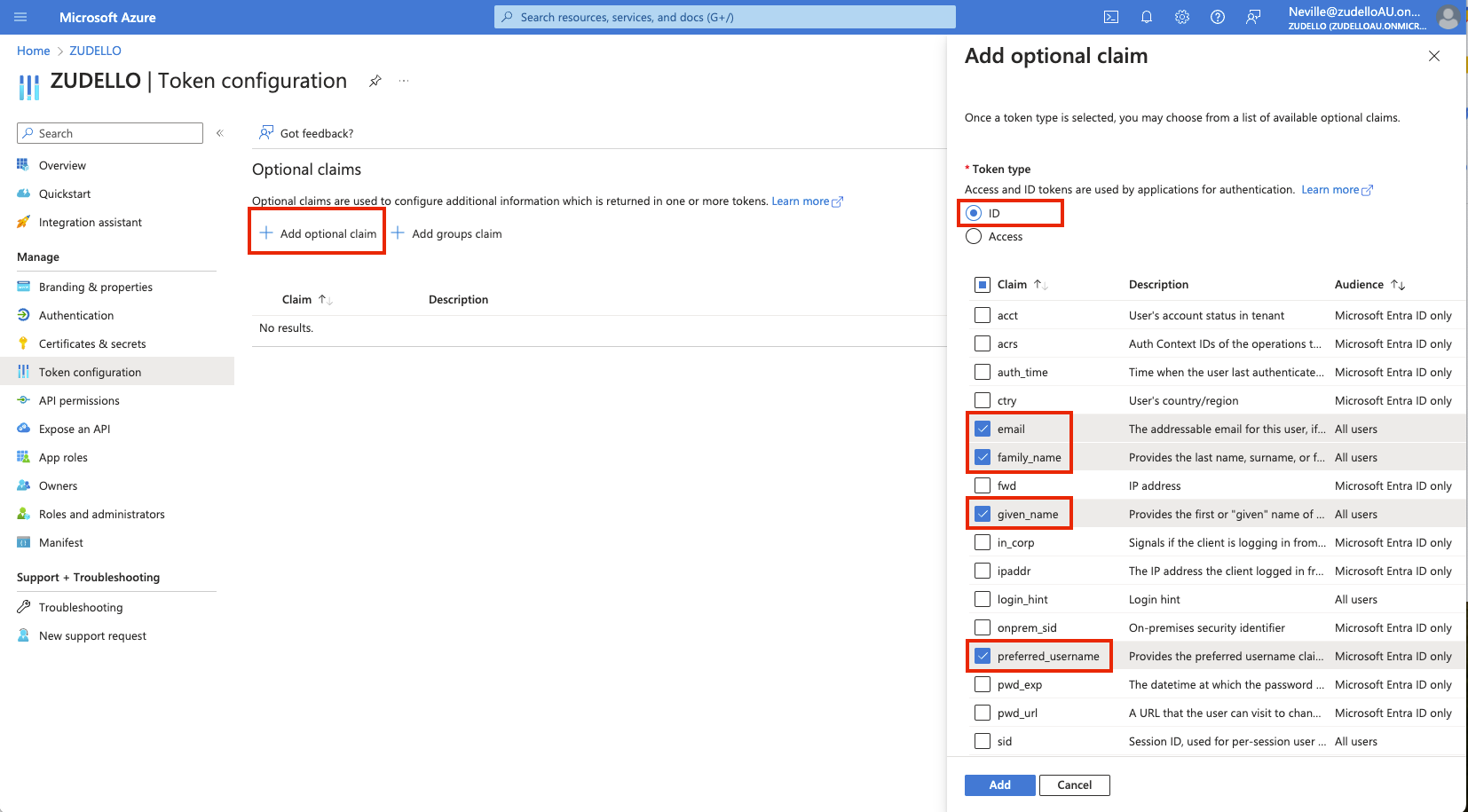
Configuring token settings
Configure the token to return required user information:
- Click Token configuration in the side menu
- Click Add optional claim
- Add the following claims to the id token:
- family_name
- given_name
- preferred_username
Setting up API permissions
Configure the correct API permissions to enable all required functionality:
- Click API permissions in the side menu
- Verify the following Microsoft Graph permissions are included:
- profile
- User.Read
- openid
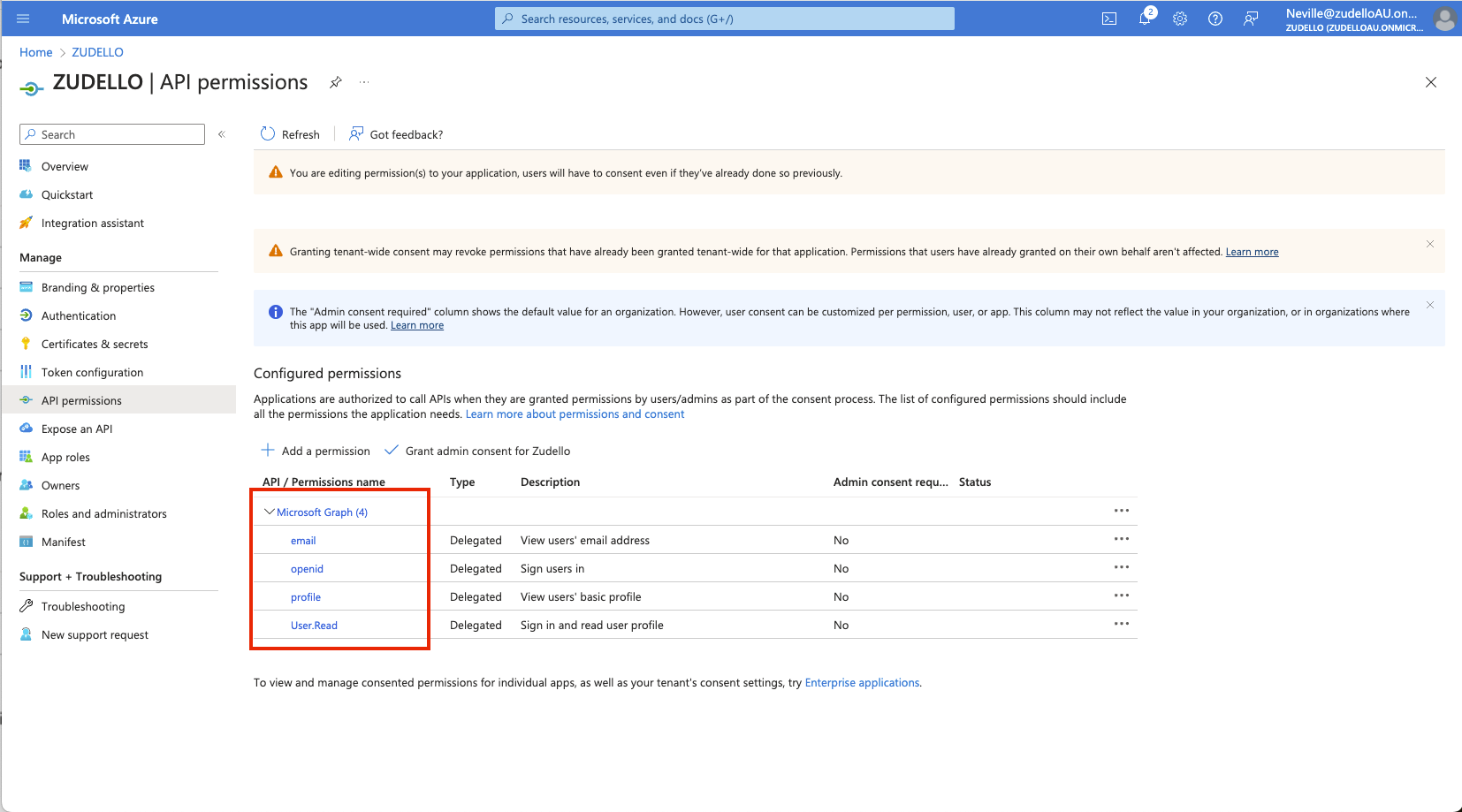
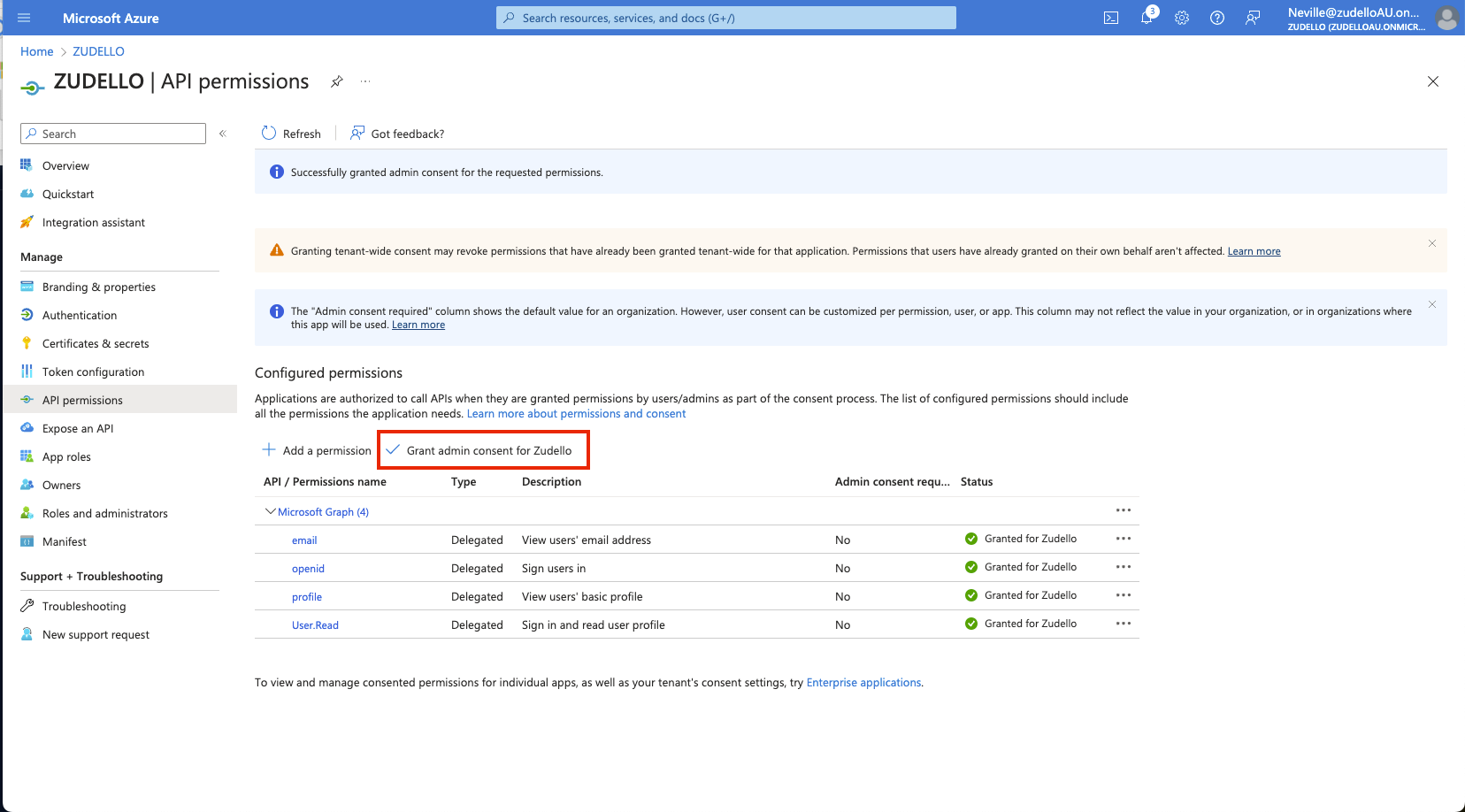
- Click Grant consent to apply the permissions
Completing implementation
Once you have completed the above steps, please securely provide these details to your Zudello implementation consultant:
- Application (Client) ID
- Directory (tenant) ID
- Client Secret value
- The expiry date set on the client secret
To ensure your information is kept confidential, use a secure password sharing tool like 1Password or LastPass. If you do not have access to any such tool, please send Client IDs and Client Secret values in separate messages.
Zudello will complete the configuration on our side and notify you when testing can begin.
Single sign-on stops working the moment the client secret expires. Before that date, generate a new secret in Entra and send the new value to your Zudello implementation consultant. Zudello does not monitor your secret expiry, so please diarise it and contact us in advance.
How users are matched to Zudello accounts
The first time someone signs in through Entra, Zudello links them to their existing Zudello user by email address. The email address on the Entra account must match the email address on the Zudello user exactly. If it does not match, the user signs in to a new, empty account instead of their own.
Users are not created automatically from Entra unless you also set up user provisioning.
Multi-factor authentication
Enforce multi-factor authentication through your own Entra conditional access policies. Zudello does not apply a second policy on top of Entra, so your users are only challenged once.
Testing the configuration
After Zudello has completed the remaining configuration, we will notify you that testing can begin.
- Open an incognito or private browser window
- Navigate to https://app.zudello.io
- Enter the work email address of a user in your Entra tenant
- You will be redirected to the Microsoft sign-in page
- Sign in, and you will be directed back to Zudello
- Confirm the user has landed in their existing Zudello account, with their teams and permissions intact
Once single sign-on is live, users sign in with their Microsoft account. Zudello password login is switched off for your organisation by default, so anyone who previously used a Zudello password signs in through Microsoft from that point on.
Need help?
If sign-in fails, see Entra ID SSO/Provisioning Setup Problems. Contact your organisation administrator or Zudello support for assistance with Entra ID authentication setup.