Configuring Slack to receive approval notifications
Zudello's flexible configuration allows you to receive approval notifications via the channel that makes the most sense for your team. Follow the steps in this guide to receive your approval notifications via Slack.
Configuring Slack
The configuration involves 4 stages:
- Creating a new app within Slack
- Configuring app permissions
- Installing the app to your Slack instance
- Providing the application details to Zudello
You will need to complete each stage in order. You must complete every step in every stage in order for the integration to function as expected.
If you have any questions, please reach out to your Zudello implementation consultant or support@zudello.com.
Creating a new app within Slack
The first step in enabling Zudello notifications via Slack is creating a new app within Slack. To create a new app:
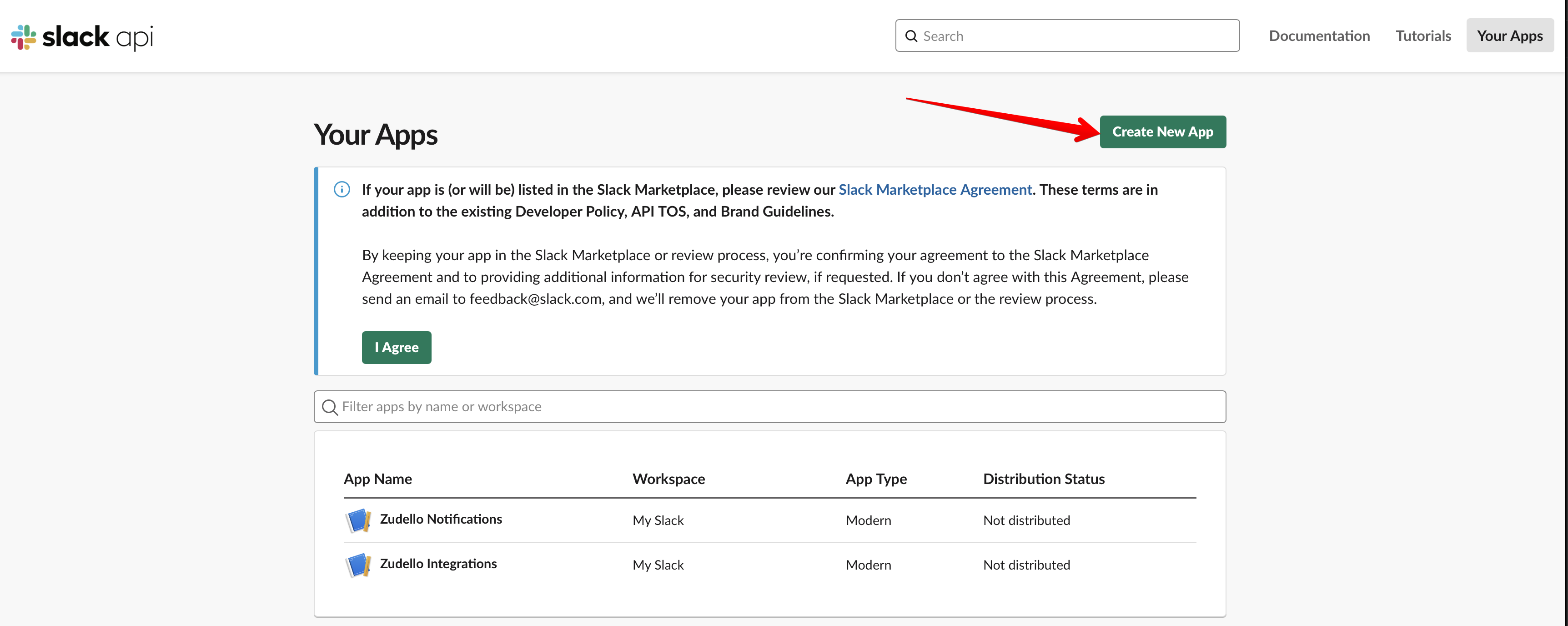
- Open the Slack API Dashboard (Your Apps)
- Click Create New App
- Click From scratch

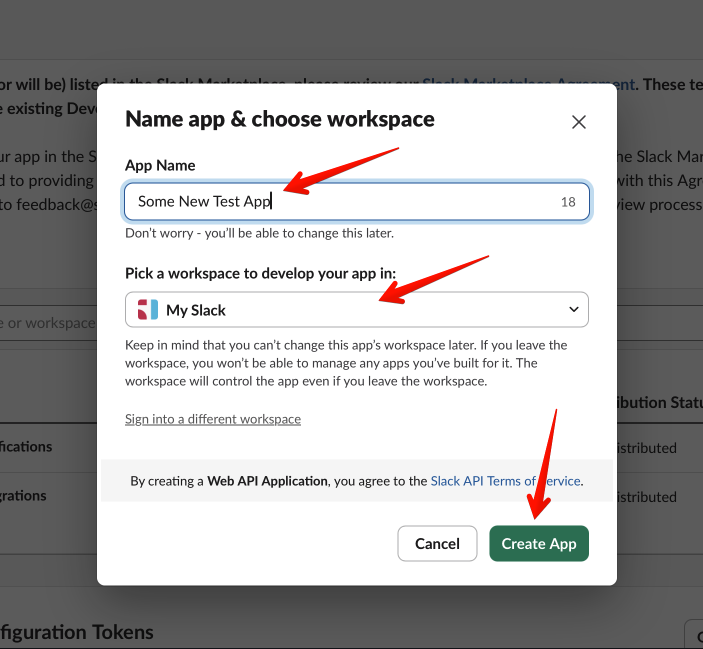
- Enter an App Name
- Select your workspace under Pick a workspace to develop your app in
- Click Create App
- Click Basic Information in the left sidebar
- Copy the value under Signing Secret and save it securely
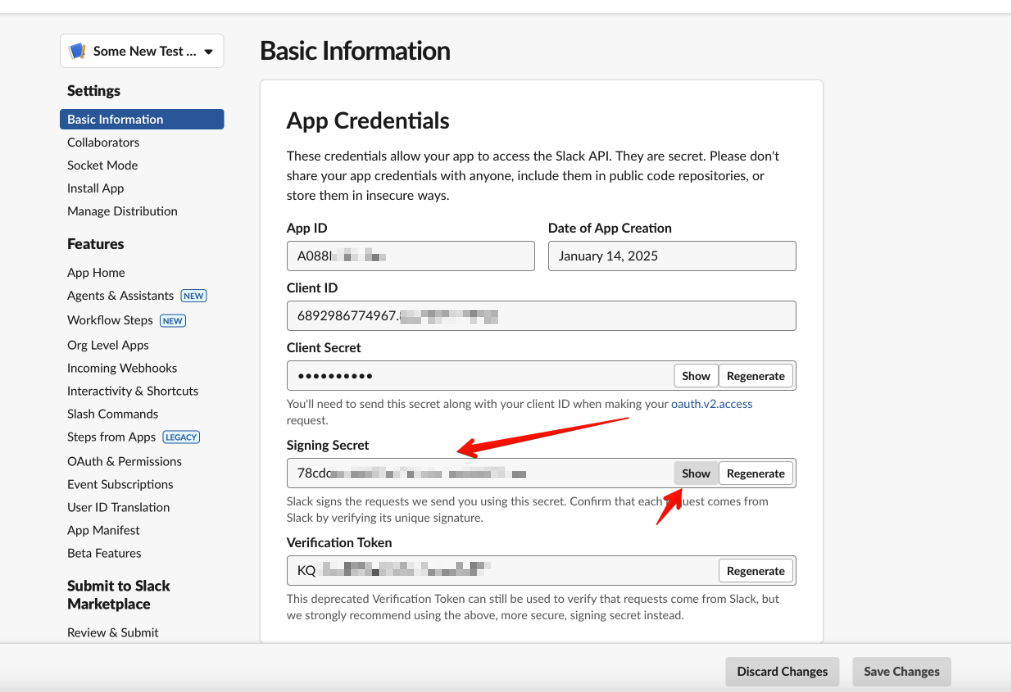
You may not be able to access the Signing Secret again once you exit the page.
Ensure you have copied it and saved it securely before proceeding.
The app has now been created. The next section will show you how to add the necesary permissions.
Configuring application permissions (scopes)
Now that you have created a new app, you need to configure certain permissions (scopes):
- Click OAuth & Permissions in the left sidebar
- Scroll down to the Scopes section

- Under Bot Token Scopes, click Add an OAuth Scope and add the following:
- chat:write
- conversations.connect:write
- files:write
- groups:write
- im:write
- users:read
- users:read.email
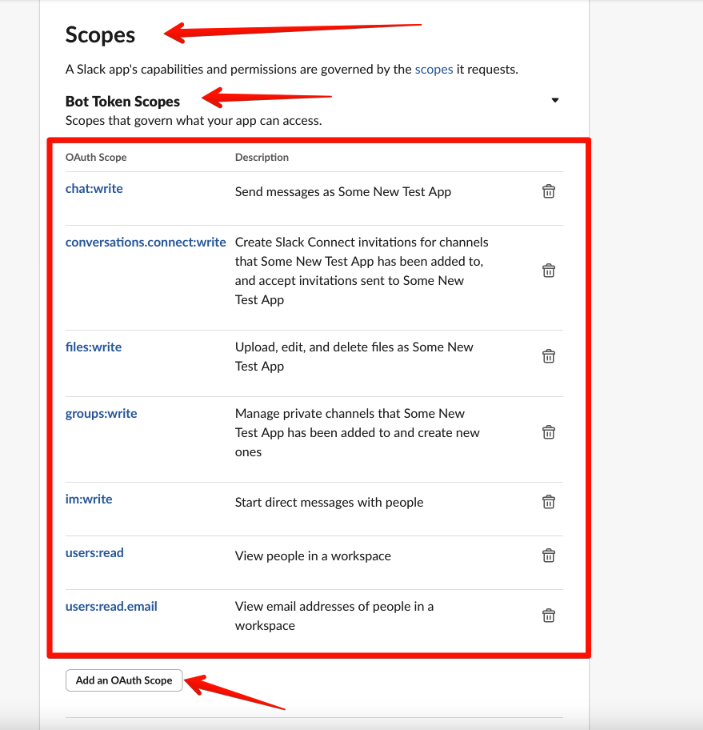
The application scopes have now been configured. The next section will show you how to install the app to your Slack.
Install the app
Now that app permissions have been set you can install the app to your Slack instance.
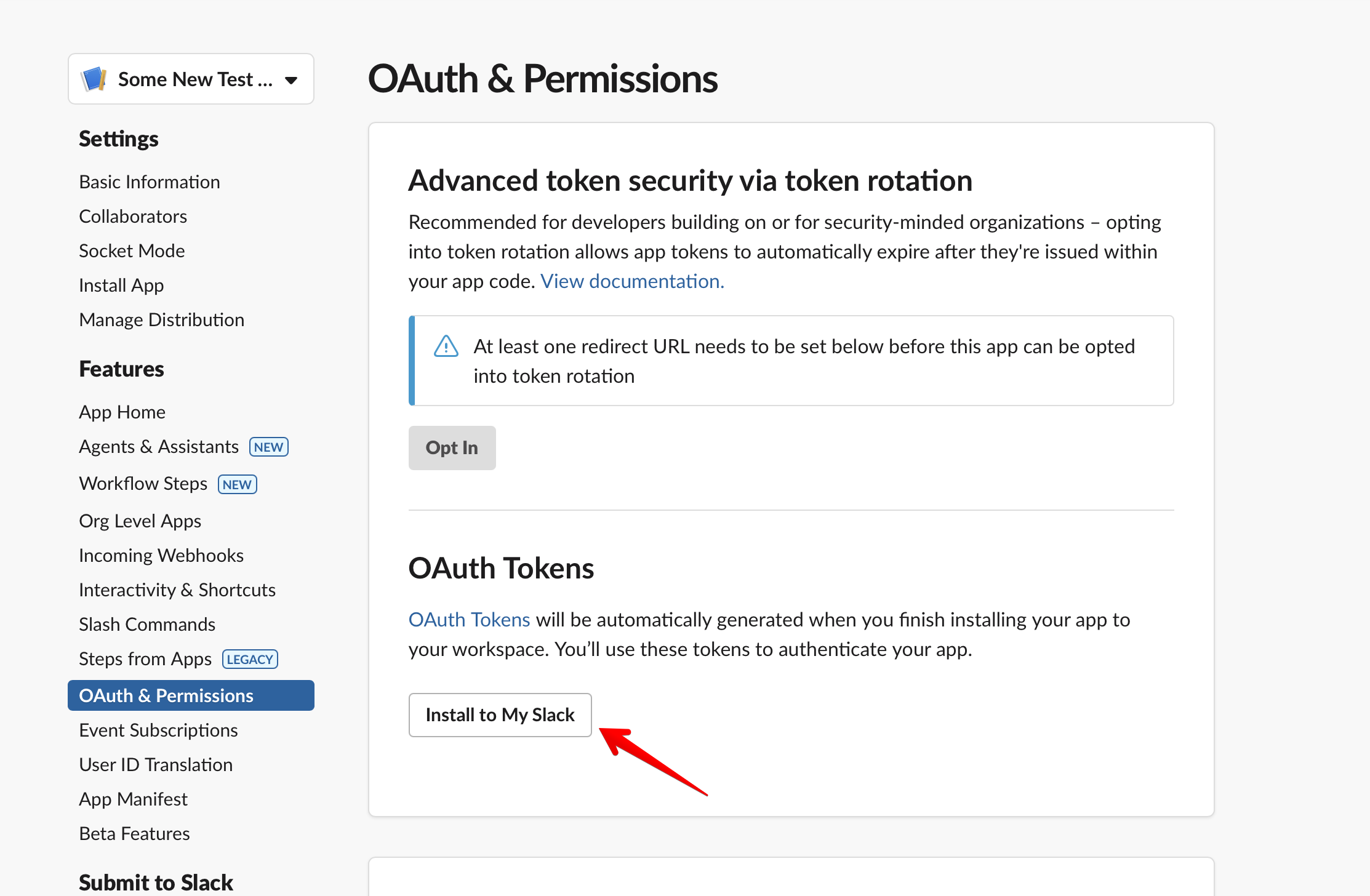
- Scroll up and click Install to My Slack
- Copy the Bot User OAuth Token
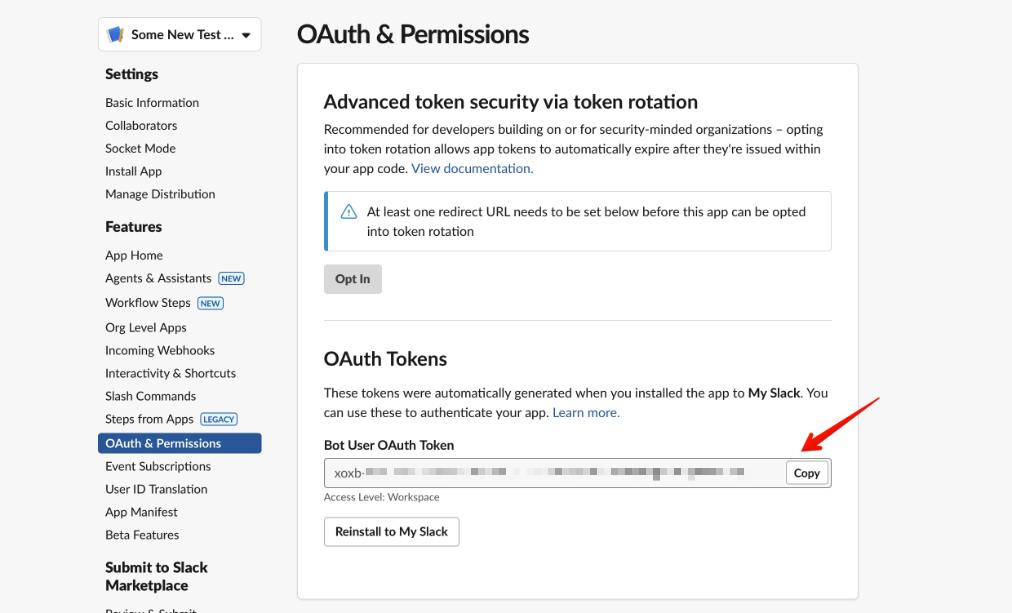
You may not be able to access the token again once you exit the page.
Ensure you have copied it and saved it securely before proceeding.
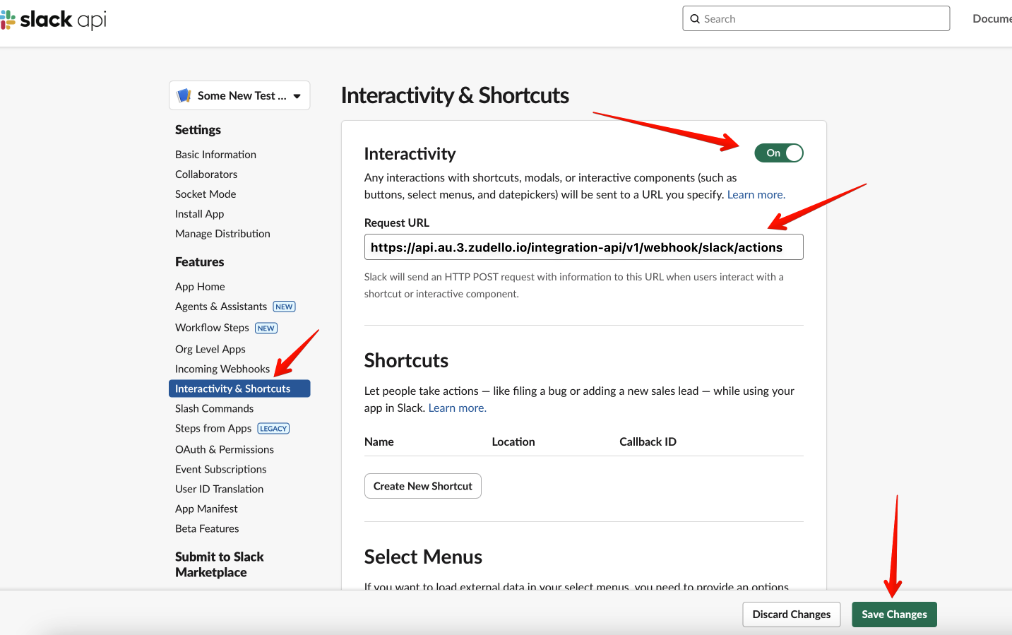
- Click Interactivity & Shortcuts in the left sidebar
- Set Interactivity to On
- Under Request URL, copy and paste the following:
https://api.au.3.zudello.io/integration-api/v1/webhook/slack/actions
- Click Save Changes
The app has been installed to your Slack instance. The next section details what you need to provide to Zudello to complete the set up.
Providing the application details to Zudello
Almost done! The last thing you need to do is provide your Zudello implementation consultant with the following details:
- The Signing Secret from step 8
- The Bot User OAuth Token from step 13
For added security, send the Signing Secret using a secure password sharing service such as LastPass or 1Password.
We'll take it from here!
Once you've provided these details to your Zudello implementation consultant, we will take care of the remaining set up.
We'll let you know once your Slack integration is fully set up and ready to use.