Reconciling corporate card transactions
This guide walks you through the reconciliation process, from matching a payment to a single expense through to handling more complex scenarios like split payments, adjustments, and validation issues.
The terms transactions, payments, and card transactions may appear throughout this documentation.
All of these terms refer to the same thing, a transaction that has been put through a corporate card, and should be treated as interchangeable.
What is card reconciliation?
When you use your corporate card, two things happen:
- Your bank records a payment on your card statement, and this flows through to Zudello
- You (or your team) create an expense record in Zudello, usually by uploading a receipt
These two records exist separately until you reconcile them. Reconciliation links each payment to its supporting expense, so your finance team has a complete picture of what was purchased and why.
Reconciling a payment
- Click the group of payments you want to reconcile.
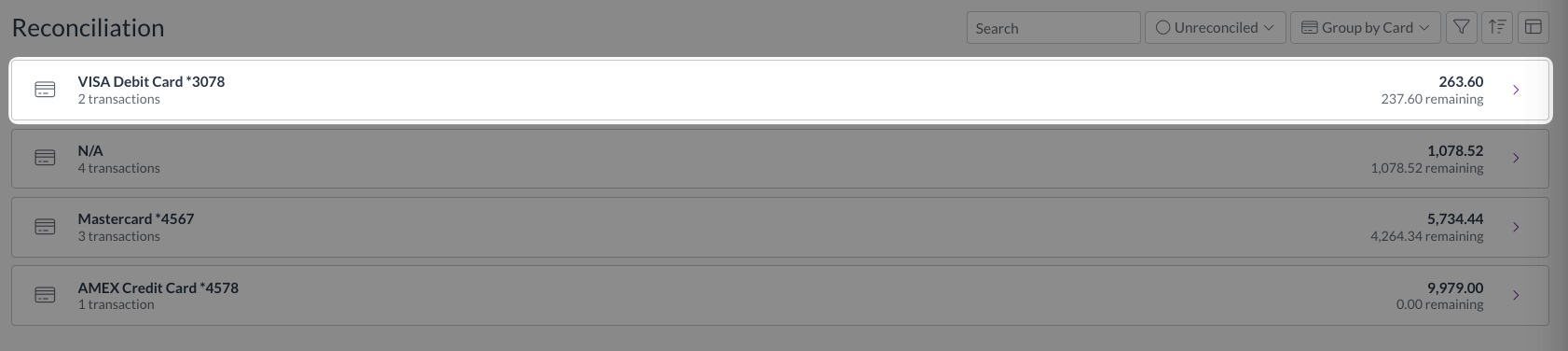
- The reconciliation modal will open, showing payments on the left.
- Payments are grouped by status into:
- Unreconciled
- Partially Reconciled
- Complete
- Payments are grouped by status into:
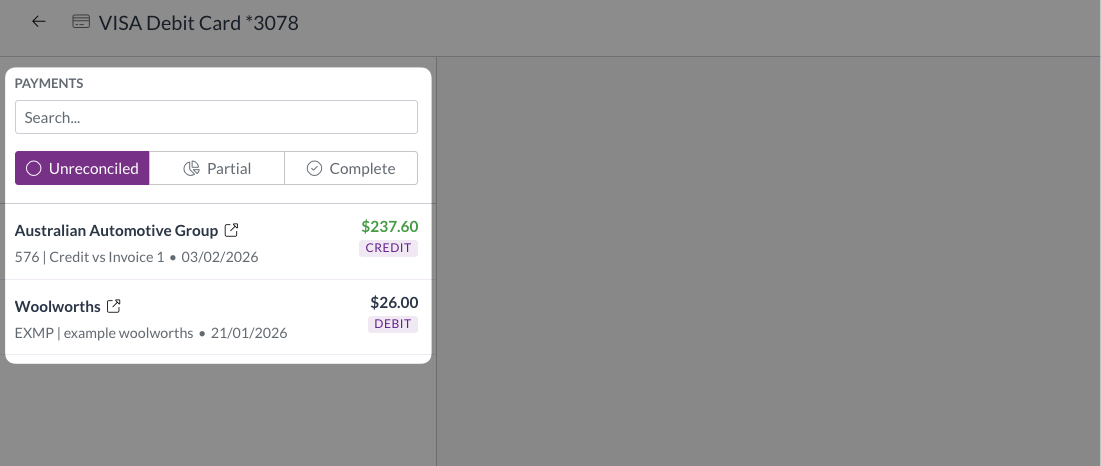
- Click a payment to reconcile.
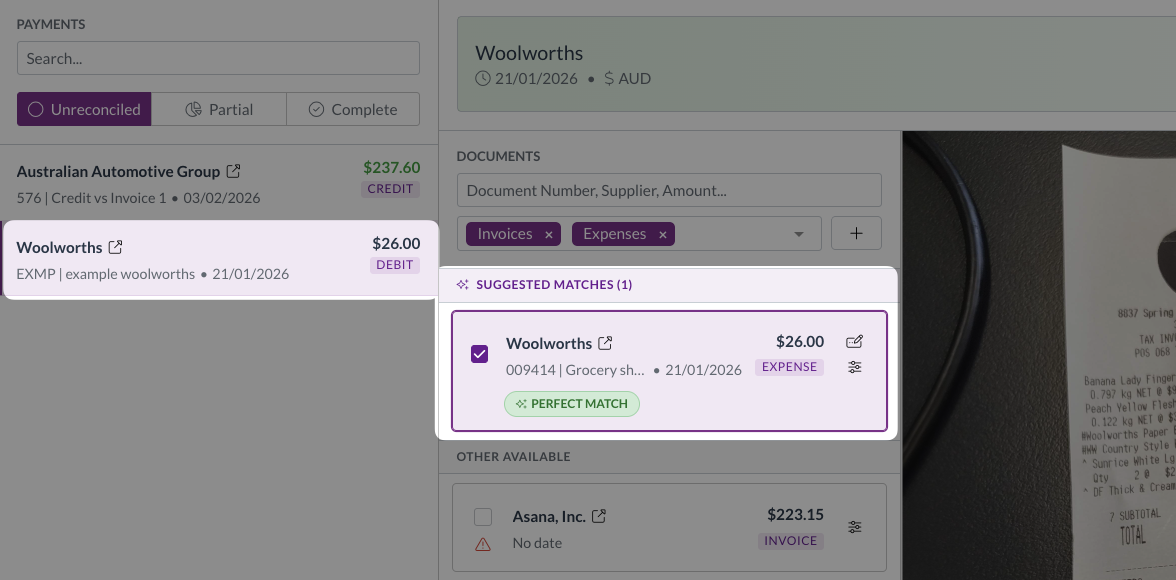
- Zudello automatically identifies and labels suggested matches:
Label Criteria Perfect match Same supplier, expense within three days of the payment date, amount within $0.01 Supplier match Same supplier, expense within 30 days of the payment date, amount within 10% Amount match Amount within $0.01 of the payment, supplier and date are not considered
If there is no suggested expense, you can search by number, supplier name, or amount.
- Select the checkbox to the left of the expense you want to match (for suggested matches this may be automatically selected).
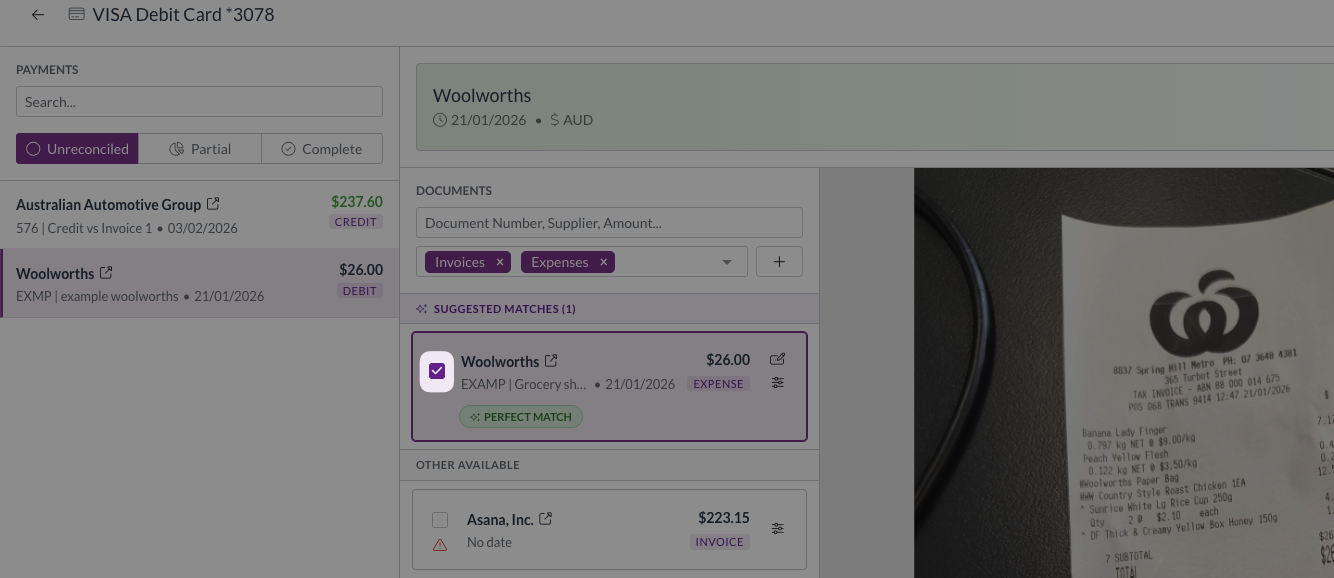
- The payment header updates to show the current matched amount against the target amount:
- Grey — nothing matched yet
- Yellow — partially matched
- Green — fully matched (ready to reconcile)
- Red — over-reconciled (matched amount exceeds the payment)
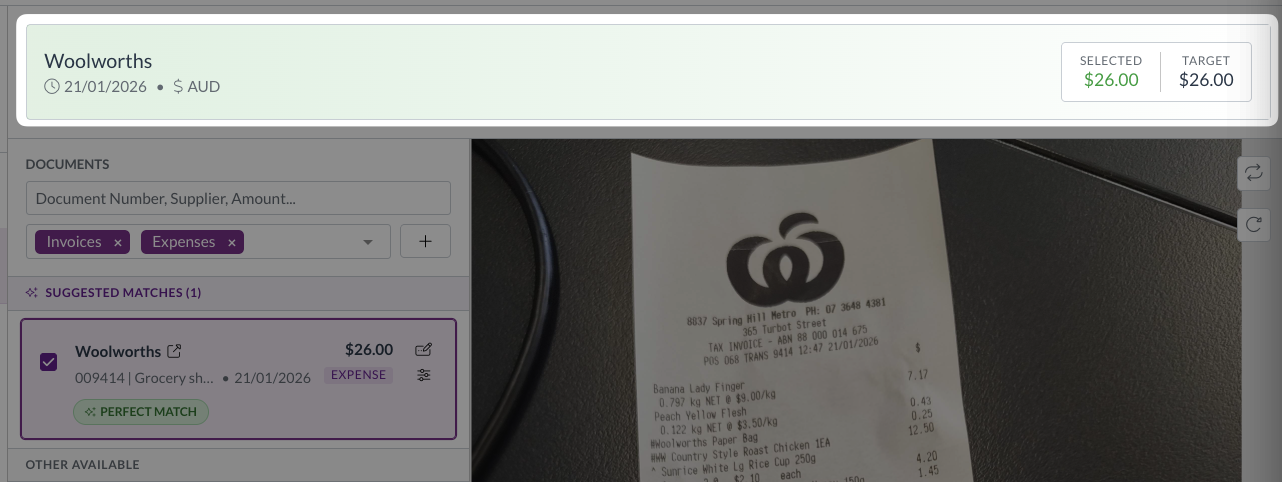
If the payment is partially matched or over-reconciled, the exact difference shows at the bottom left of the screen.
- To match multiple expenses to a single payment, continue selecting expenses until the matched total equals the payment amount.
- Repeat steps 3-7 for any remaining payments.
- Click Reconcile.
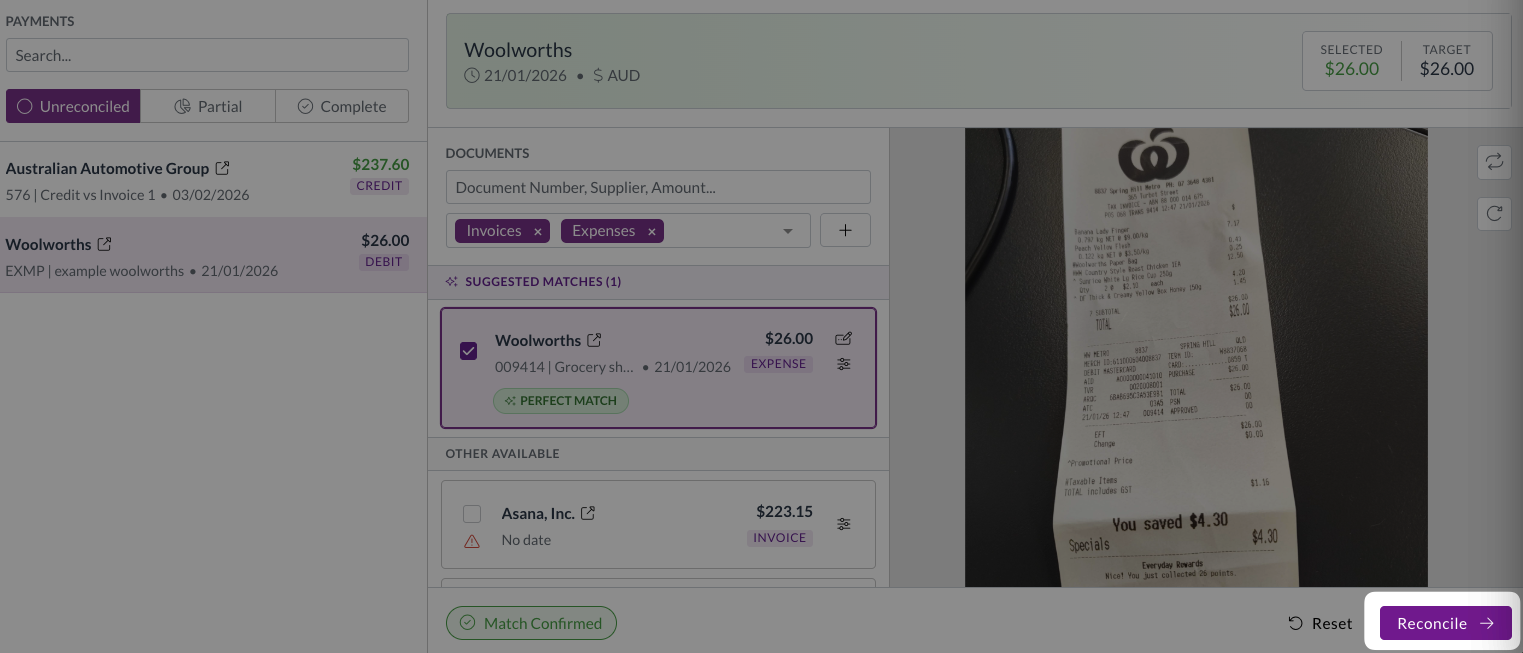
If the matched amount exceeds the payment, the button shows Save exceeded instead. See Over-reconciliation below.
You're all done!
Zudello automatically submits every matched expense through your organisation's approval workflow. Once approved, each expense flows through to your accounting system.
Only expenses matched to a Complete or Over-reconciled payment are submitted for approval.
If a payment is still partially reconciled, nothing is submitted until the reconciliation is complete.
How credits and debits affect the balance
Most of your transactions will be straightforward, but it helps to understand how different document types affect the remaining balance:
- For debit transactions (purchases)
- Matching an invoice or expense reduces the remaining balance, because it explains part of the spending.
- Matching a credit note increases the remaining balance, because the refund means more spending needs to be accounted for elsewhere.
- For credit transactions (refunds)
- It works the other way around. Credit notes reduce the balance, while invoices and expenses increase it.
Exceptions
Handling small differences with adjustments
Bank fees and currency conversions can create small differences between your receipt total and the payment amount. If your organisation has enabled adjustments for your role, you can account for these directly in the reconciliation.
✅ Use adjustments when:
- Your bank charged a foreign transaction fee
- Currency conversion caused a small difference between the receipt and payment
- The difference is a combination of both
❌ Don't use adjustments for:
- Large unexplained discrepancies
- Errors in the expense coding - fix the expense document itself
- Situations where you should be matching a different document
To apply an adjustment:
- Match the expense to the payment.
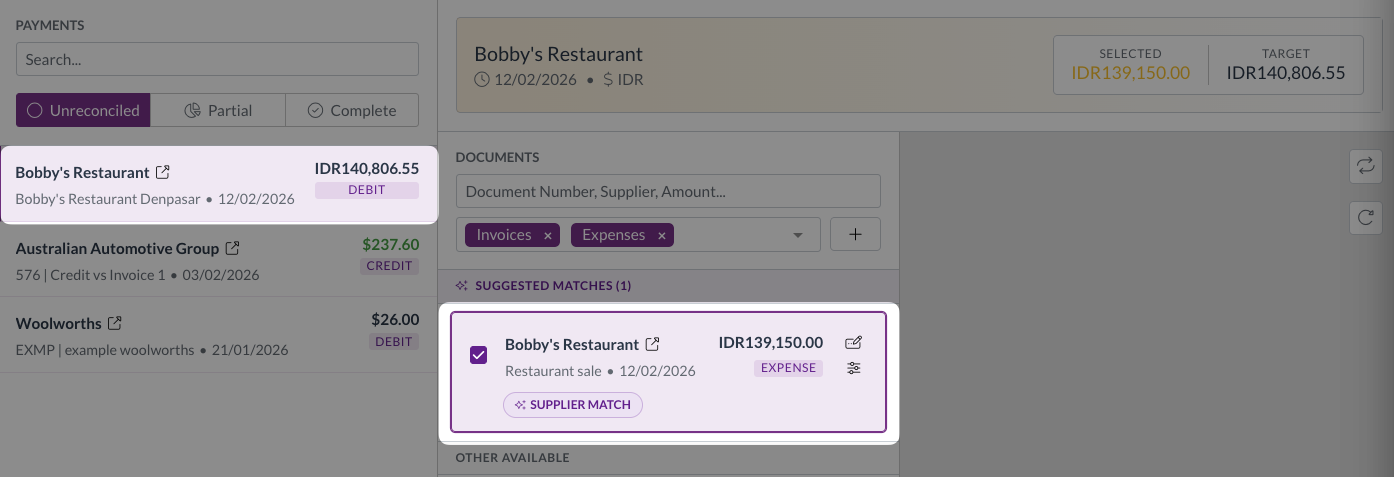
- Click the Adjust amounts icon
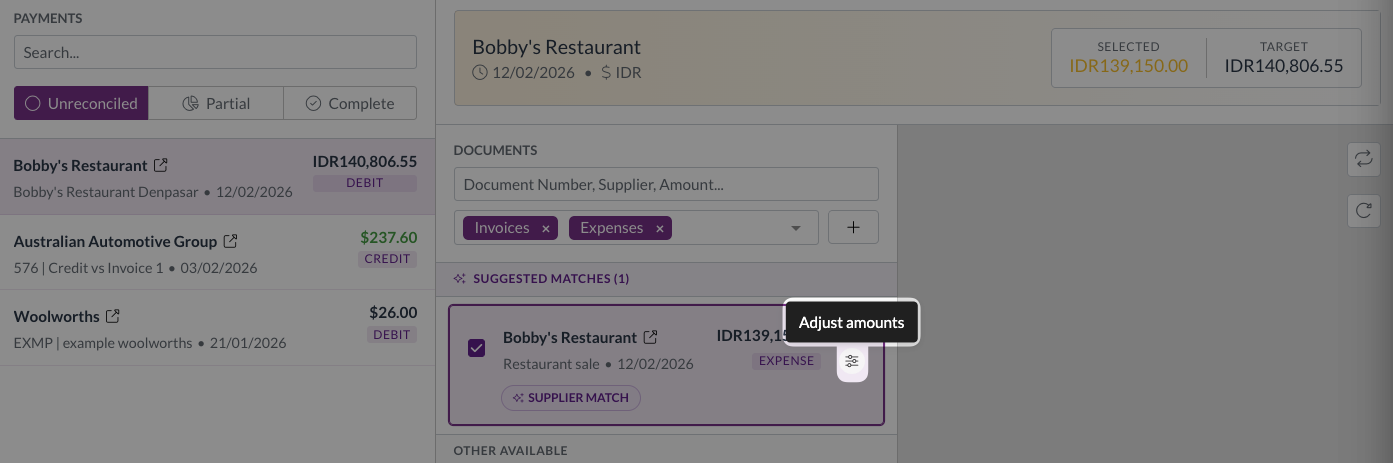
- The adjustments modal will open.
- Enter bank fee adjustments in the Bank fee field
- Enter currency adjustments in the Currency adjustment field
- Enter a comment to explain the adjustment if necessary
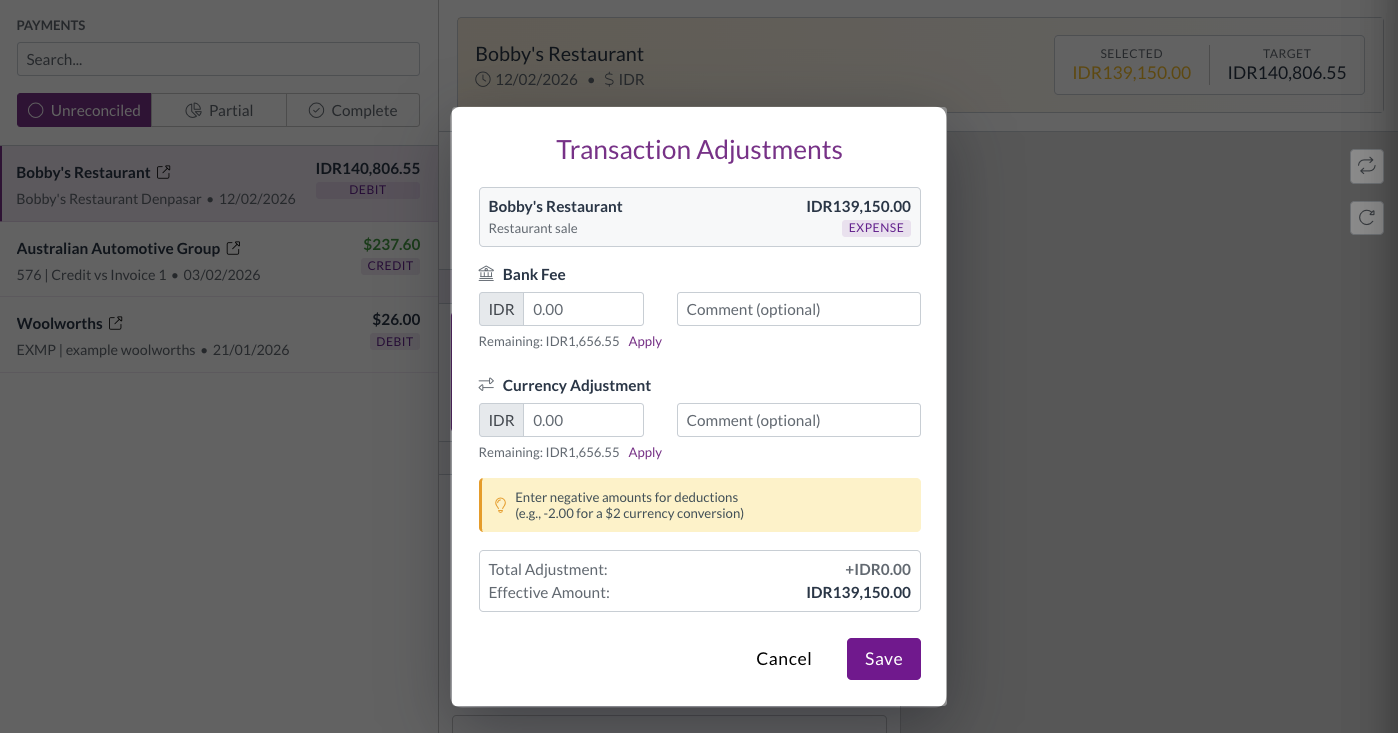
The remaining discrepancy will display below each field.
Click Apply to apply the full remaining discrepancy to that field.
- Click Save to apply your adjustments
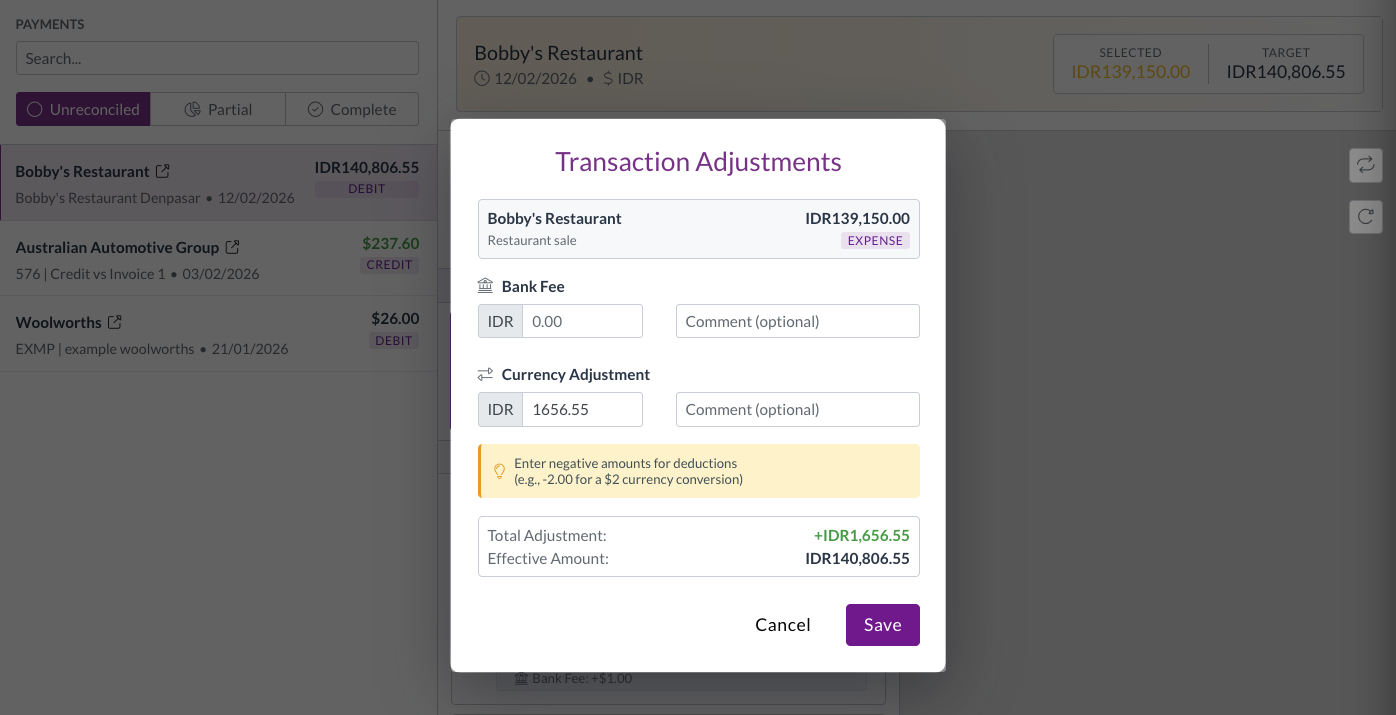
- The adjusted totals will be reflected at the top of the reconciliation page If the adjustment accounts for the full difference, the status will change to Complete.
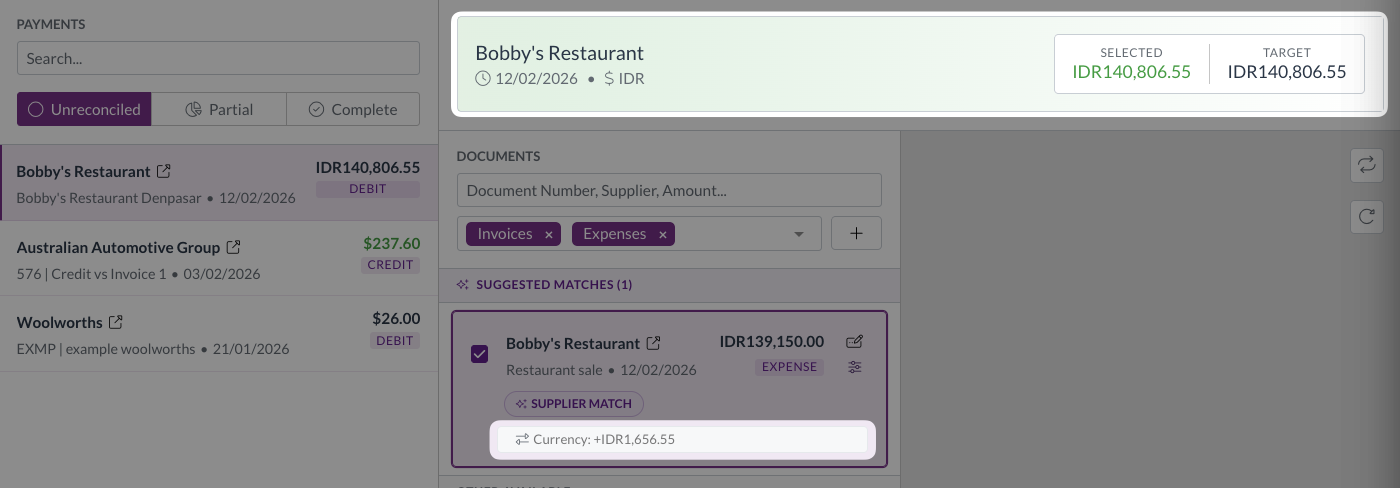
Once a reconciled expense has been approved and synced to your accounting system, the adjustment becomes read-only. You can still view the details, but you can't change them.
Over-reconciliation
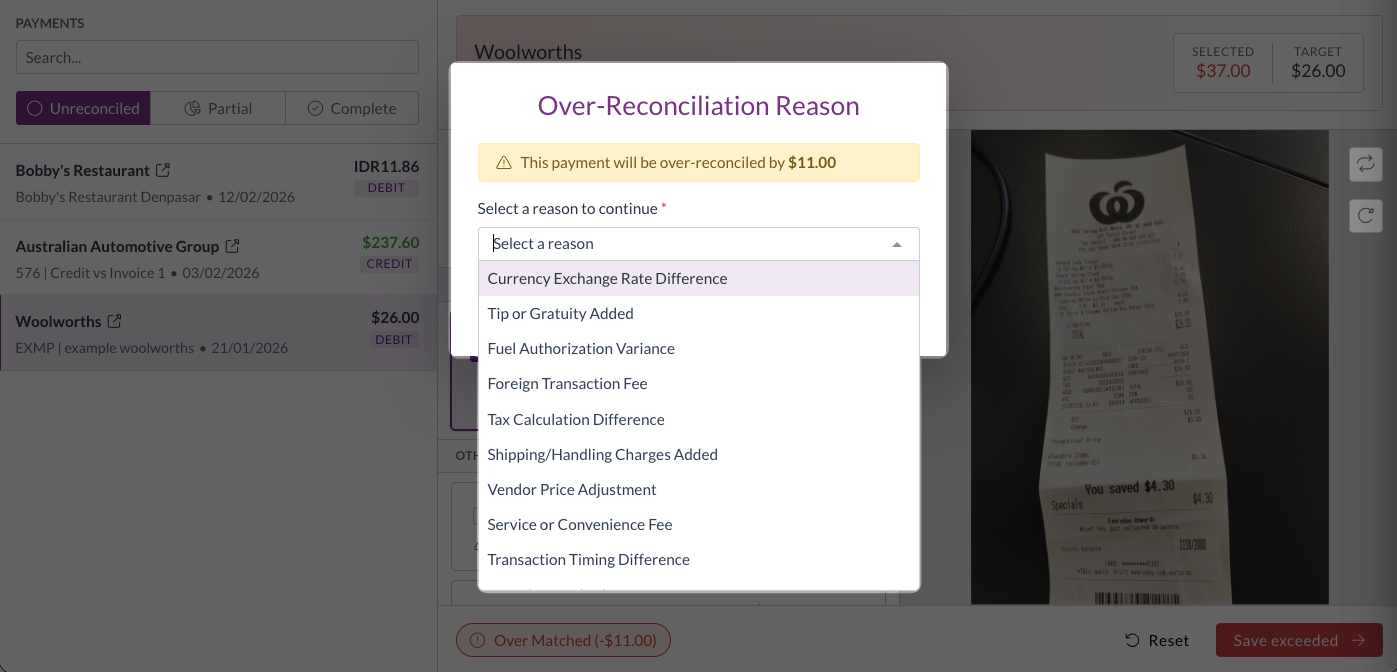
Zudello allows you to match expenses that add up to more than the card payment, called over-reconciliation. When over-reconciling, it's important to provide your finance team with as much context as possible so they can understand the reason.
To over-reconcile a payment:
- Click Save exceeded, which replaces the Reconcile button when the matched total exceeds the payment.
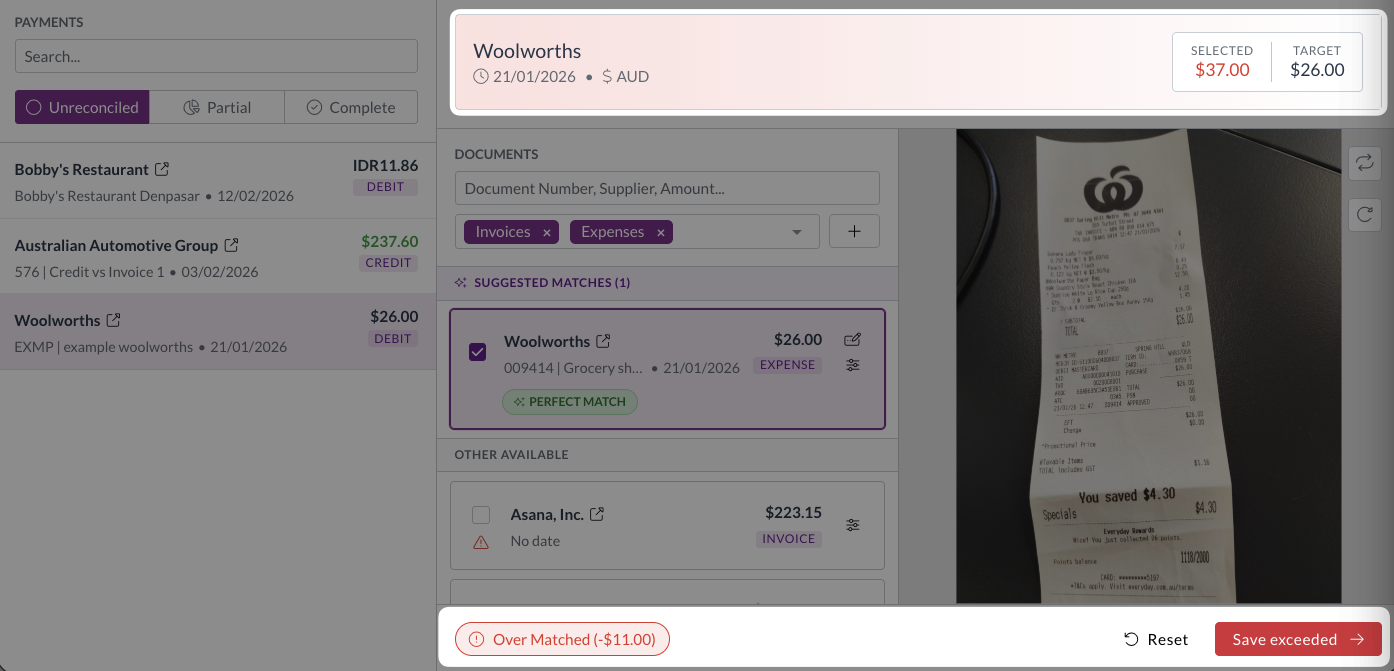
- Select a reason from the drop-down. Your approver can see this reason when they review the expense.
- Click Save exceeded.
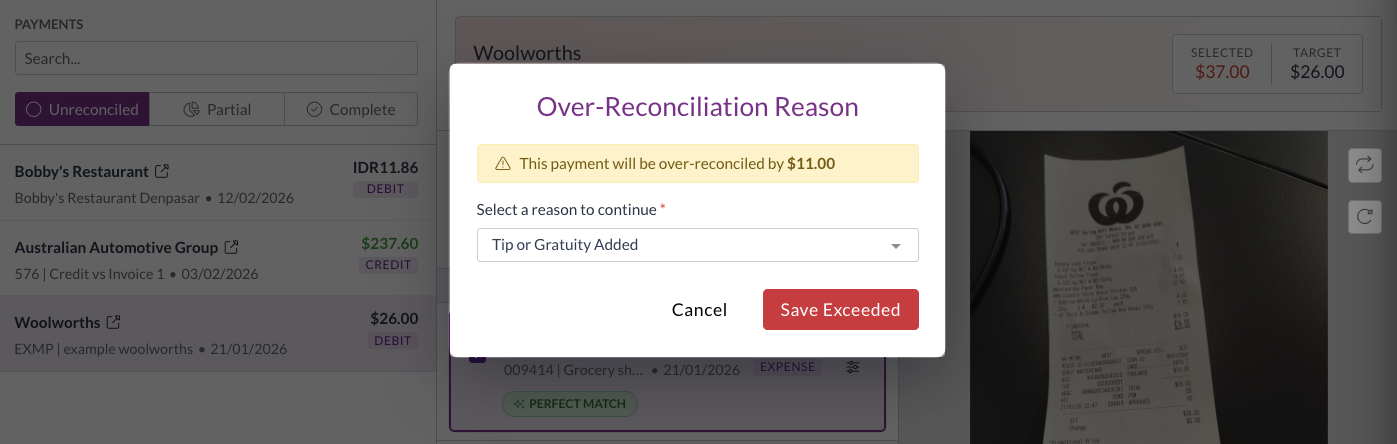
If the difference is due to a bank fee or currency conversion, use adjustments rather than over-reconciling.
Resolving validation issues
Before a document can be matched, it needs to pass certain validation checks. Zudello shows any issues in the suggestions sidebar, next to each document:
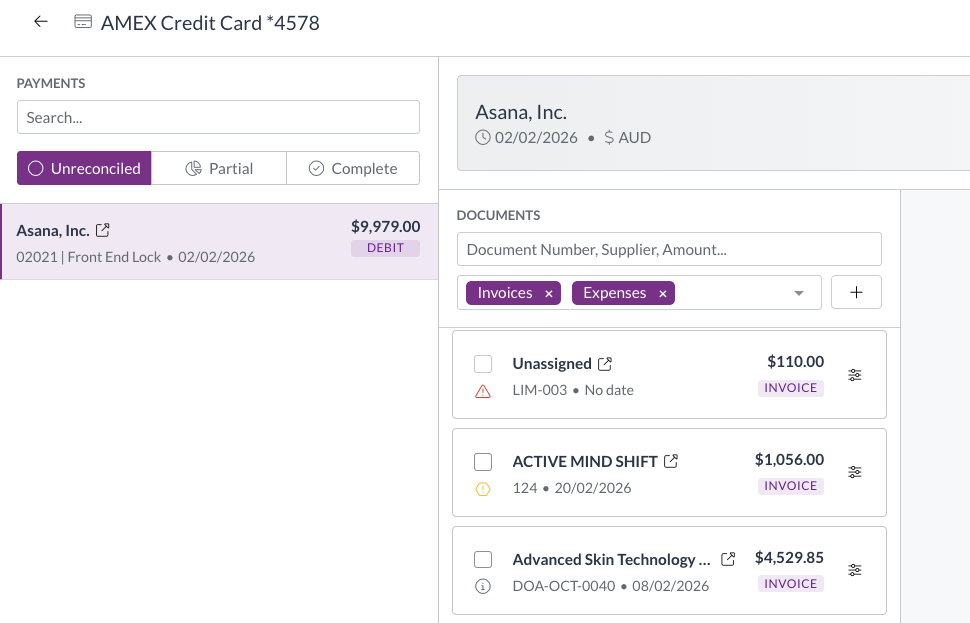
Validation issues fall into one of the following categories:
| Level | Symbol | Can you match it? | What it means |
|---|---|---|---|
| Note |  | Yes | Informational only. No action needed. |
| Warning |  | Yes | Worth reviewing, but won't stop you from reconciling. |
| Needs action |  | No | You need to fix something on the document before you can match it. |
To fix a Needs action issue:
- Click the symbol next to the document to review the issues.
- Click through to the document and make the required changes.
- Return to the reconciliation screen and match the document.
Locked documents
An icon appears next to reconciled expense that have been approved and synced to your ERP, to indicate that they can no longer be edited.
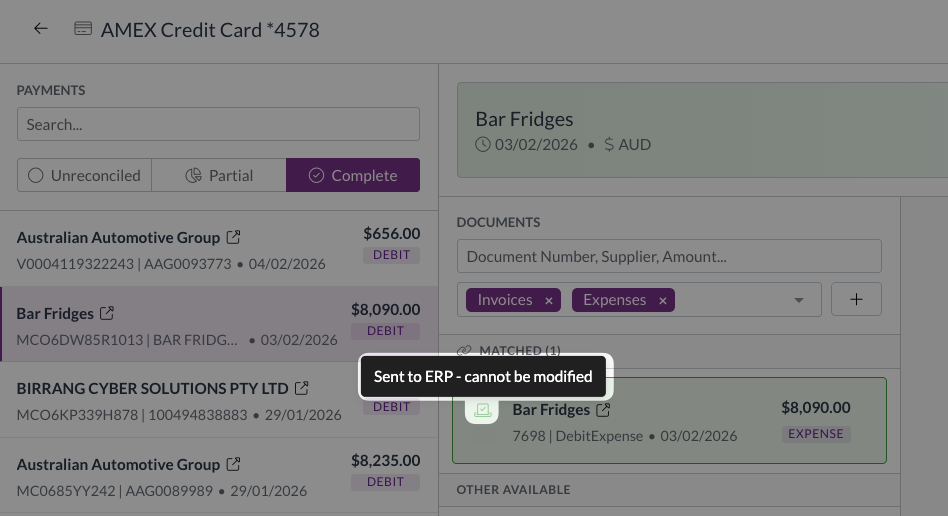
Locked documents can't have their adjustment amounts changed, can't be removed from the reconciliation, and won't appear in future match suggestions. This protects the integrity of records already sent to your accounting system.
Tips for card holders
- Upload receipts promptly
- The sooner receipts are in Zudello, the more likely they are to appear as a perfect match when you reconcile.
- Check the supplier name
- If the supplier on your receipt doesn't match what the bank reports, Zudello may not find a perfect match. You can still search for the document manually and match it yourself.
- Reconcile regularly
- Don't wait until the end of the month. Reconciling as you go keeps your workload manageable and helps your finance team close the books faster.
- Use adjustments for small differences
- If a bank fee or currency conversion causes a small discrepancy, apply an adjustment rather than leaving the payment partially reconciled.
Need help?
Contact your organisation administrator or Zudello support for assistance with card reconciliation.