Netsuite File Cabinet folder
When Zudello creates a transaction in Netsuite (e.g. a vendor bill), it can also upload the original document (e.g. the invoice PDF) and attach it to that transaction. Netsuite stores every uploaded file in a folder in the File Cabinet, so Zudello needs to know which folder to save attachments to.
This guide walks you through how to give the integration access to the File Cabinet, create a folder for Zudello attachments, and find that folder's Internal ID. Once you have it, you'll need to provide it to your Zudello Implementation consultant or implementation@zudello.com
Before you start
You'll need:
- Administrator access to your Netsuite account
- The integration role created in the connection requirements guide
Once you've finished
By the end of this guide, you'll have:
- Added the Documents and Files permission to the integration role
- A File Cabinet folder for Zudello attachments
- The Internal ID of that folder
Step 1: Add the Documents and Files permission
Without this permission, Zudello can't upload files to Netsuite and attachments will fail.
- In Netsuite, hover over Setup > Users/Roles > Manage Roles
- Click Edit next to the integration role (e.g. Zudello Integration)
- Scroll down to the Permissions section and click the Lists tab
- Select Documents and Files, set the level to Full and click Add

- Click Save
Step 2: Open the File Cabinet
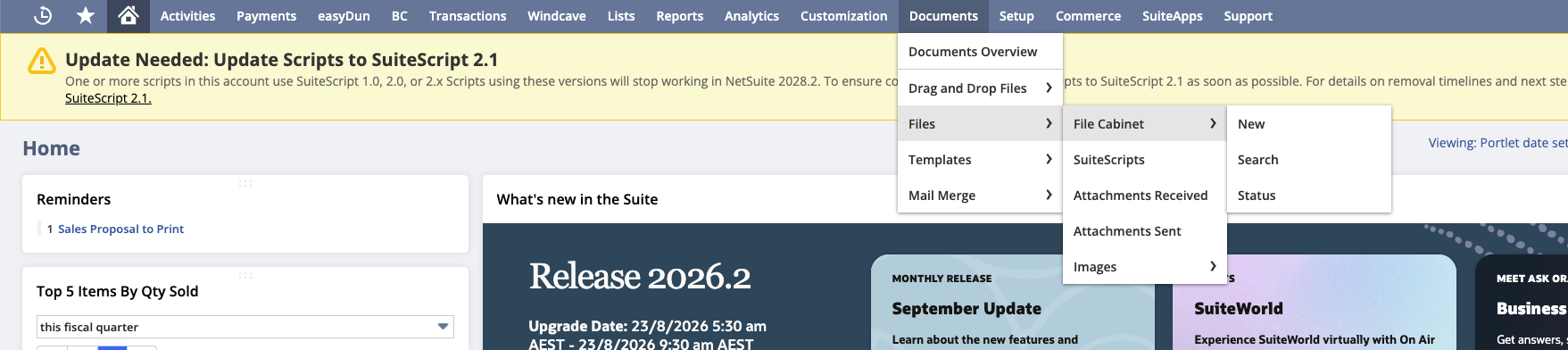
- In Netsuite, hover over Documents > Files
- Click File Cabinet
Step 3: Create a folder for Zudello attachments
We recommend a dedicated folder so attachments from Zudello are kept separate from your other files. If you'd rather use an existing folder (e.g. Accounts Payable), skip to Step 4.
- Click New Folder
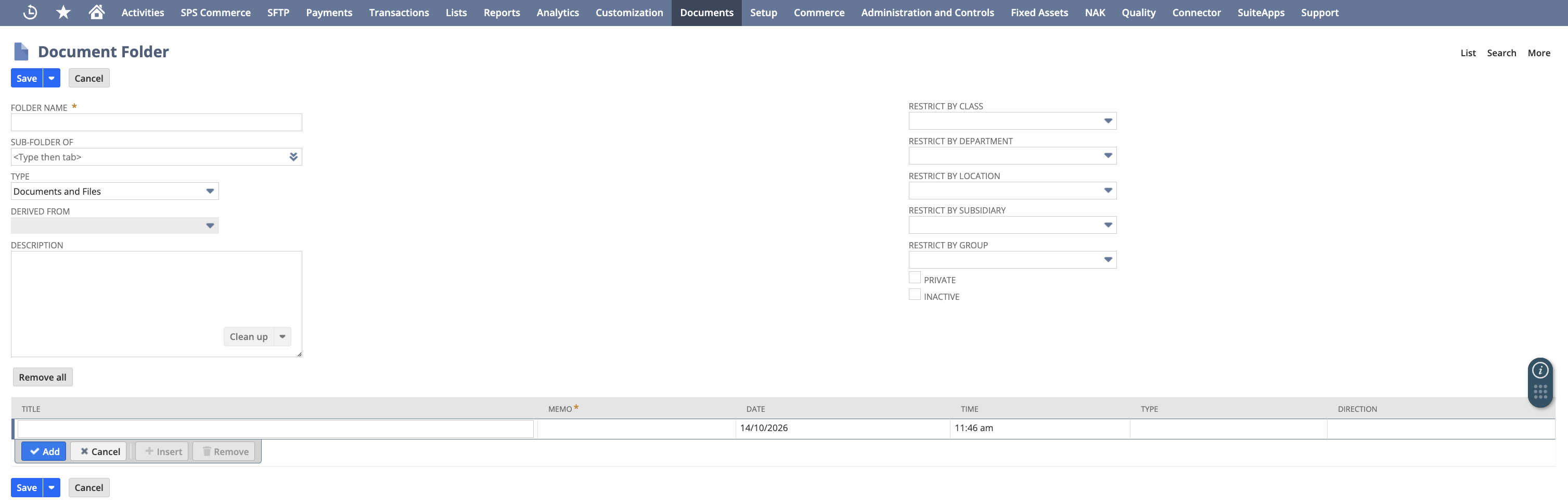
- Give the folder a name (e.g. Zudello Attachments)
- Optionally, select a Sub-Folder Of to place it inside an existing folder
- Leave Private and Inactive unchecked
- Click Save
Don't use a system folder such as SuiteScripts, SuiteApps, Templates or Attachments to Send. Choose a regular folder that you've created.
Step 4: Find the folder's Internal ID
- In the File Cabinet, find the folder you want Zudello to use
- Click Edit next to the folder

- Look at the URL of the page (everything in the address bar of your browser). The Internal ID is the number after id=
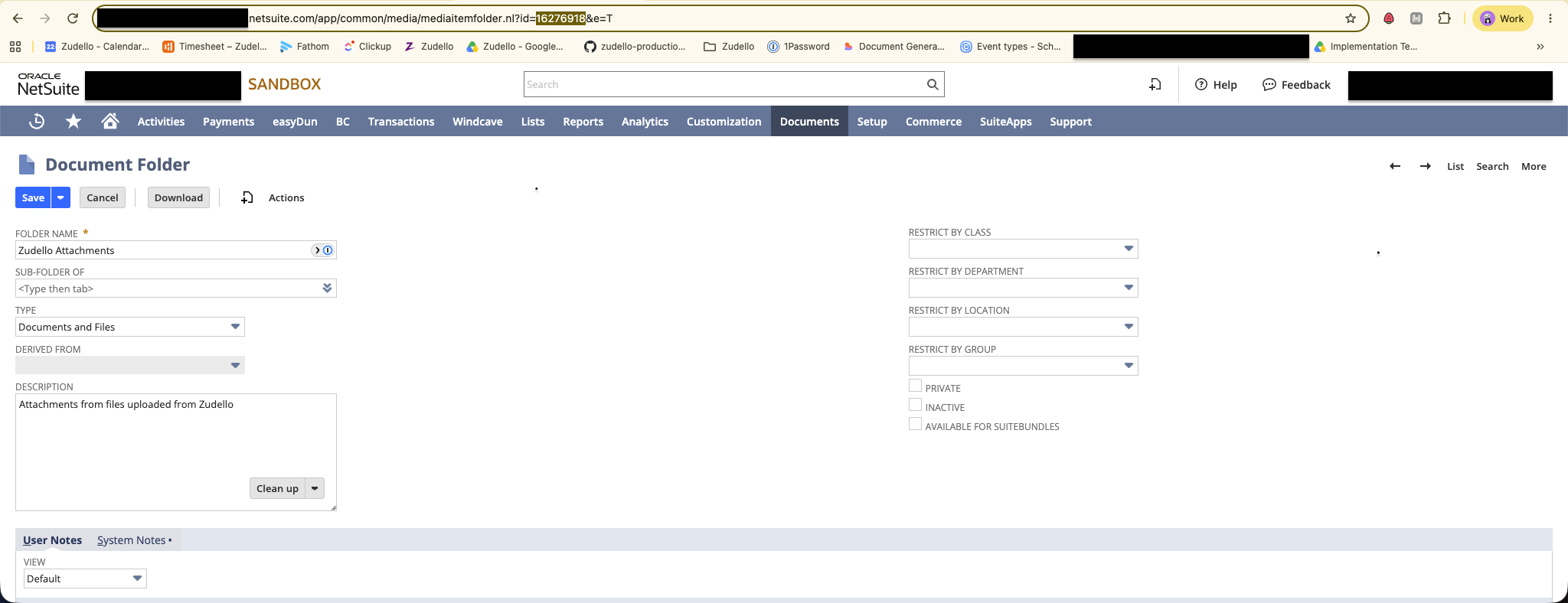
In the example above, the URL ends in mediaitemfolder.nl?id=16276918&e=T, so the Internal ID is 16276918.
If internal IDs are turned on in your Netsuite preferences, you'll also see an Internal ID column in the File Cabinet list, next to each folder. This is the same number, so you can copy it from there instead.
- Save the Internal ID
Next steps
Provide the folder's Internal ID to either your Zudello Implementation consultant or implementation@zudello.com.
Need help?
If you encounter any issues during this process, contact your Zudello Implementation consultant or Zudello support for assistance.