Business Central connection requirements
This guide walks you through the steps to integrate your Business Central instance with Zudello. The setup involves registering an application in the Microsoft Azure Portal and configuring it inside Business Central to allow secure communication between the two systems.
Before you start
You'll need:
- Administrator (Global Administrator) access within your Microsoft Entra ID (Azure) environment
- Administrator (SUPER) access within your Business Central environment
- A notepad or document to securely store the generated credentials
This process requires direct access to your Entra ID (Azure) Portal. Ensure you have the necessary permissions before beginning.
Once you've finished
You'll have completed the following setup tasks:
- Registered an application in Microsoft Entra ID (Azure) and granted it the required API permissions
- Registered the application inside Business Central
- Generated or gathered the following connection credentials, ready to provide to Zudello:
- Directory (tenant) ID
- Application (client) ID
- Client secret
- Environment name
- Company name/s
The credentials you generate provide access to your Business Central environment.
Only save and share them through secure channels. For added security, we recommend using a secure password sharing tool such as 1Password or LastPass.
Step 1: Register an application in Microsoft Entra ID
This step generates your client ID and client secret from the Azure Portal.
- Go to portal.azure.com and log in with the same account you use to login to Business Central
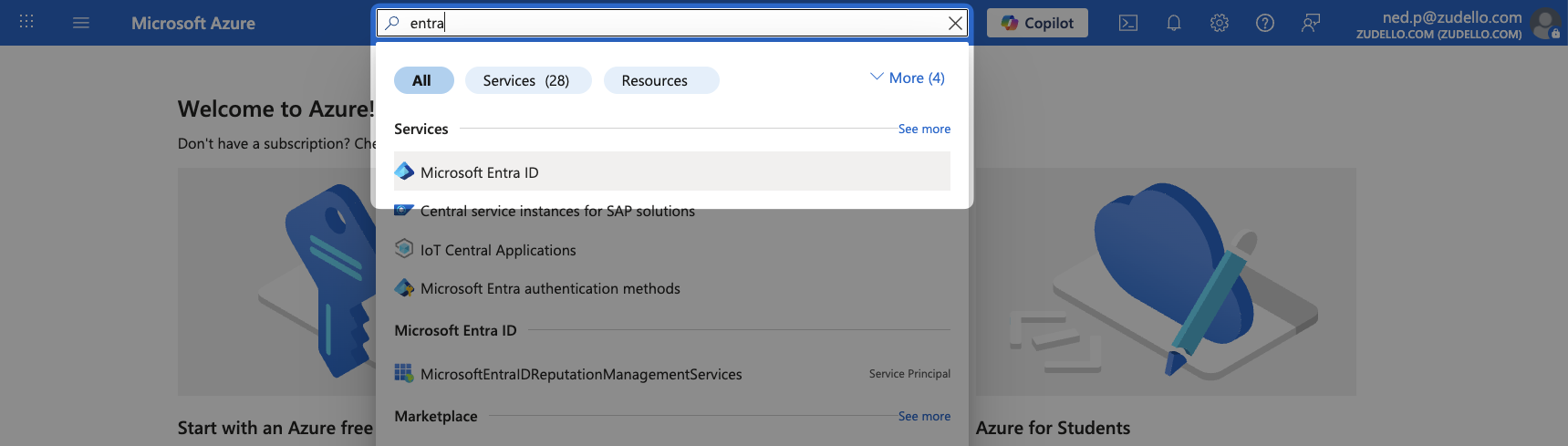
- Search for Entra and select Microsoft Entra ID from the list
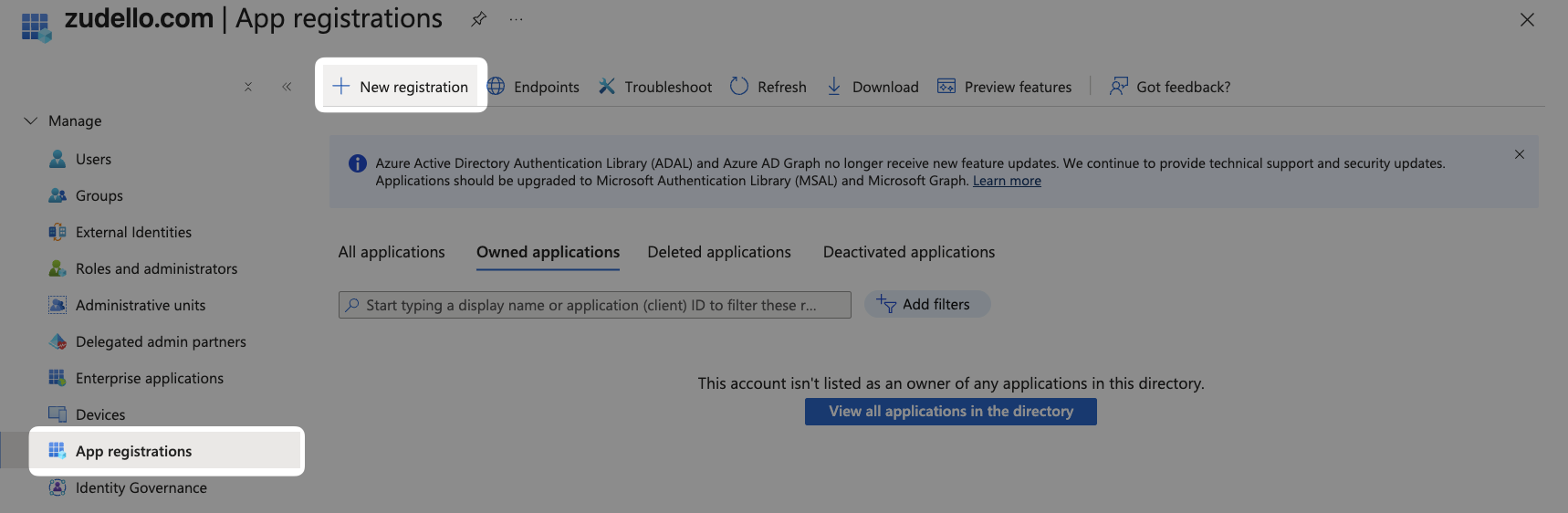
- In the left menu, click App registrations
- Click New registration
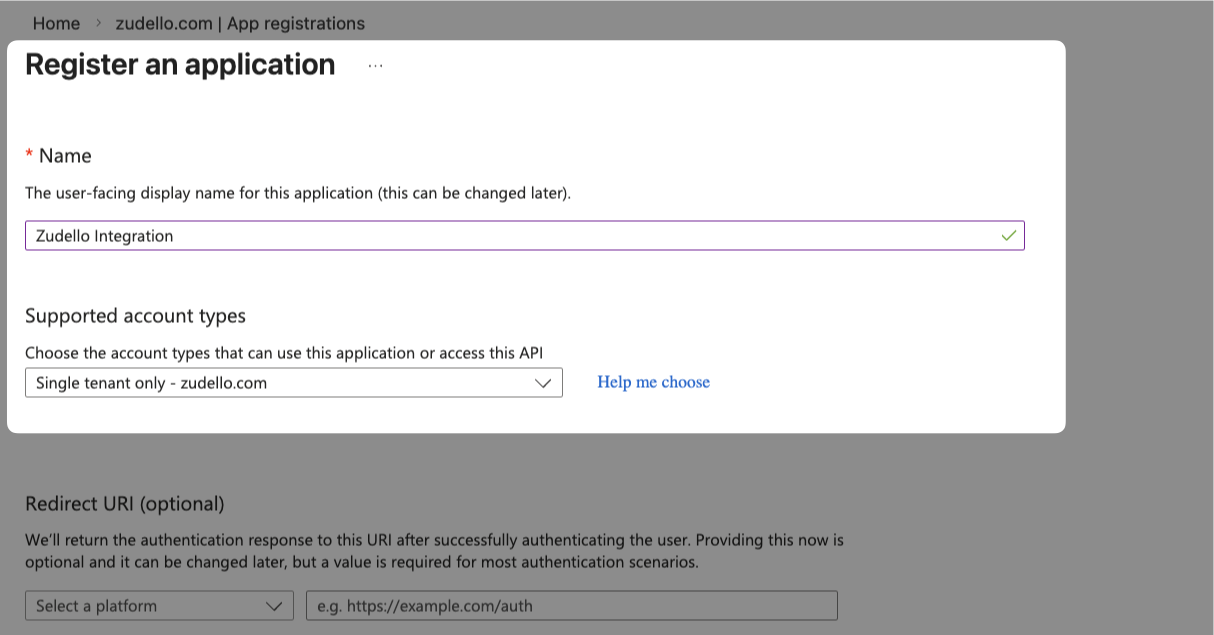
- Fill in the following details:
- Name: Zudello Integration
- Supported account types: Select Single tenant only
- Redirect URI: Leave this section blank
- Click Register
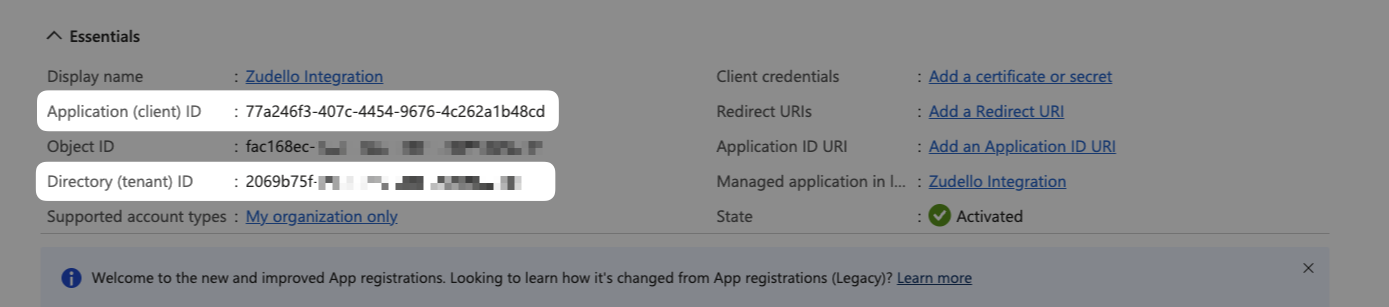
- Once the new application has been created, copy the following details and save them securely:
- Application (client) ID
- Directory (tenant) ID
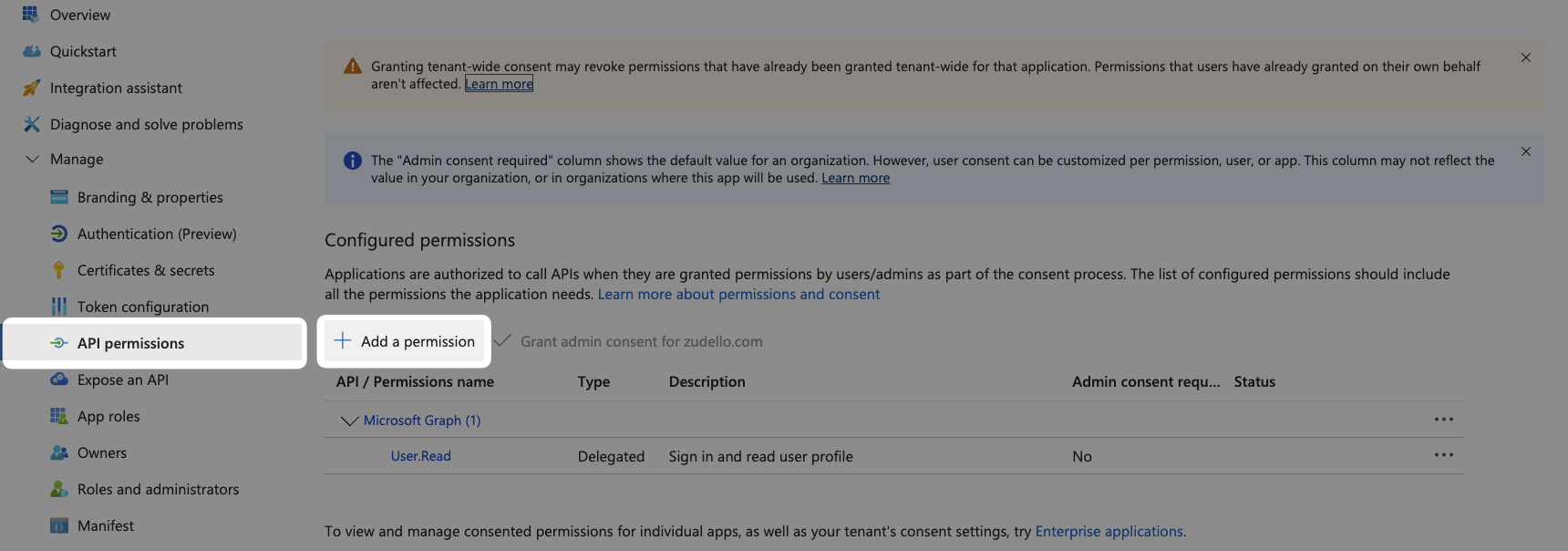
- In the left menu, click API permissions
- Click Add a permission
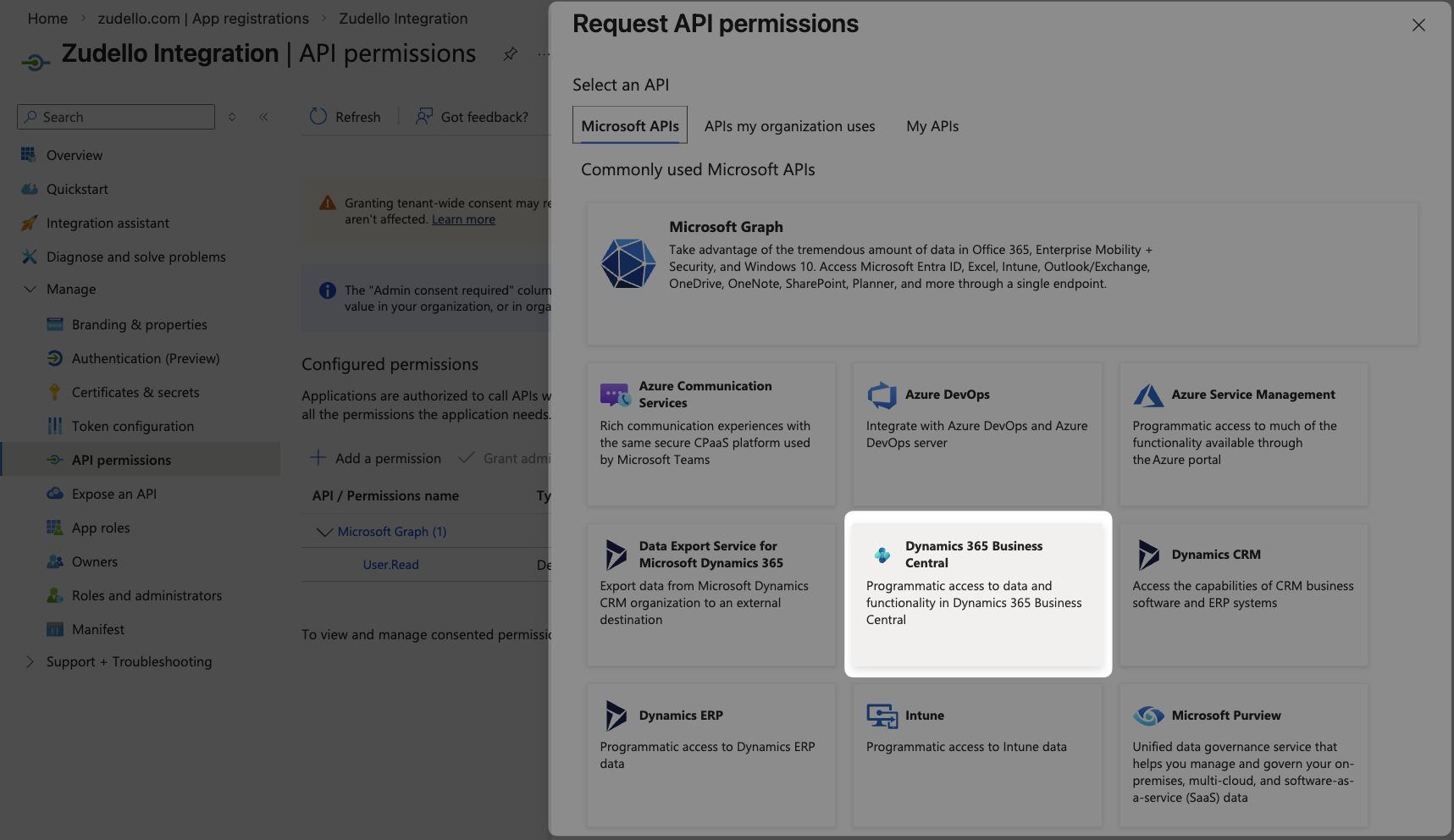
- Find and select Dynamics 365 Business Central
- Select Application permissions
- Select API.ReadWrite.All
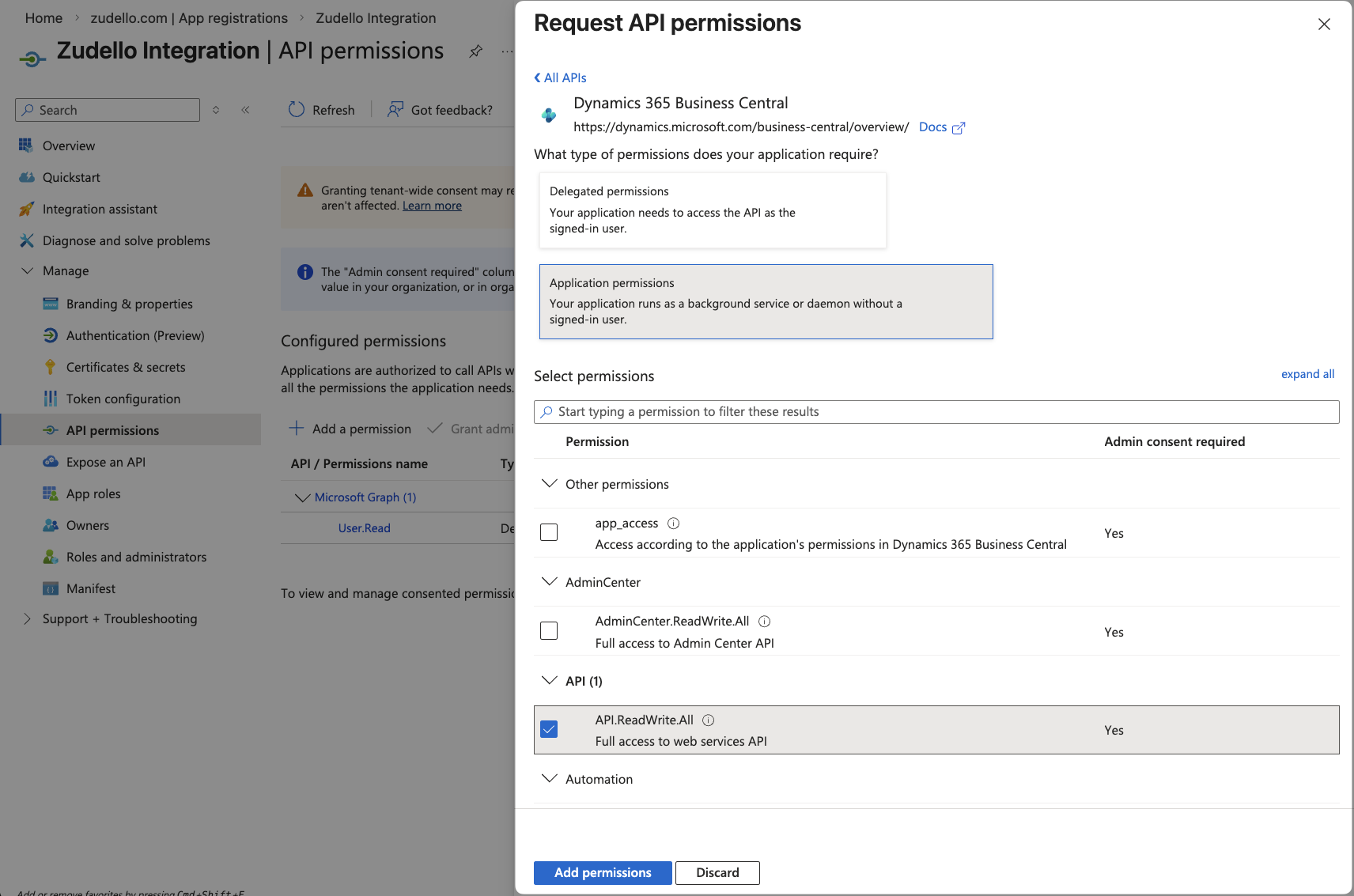
- Click Add permissions
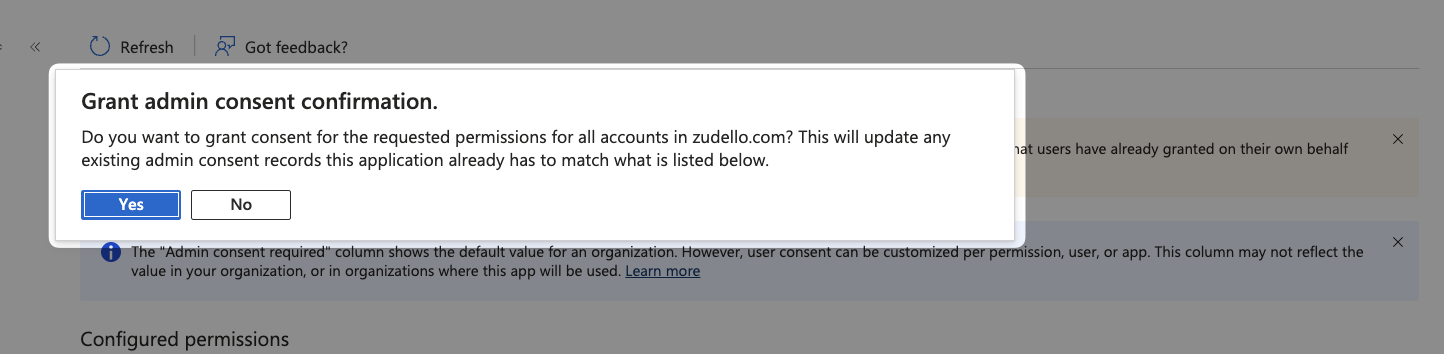
- The new permission will appear in the list of permissions. Click Grant admin consent for TENANT NAME
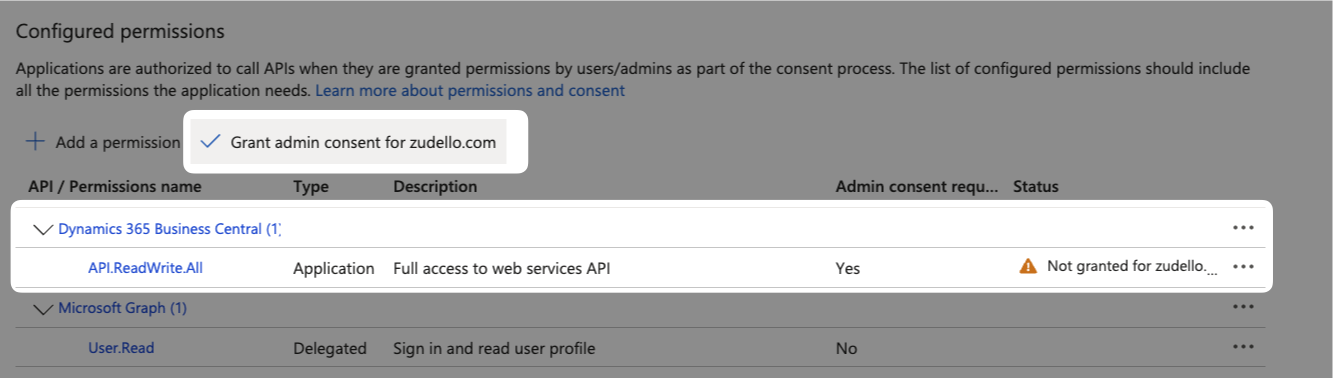
- Click Yes to confirm
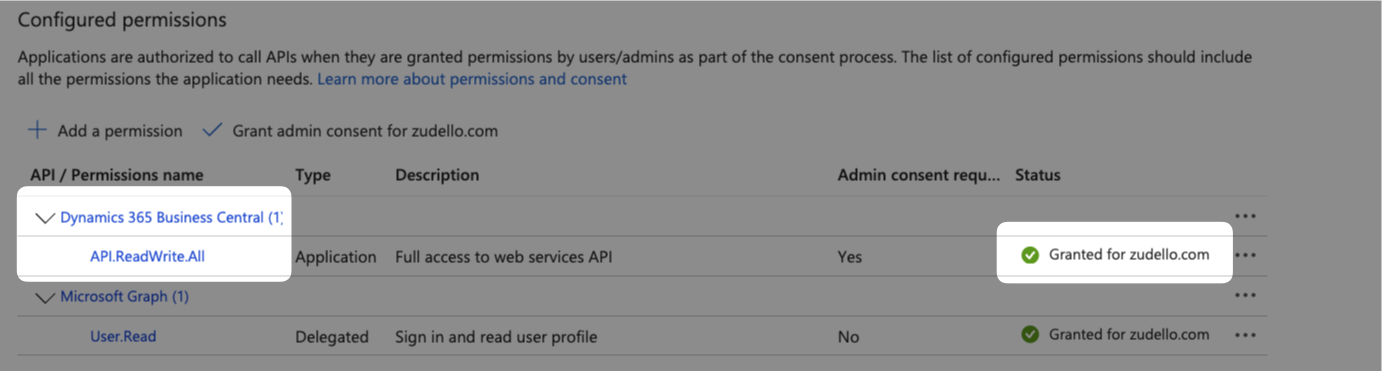
- The API.ReadWrite.All permission should show as Granted for TENANT NAME
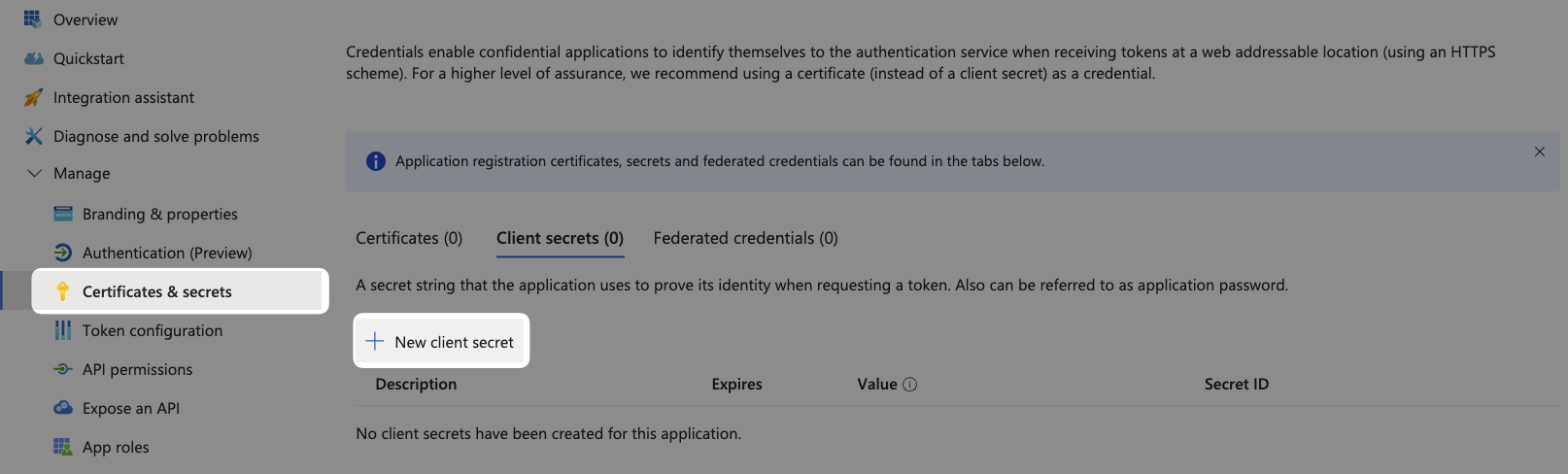
- In the left menu, click Certificates & secrets
- Click New client secret
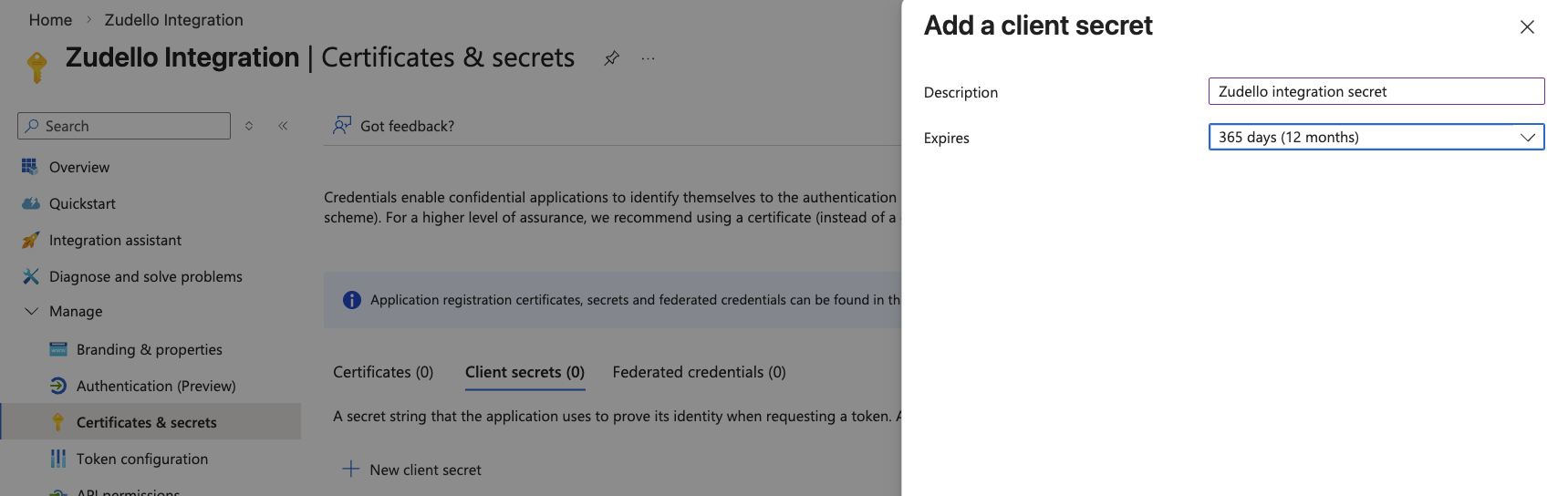
- Fill in the following details:
- Description: Zudello integration secret
- Expires: Set this in line with your organisation's security policy. We recommend 365 days.
The client secret will stop working after it expires, which will cause the integration to stop working.
Take note of the expiry date and contact support@zudello.com at least 30 days before the expiry date to arrange a refresh.
- Click Add
- The new secret will appear in the list of Client secrets. Copy the client secret Value and save it securely.
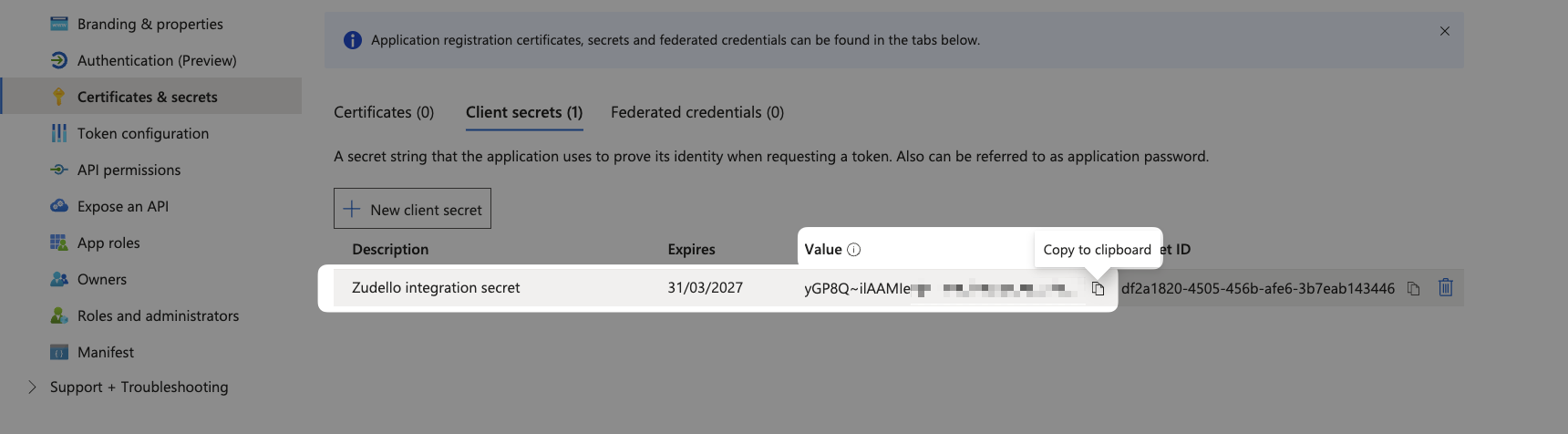
Copy the secret value immediately and save it securely.
This value cannot be retrieved again once you navigate away from this page.
Ensure that you copy the secret value, not the secret ID.
Step 2: Register the application in Business Central
The Zudello-Business Central integration uses service-to-service authentication, which also requires the application to be registered inside Business Central.
- Log in to your Business Central environment
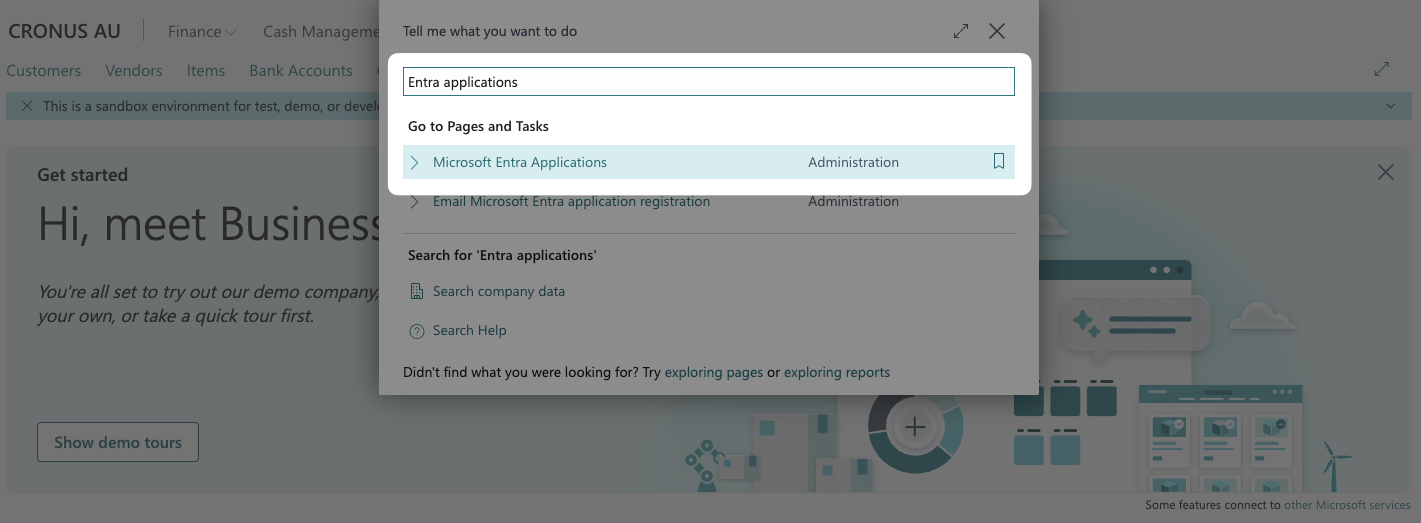
- Search for Entra applications, and click Microsoft Entra Applications
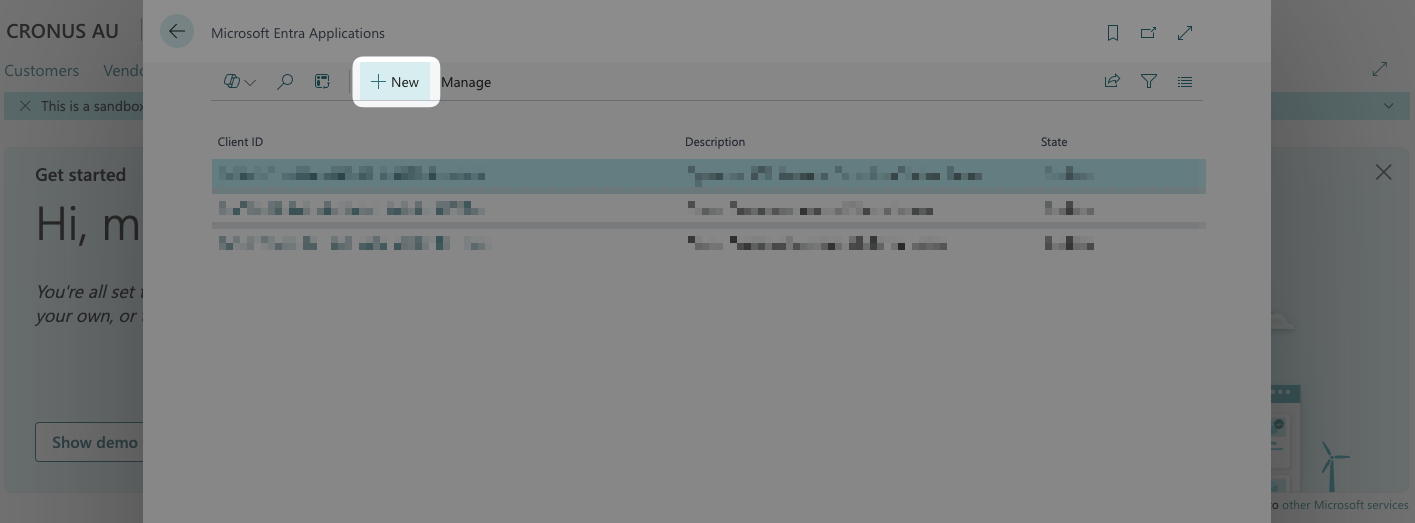
- Click New
- Enter the following information:
- Client ID: Paste your application (client) ID (from step 7 above)
- Description: Zudello Integration
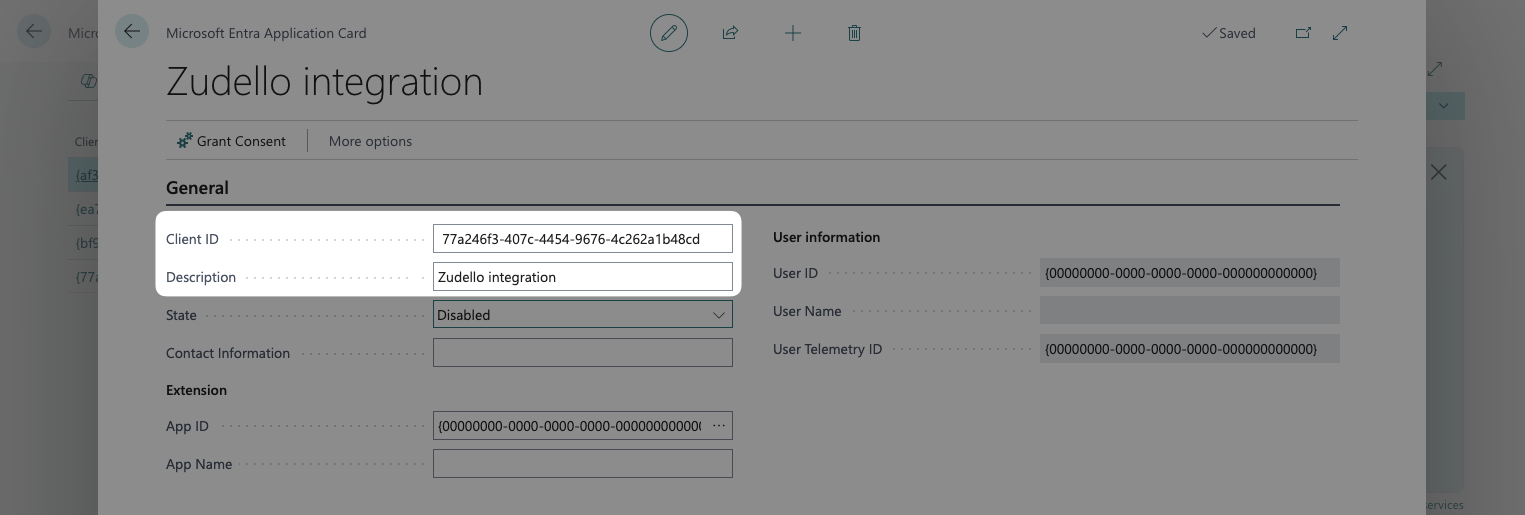
- Change the State to Enabled
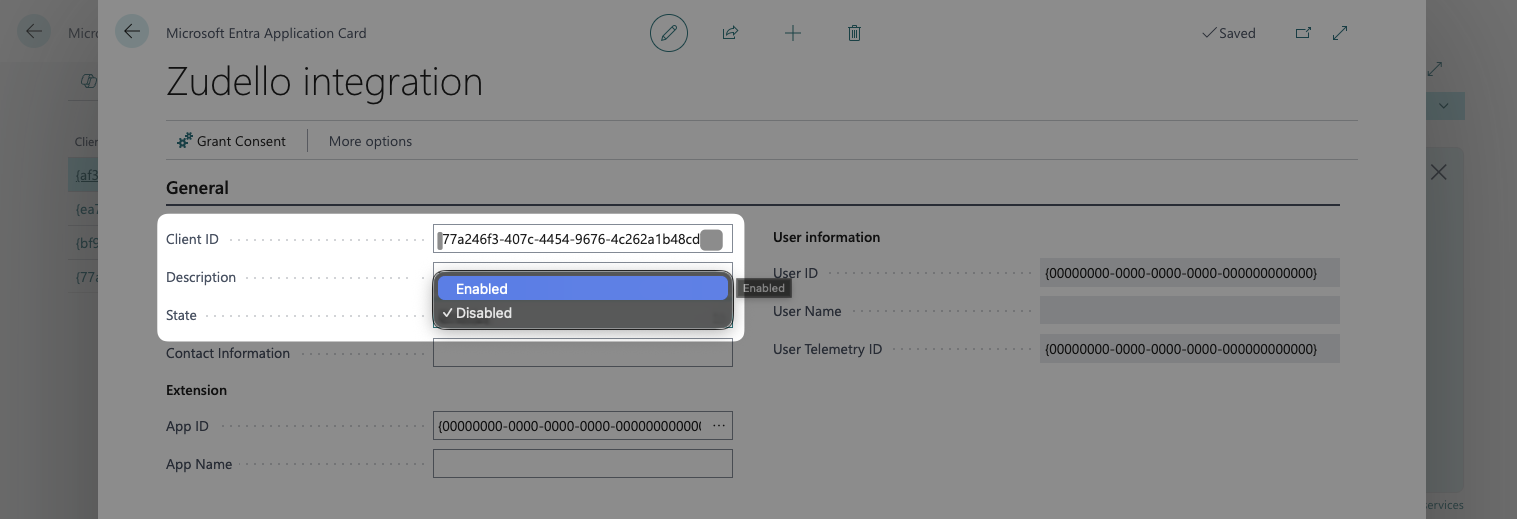
- Business Central will automatically populate the user ID and username.
- Under User Permission Sets, assign the D365 FULL ACCESS permission set, or whichever permissions are permitted by your organisation's security policy.
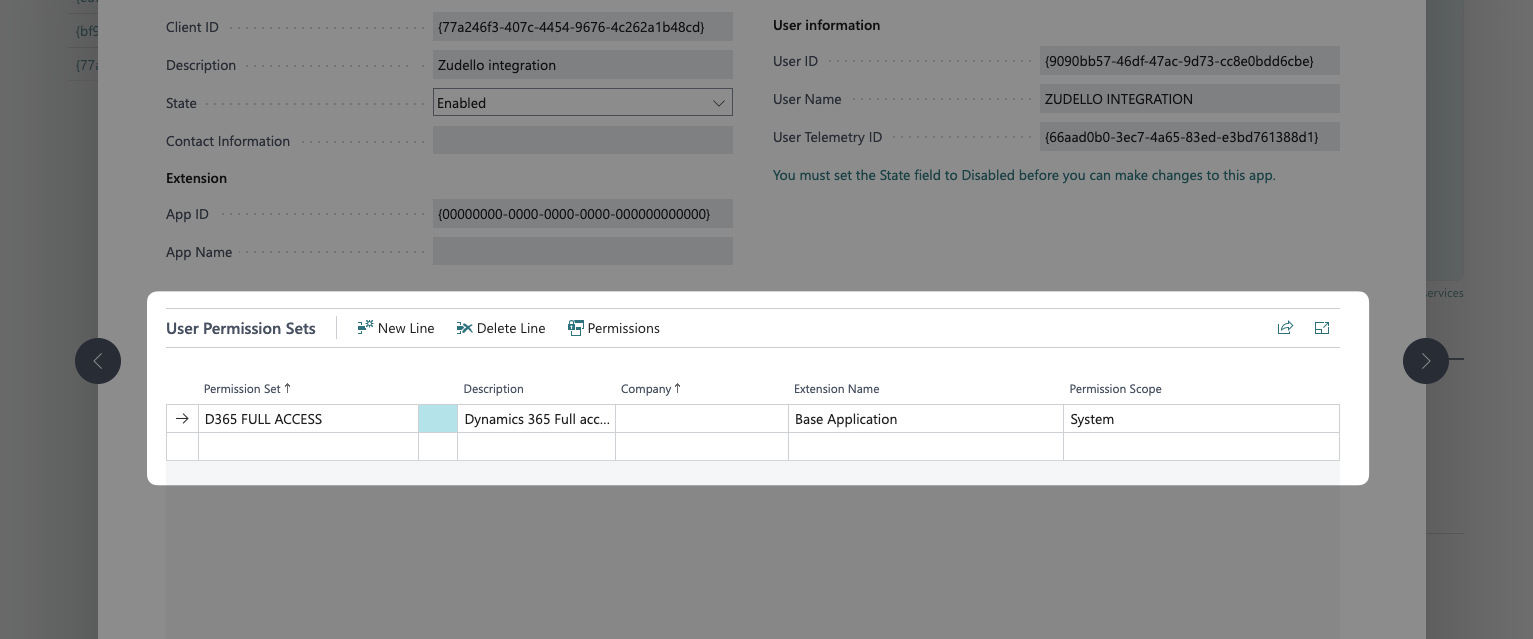
Overly restrictive permissions may stop the integration from functioning as expected.
If you have questions about the required permissions please contact your Zudello implementation consultant.
- Click Save
Step 3: Find your environment name and company name(s)
Environment name
Your environment name appears in your URL when you are logged into Business Central. It is typically something like Production or Sandbox, and appears before your company name.
Example
https://businesscentral.dynamics.com/Sandbox/?company=CRONUS%20AU
In this example, the environment name is Sandbox.
To find your environment name:
- Log into Business Central
- Look at the URL, identify the environment name, and save it in your secure note.
If you are unsure of the environment name, simply provide your Zudello implementation consultant with the full URL that appears when you are logged into your Business Central environment.
Company name/s
Your company name appears in the top-right corner of your Business Central interface.
- Click the company name to see all available companies
- Take note of the name of each company you would like Zudello to connect to, copying all formatting and spelling exactly
Step 4: Provide credentials to Zudello
Once you've completed the setup, securely provide the following information to your Zudello implementation consultant or implementation@zudello.com:
- Directory (tenant) ID (from Step 1.7)
- Application (client) ID (from Step 1.7)
- Client secret value (from Step 1.21)
- Environment name (from Step 3.2)
- Company name/s (from Step 3.2)
These credentials provide access to your Business Central environment. Only share them through secure channels with authorised Zudello representatives. For added security, we recommend using a secure password sharing tool such as 1Password or LastPass.
What's next?
After providing your credentials to Zudello:
- Your implementation consultant will configure the integration
- Test connections will be established
- Data synchronisation will be set up according to your business requirements
- You'll receive confirmation when the integration is ready for use
Need help?
If you encounter any issues during this process:
- Contact your Zudello implementation consultant
- Email implementation@zudello.com
- Reach out to Zudello support for assistance